OBJ Viewer
Open Any .obj File in Your Browser
This OBJ viewer shows a Wavefront .obj file in 3D right in your browser, whether it came out of a photogrammetry app, a CAD program, Blender or a low-poly asset pack.
Try a sample
Drop the file in and orbit, zoom and pan around it while the bar underneath lists its name, size and triangle count. OBJ is plain text, which makes it easy to export and hard to judge from the file alone; a quick look here tells you whether a scan is complete, whether a part stands the right way up and how dense the mesh is. As a Wavefront OBJ viewer it reads geometry, normals, objects and the per-vertex colours many scanners write. A companion .mtl file and its texture images are not loaded, so a model without vertex colours appears in plain light grey or white. Nothing is uploaded and nothing has to be installed, so this online OBJ viewer works just as well on a locked-down work laptop, a school computer or a phone. When the model needs to move on, Save as GLB, STL, OBJ or FBX converts it on the spot.
Sample files to open in the OBJ viewer
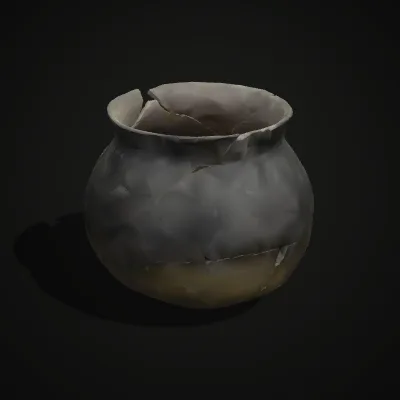
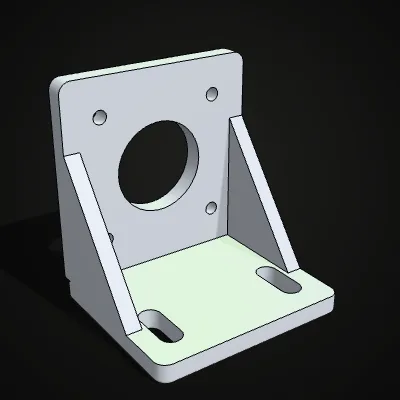
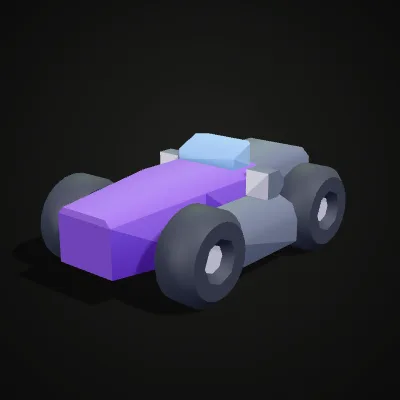
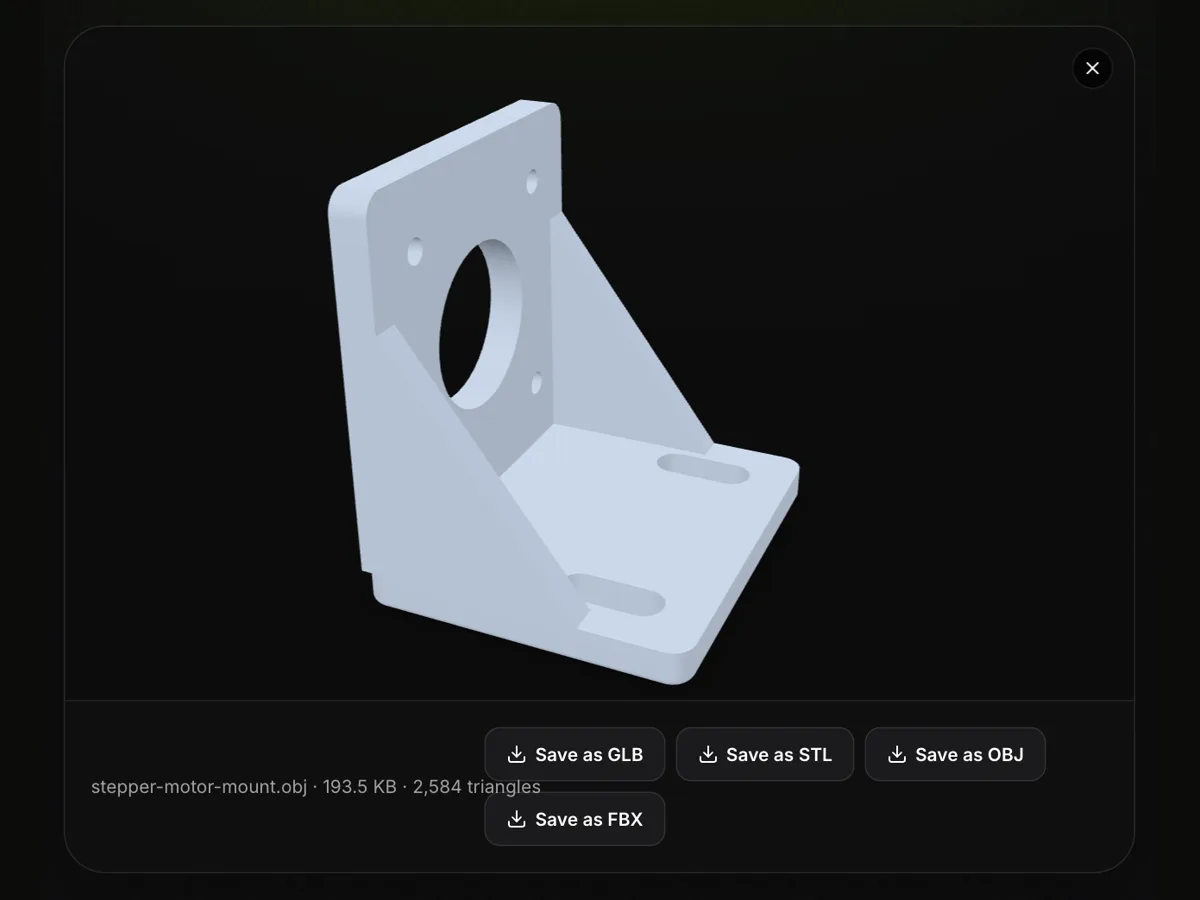
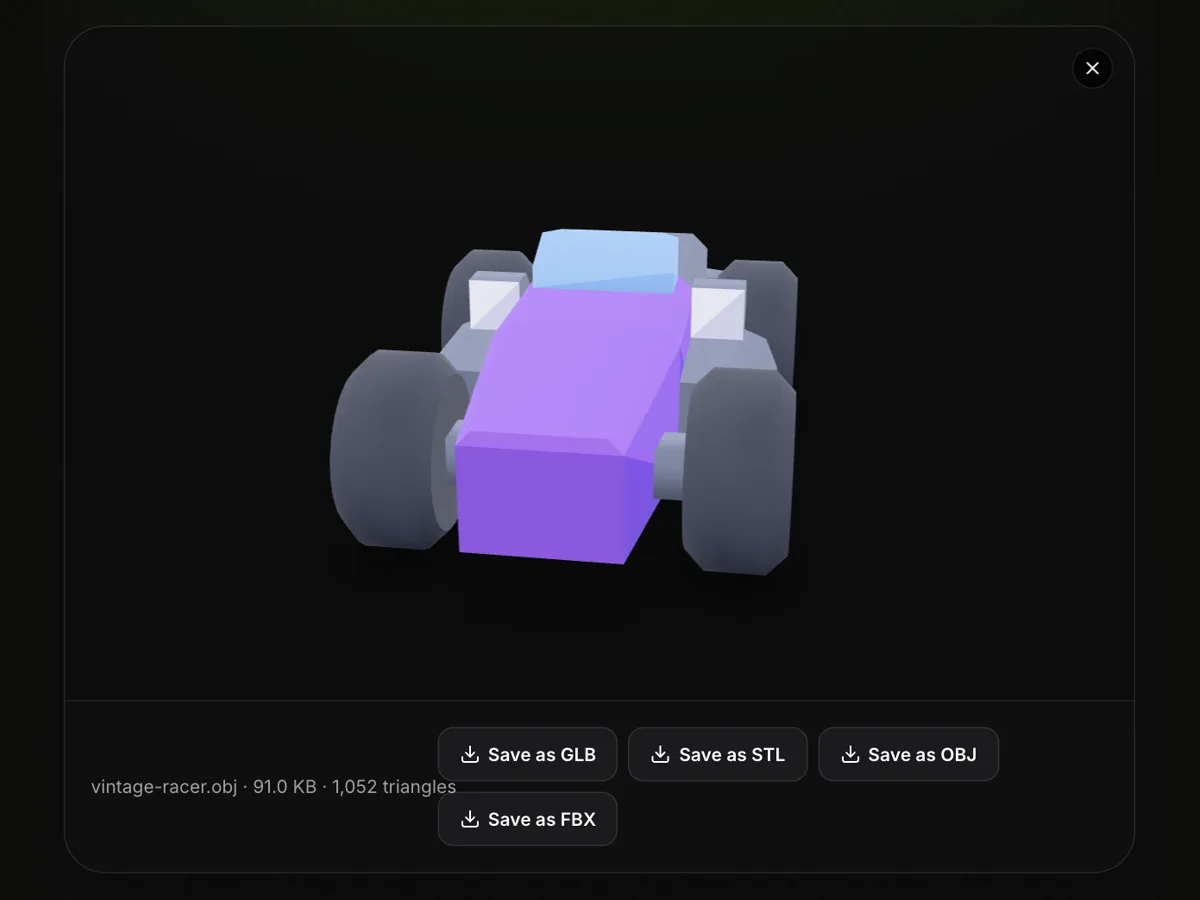
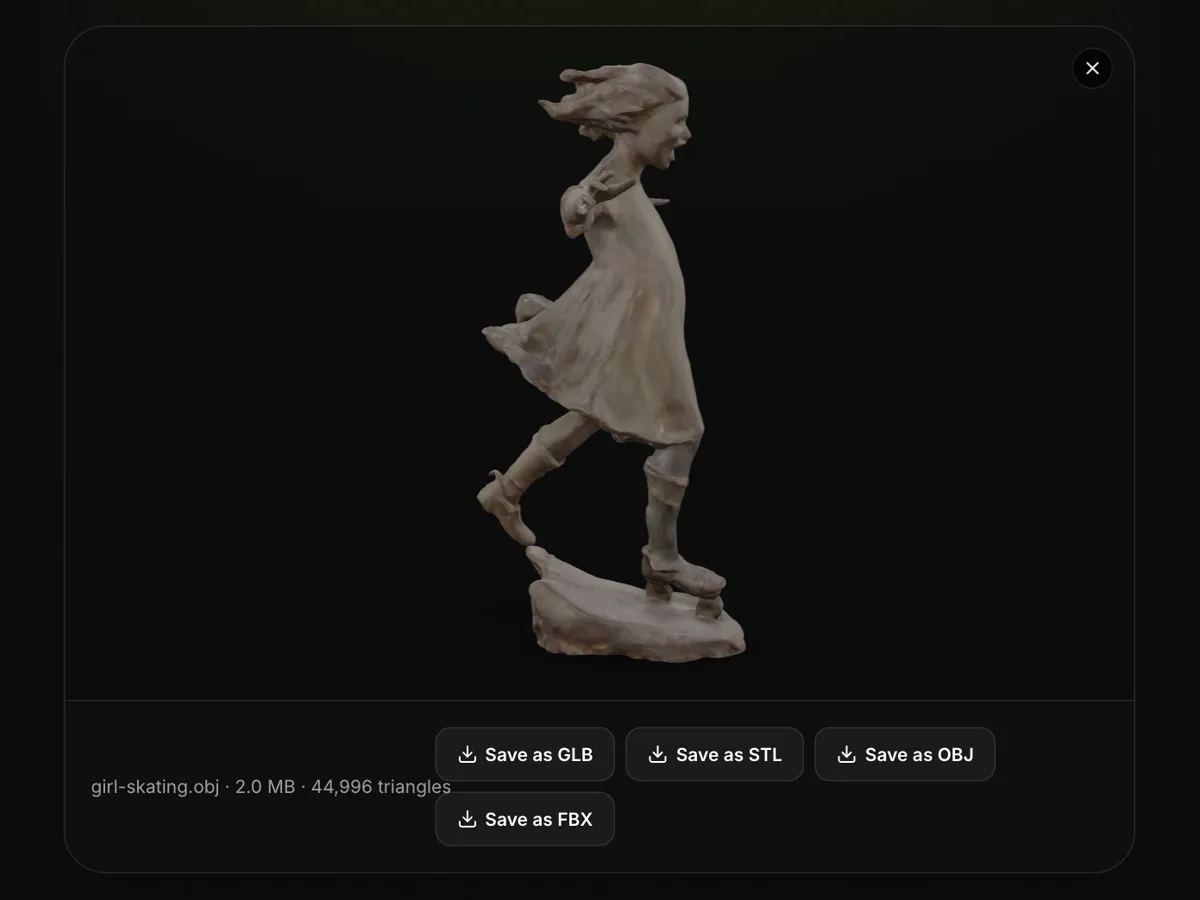
Three OBJ files from three different worlds: a museum photogrammetry scan with its colours stored in the vertices, a stepper-motor bracket exported from CAD in millimetres, and a low-poly toy car split into five named objects. Load one with Try it, or save the .obj with Download.
The OBJ viewer with a colour scan, start to finish
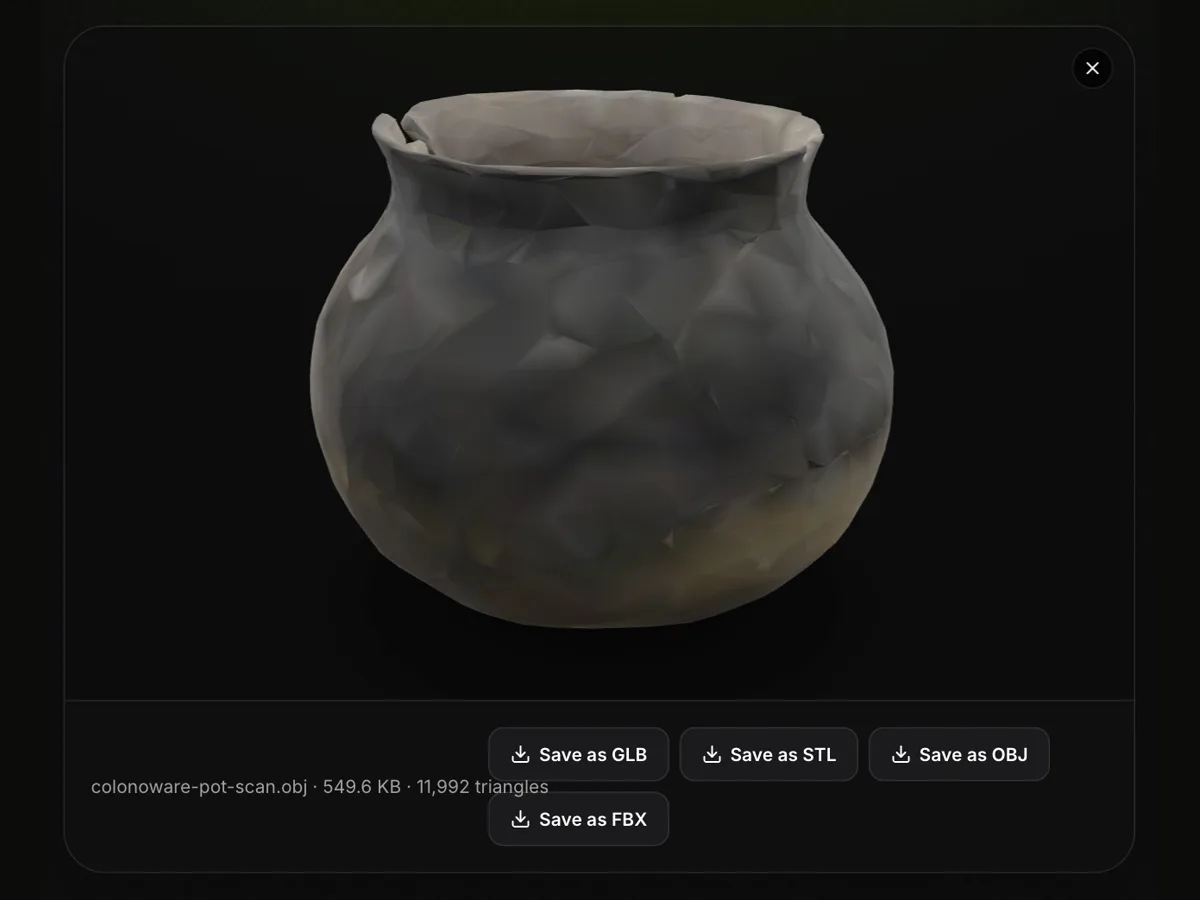
In this 15-second clip the colonoware-pot-scan.obj sample is dragged into the empty viewer and opens as a dark clay pot coloured from its vertex data: colonoware-pot-scan.obj · 549.6 KB · 11,992 triangles. The pot is tilted to show its chipped rim and zoomed in close, the four Save as buttons are hovered, and Save as FBX downloads colonoware-pot-scan.fbx.
What the OBJ file viewer shows, plus other OBJ models
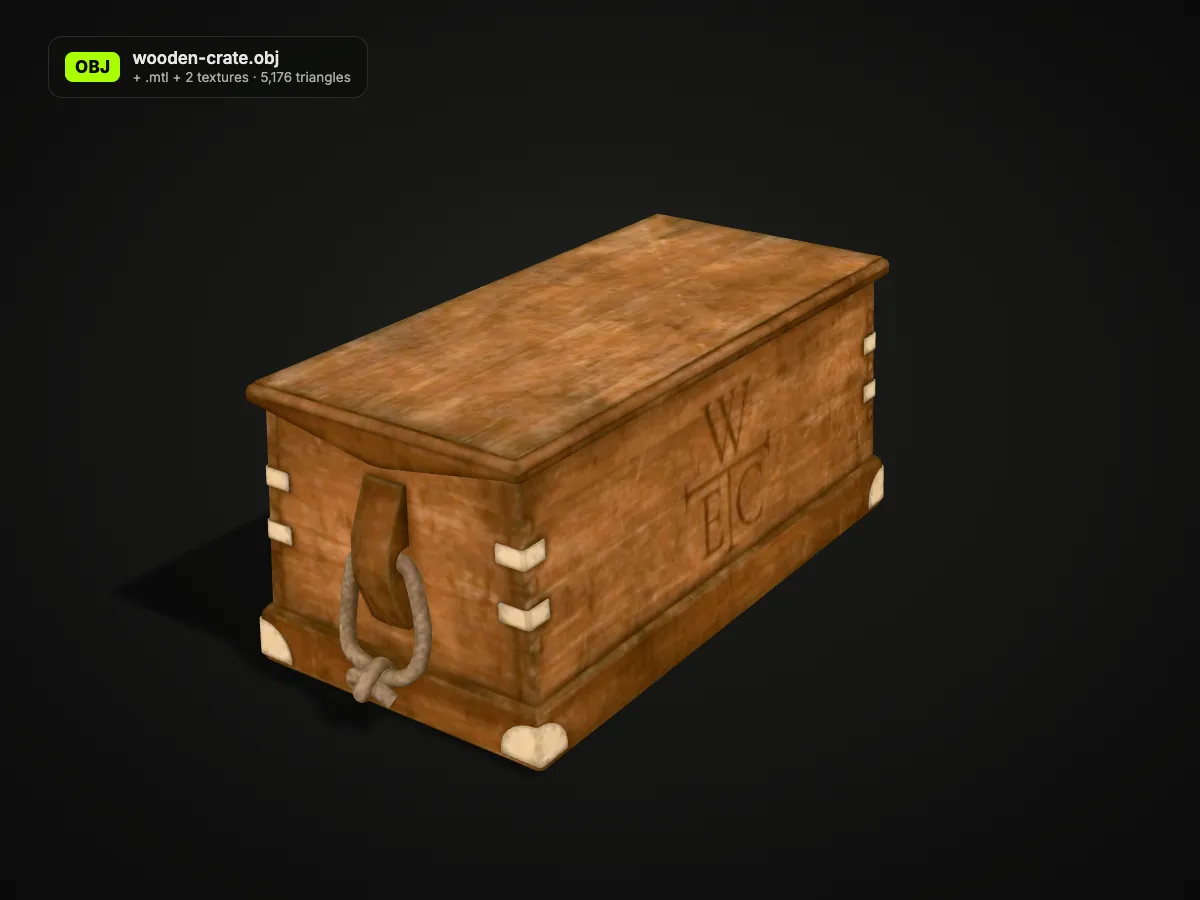
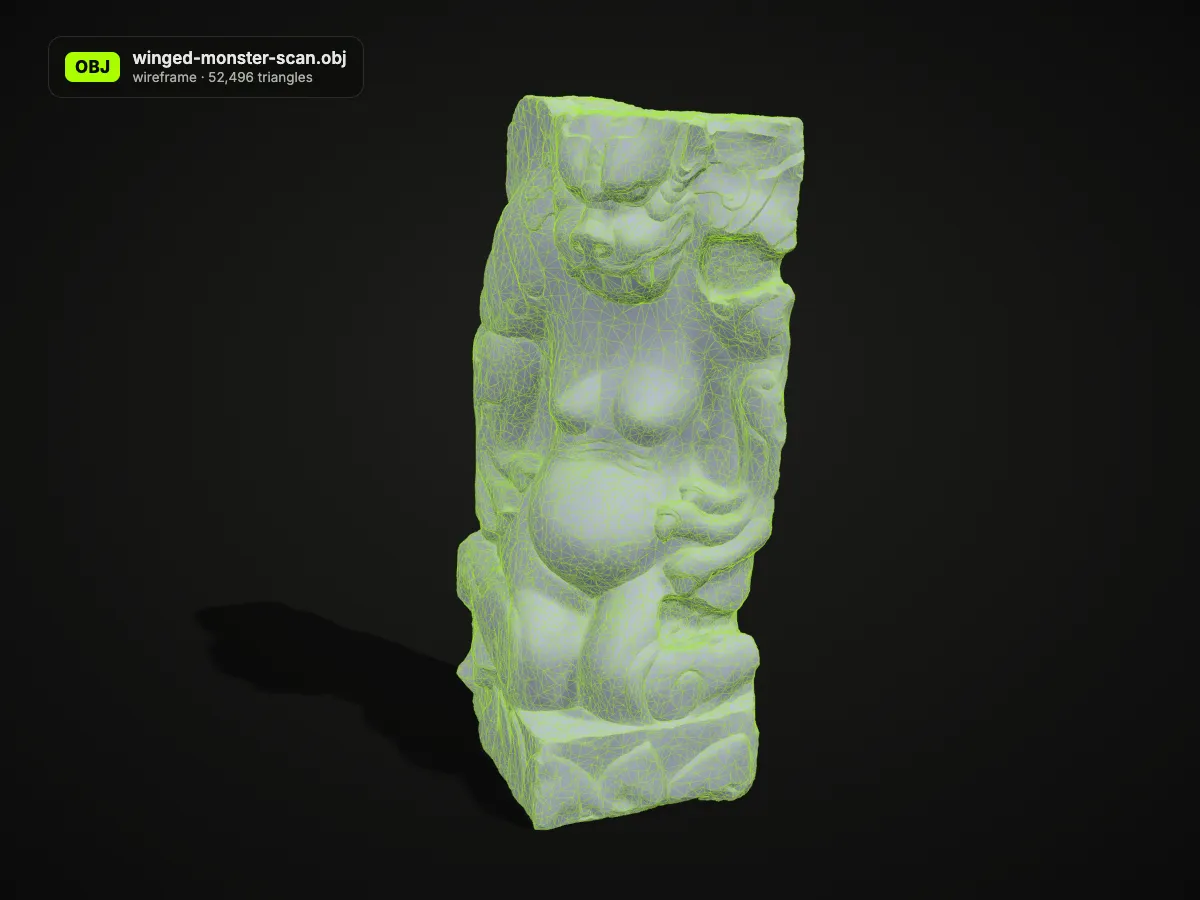
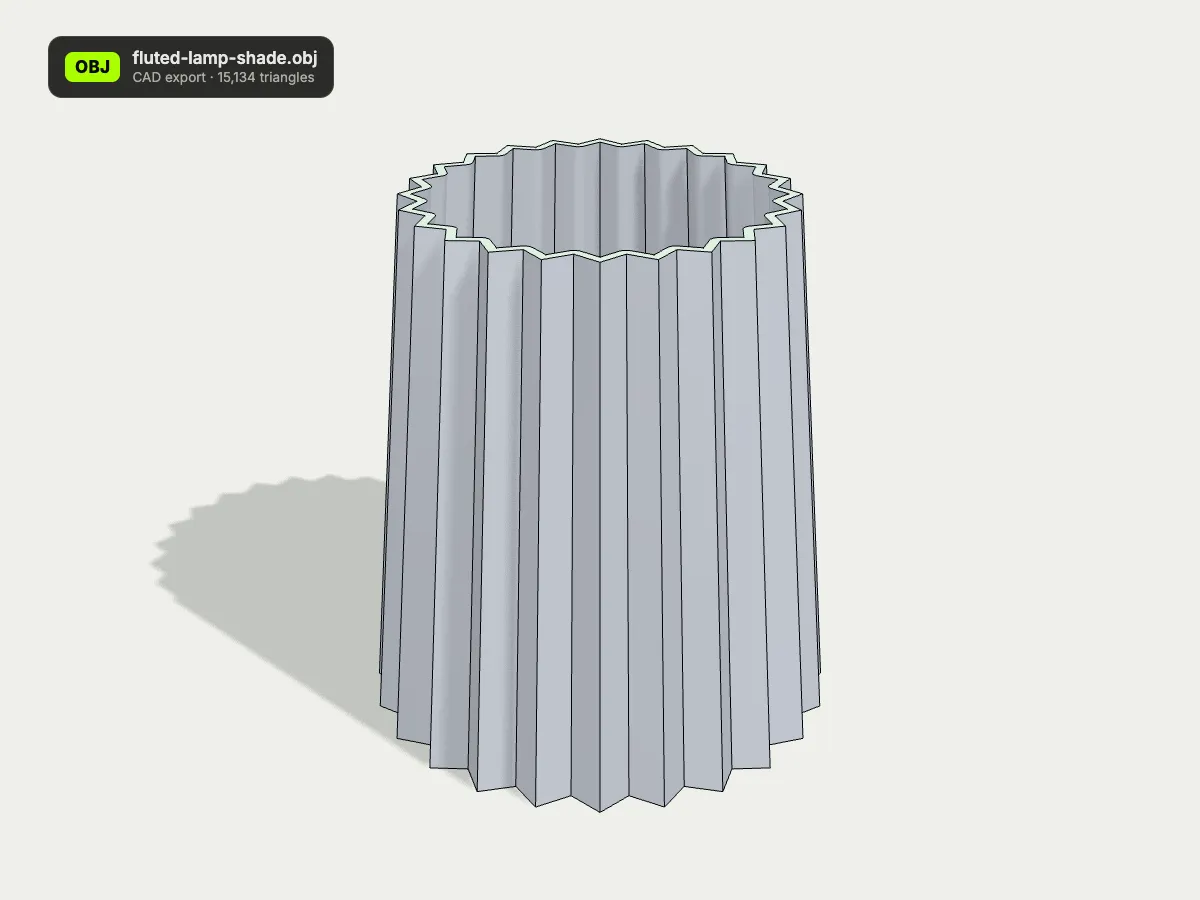
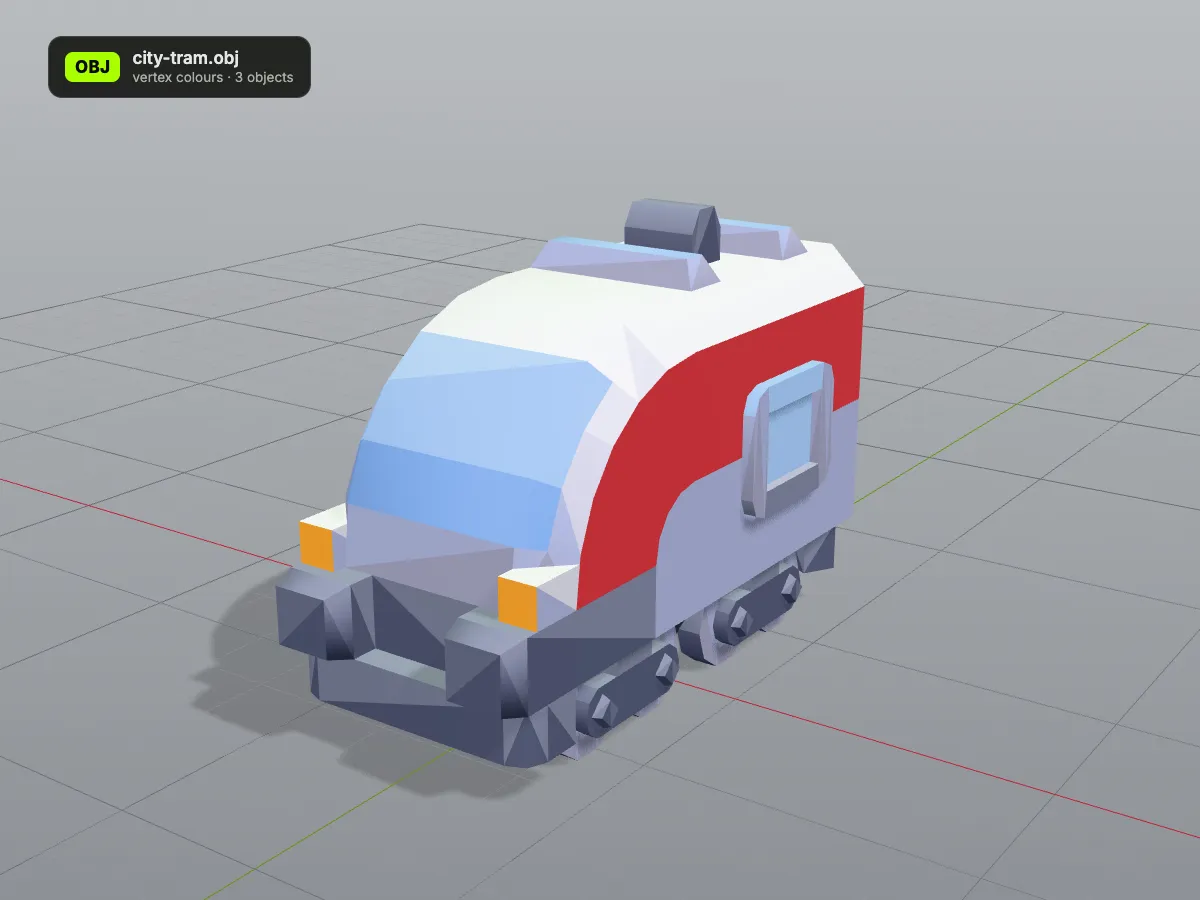
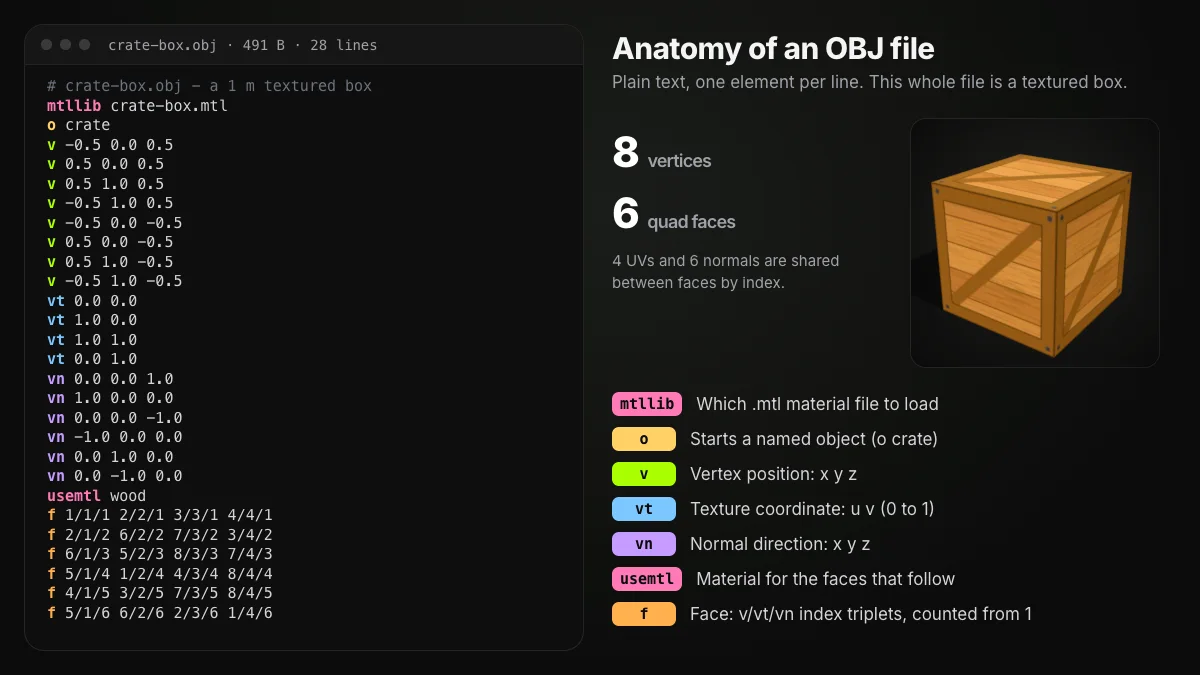
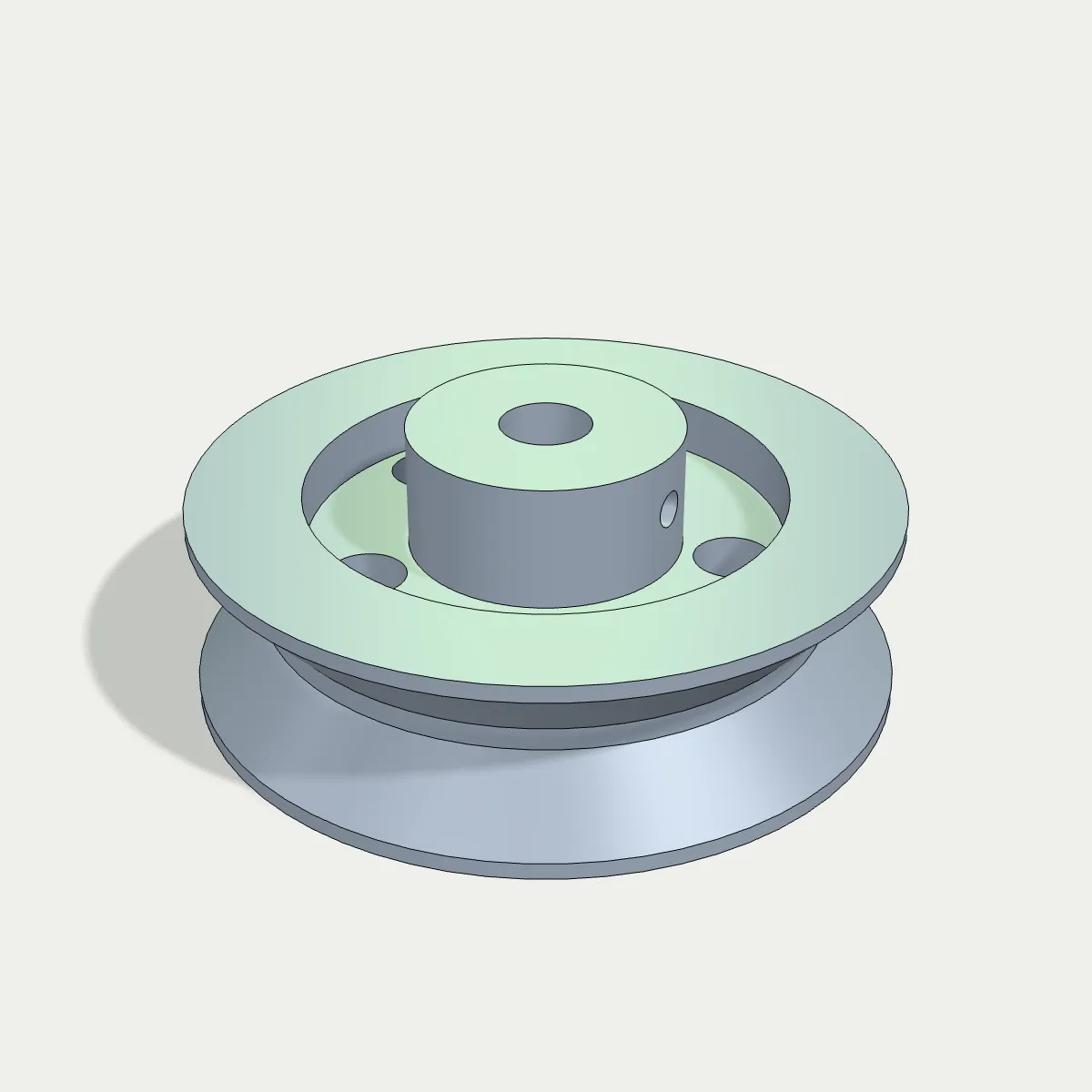
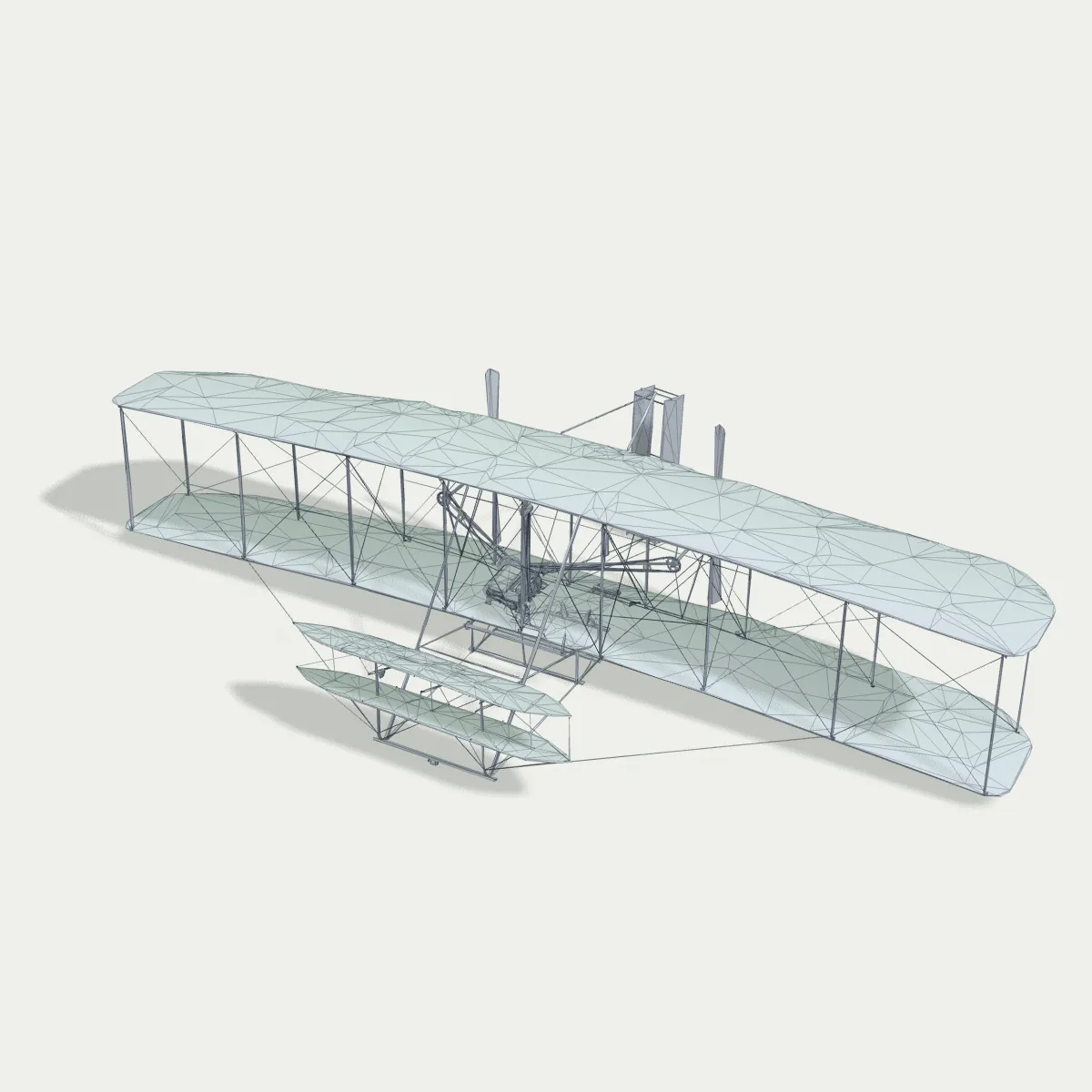
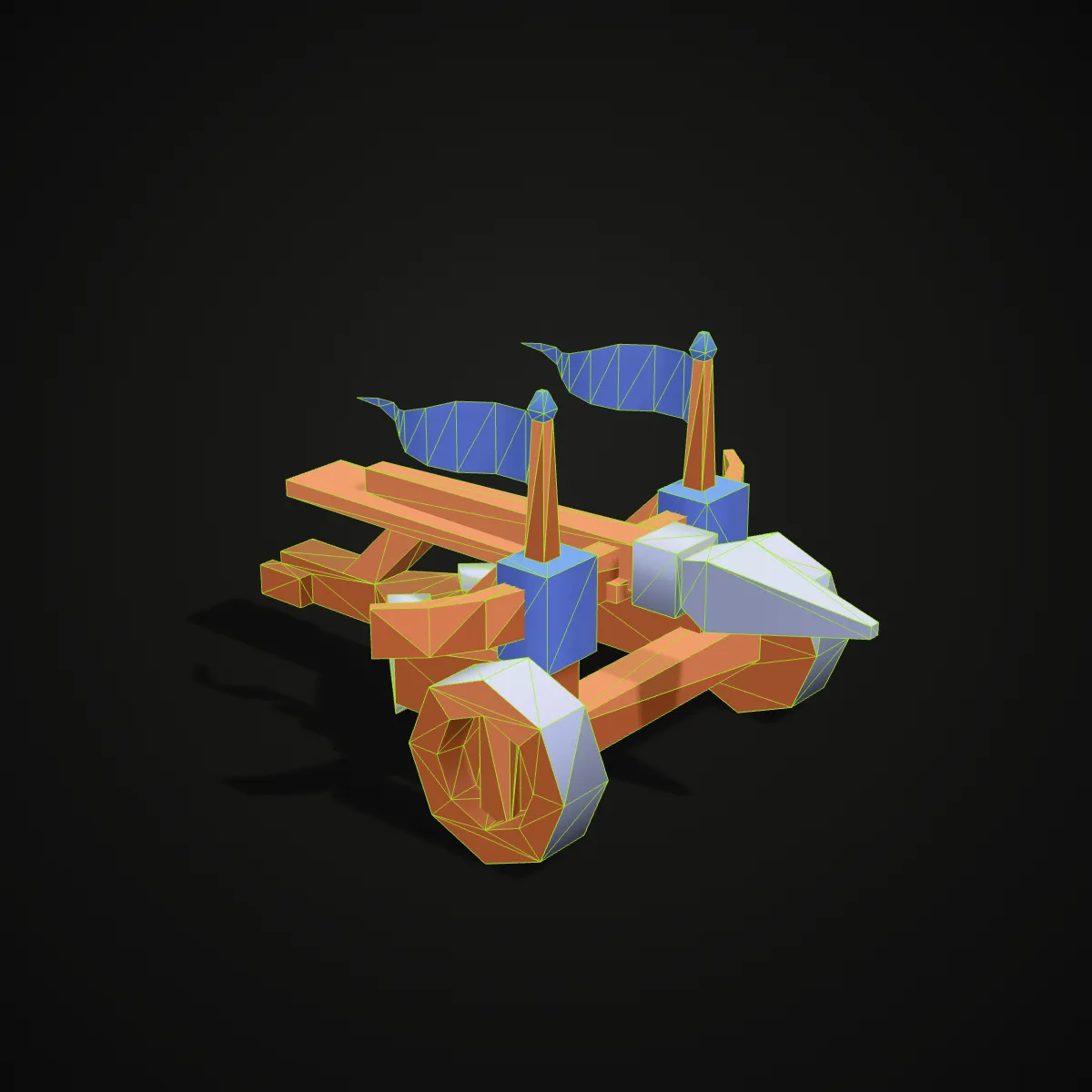
Four screenshots of the OBJ file viewer with real files loaded, then four renders of other OBJ files: a textured crate that depends on its .mtl, a dense scan drawn as wireframe, a CAD lamp shade and a vertex-coloured tram. The renders show the files themselves; the viewer has no wireframe mode and does not apply .mtl textures.
How to open an OBJ file online
- 11
Choose the .obj
Drop the file onto the OBJ viewer or press Open OBJ File. Only the .obj itself is needed; the .mtl and texture images can stay where they are.
- 22
Inspect it from every side
Drag to orbit, scroll or pinch to zoom, right-drag or two-finger drag to pan. The triangle count under the view shows how heavy the mesh is.
- 33
Convert it if you need to
Save as STL for a slicer (turned so it stands upright on the bed), GLB for the web, FBX for a game engine, or a tidy OBJ that keeps its vertex colours.
What the OBJ viewer reads from a .obj file
OBJ is a text format with optional extras. Here is which parts of it the viewer uses, and what each Save as button carries over.
| OBJ data | In the viewer | After Save as |
|---|---|---|
| Vertices and faces (v, f) | Drawn and counted as triangles; quads and larger polygons are split | Kept by GLB, STL, OBJ and FBX |
| Normals (vn) | Used when present; when missing, worked out from the faces, which gives a faceted look | GLB, OBJ and FBX write normals; STL stores one per triangle |
| Objects and groups (o, g) | Shown together as one model; there is no part list | GLB, OBJ and FBX keep one mesh per object; STL joins them |
| Vertex colours (v x y z r g b) | Shown, as on the pot scan and toy car samples | Kept by GLB, OBJ and FBX; dropped by STL |
| Material library (.mtl) | Not read; models without vertex colours appear light grey or white | Save as OBJ writes no .mtl |
| Texture coordinates (vt) | Read, but no texture appears, since the images are linked through the .mtl | Kept by GLB, OBJ and FBX |
| Units and up axis | OBJ stores no unit; the model is treated as Y-up | STL is turned Z-up for slicers; every format keeps the numbers as they are |
Where an OBJ file viewer helps
Checking 3D scans
Photogrammetry and LiDAR scanning apps commonly export OBJ. Open the scan in this .obj file viewer to check the shape for holes and stray fragments before cleaning or printing it; colour shows when the scan stores it in the vertices.
Reviewing CAD exports
Plenty of CAD and engineering tools can save a mesh as OBJ. Use the OBJ viewer to see whether a part arrived complete and how finely it was tessellated before it goes to a slicer or a renderer.
Previewing game and low-poly assets
Low-poly packs and older asset libraries often ship OBJ. Preview a model, note its triangle budget, then save a GLB for a web game or an FBX for Unity.
Coursework and quick sharing
Students and teachers can open the OBJ from an assignment on any school computer, with no Blender install and no admin rights needed.
OBJ viewer FAQ
Drag the .obj onto the OBJ viewer on this page. Any up-to-date browser opens it on Windows, Mac, Chromebook or Linux, with nothing to download and no account.
Because the viewer opens the .obj by itself and does not read the .mtl file, which is where OBJ keeps its colours and the names of its texture images. The geometry always shows; colour appears only when it is stored in the vertices, as many scanners do. To see the textures, open a GLB version of the model, which packs them into one file.
No. The shape, the normals and any vertex colours all live inside the .obj, and that is everything this OBJ viewer uses. The .mtl only matters in programs that apply materials and textures, such as Blender or a game engine.
Yes. Your browser opens the file on your own device and it is never uploaded, so body scans, client parts and coursework stay with you. The viewer is free and needs no sign-up.
Yes, the OBJ viewer online works in a phone’s browser: tap Open OBJ File and pick the file, then orbit with one finger and pinch to zoom. Scans with hundreds of thousands of triangles can be too much for a phone’s memory.
Check three things: that you picked the .obj itself and not a .zip that contains it (unzip it first), that it is under 200 MB, and that it actually has faces. A point-cloud OBJ made only of vertices leaves nothing to draw.
Guides for this tool
Related tools



Want an OBJ of your own?
Turn a photo into a 3D model with Ship3D’s AI generator, download it as OBJ and open it in this OBJ viewer.
Free to sign up, no credit card required. Try it once for free.