AI STL Generator
Words In, STL Out
Ship3D's AI STL generator turns a written description into a 3D model you can download as an STL file and open in your slicer.
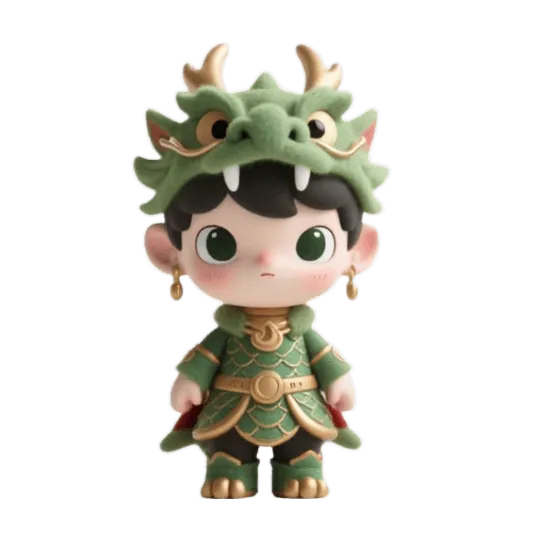
Drag to rotate · scroll to zoom
Type the object you want to print, such as a figurine, a planter or a tabletop miniature, and Tripo H3.1, the text-to-3D model from Tripo AI, builds a textured mesh from your words alone in about three minutes: no photo, no CAD skills. The AI STL generator then shows the model in a 3D preview, so you can spin it and judge the shape before you download anything. STL is the first download button, with GLB, OBJ and USDZ next to it, and the STL conversion runs in your browser at no extra cost. Text to STL works best for single, chunky objects that stand on a flat base; thin, floating or interlocking parts usually need some work in the slicer. Generating needs an account and uses credits; the button shows the cost before you start.
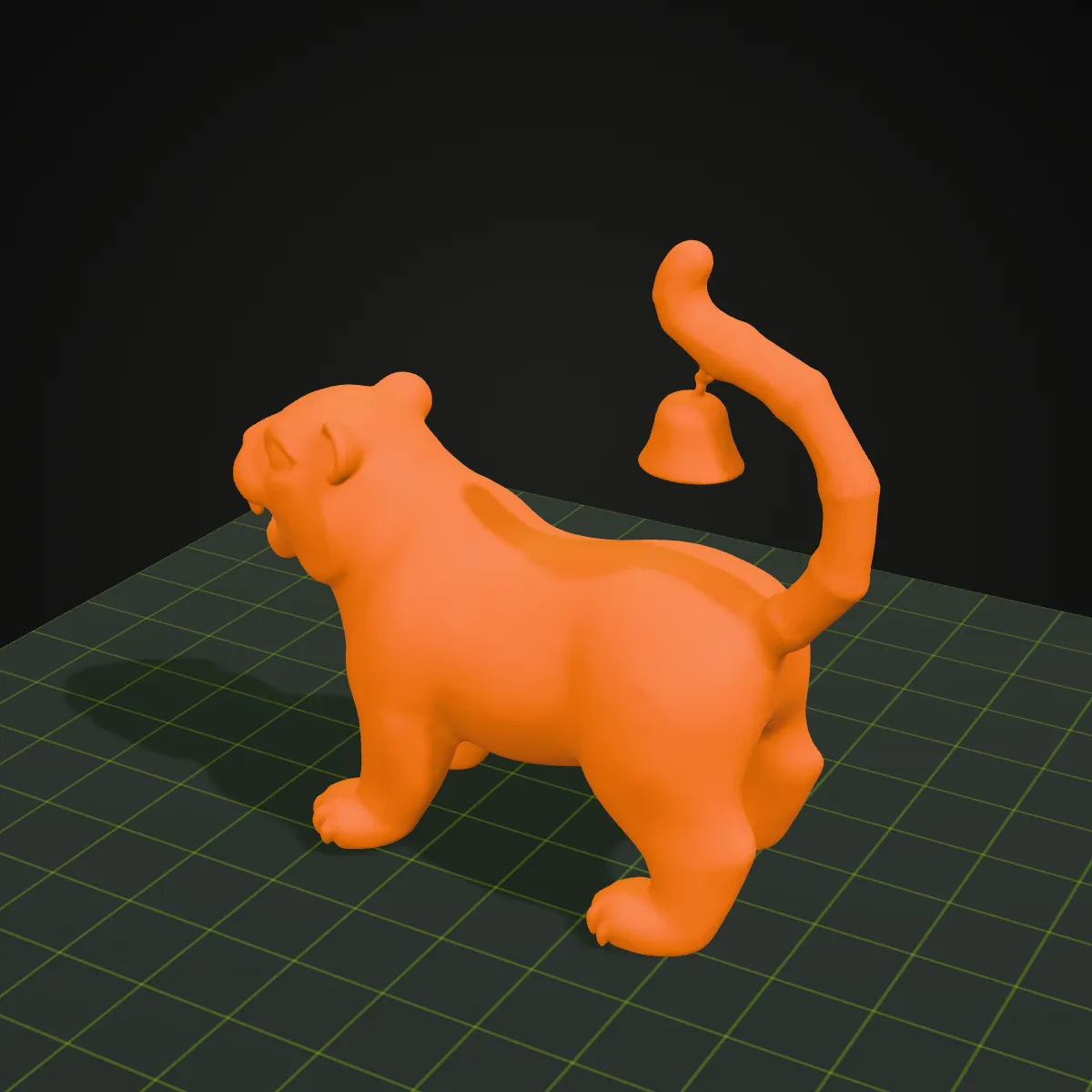
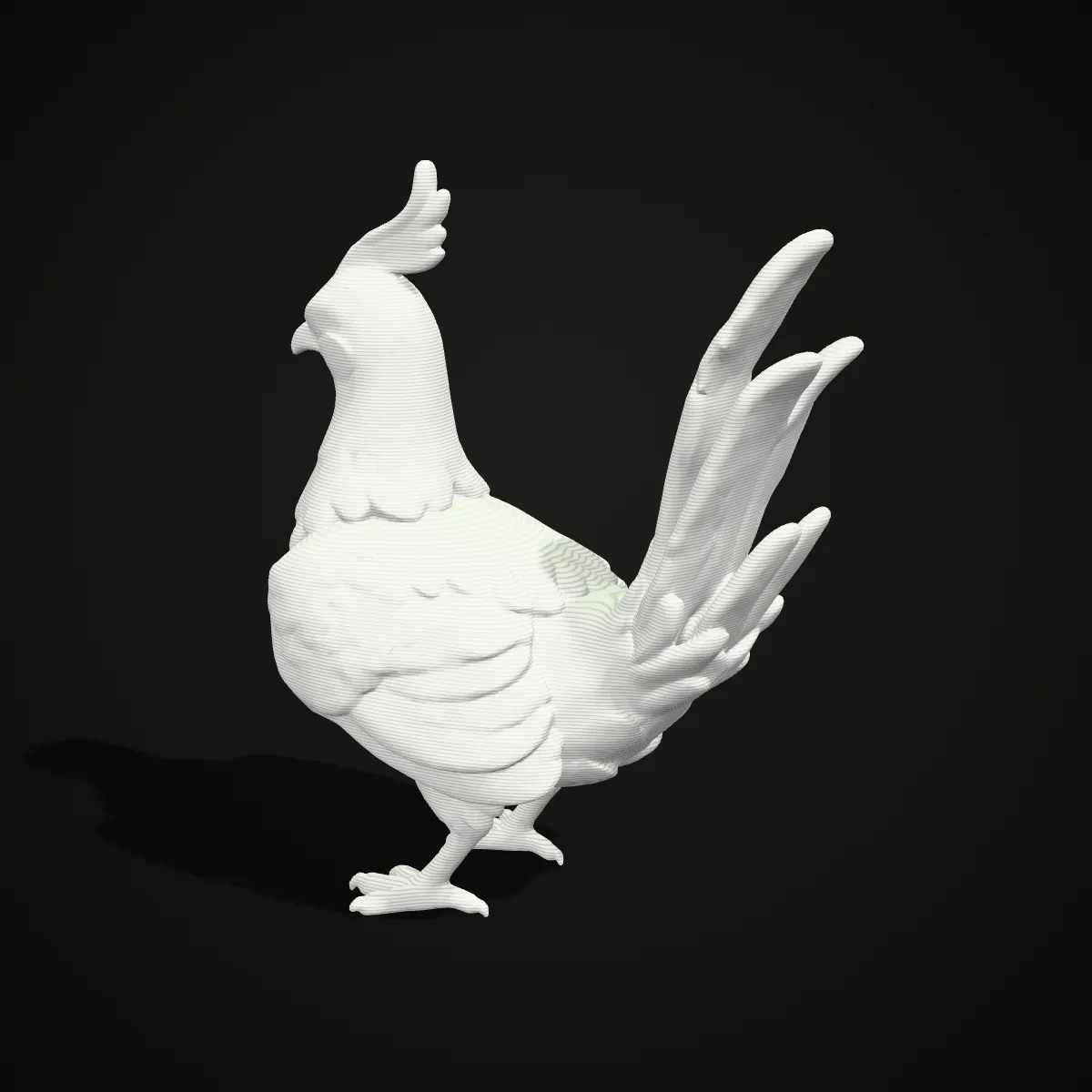
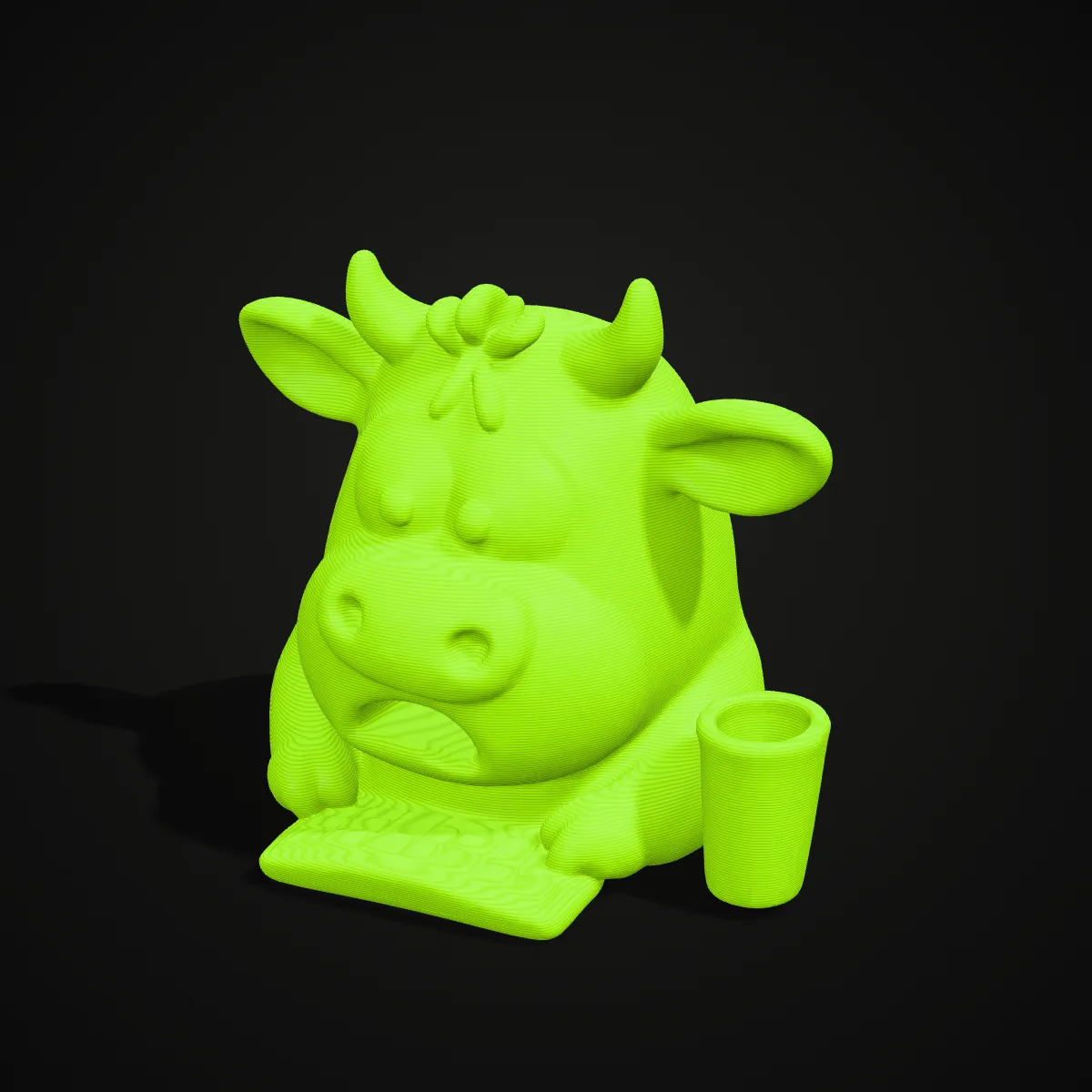
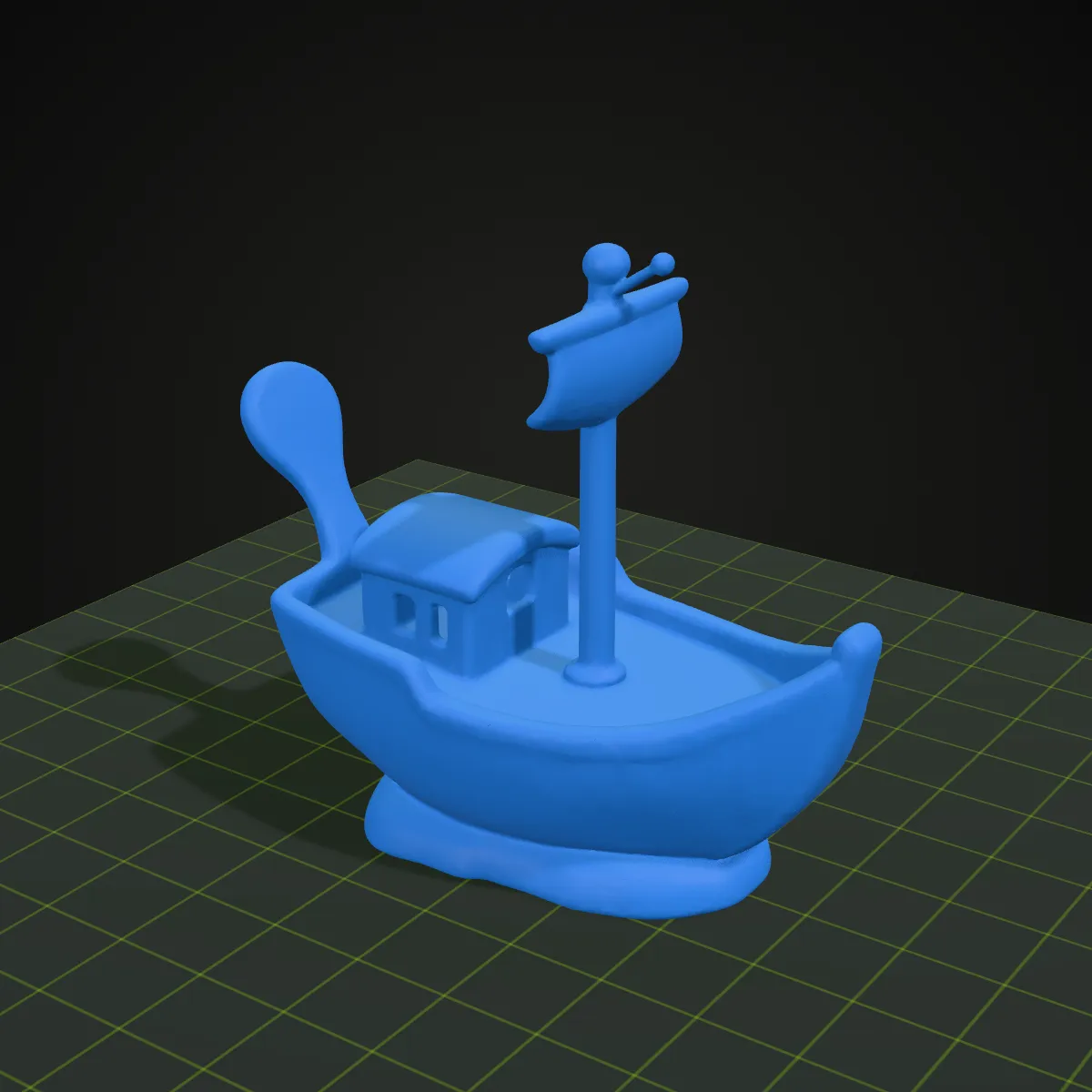
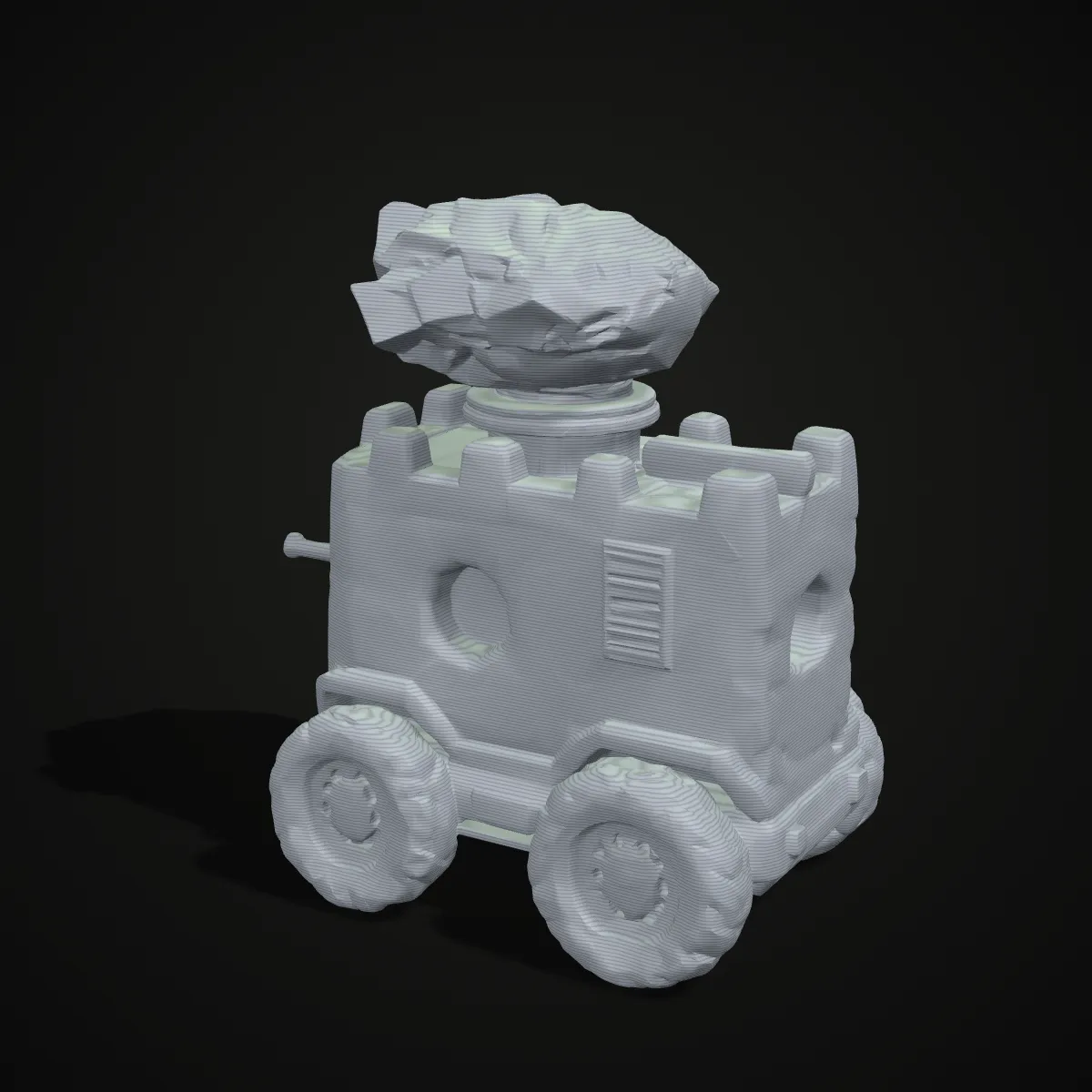
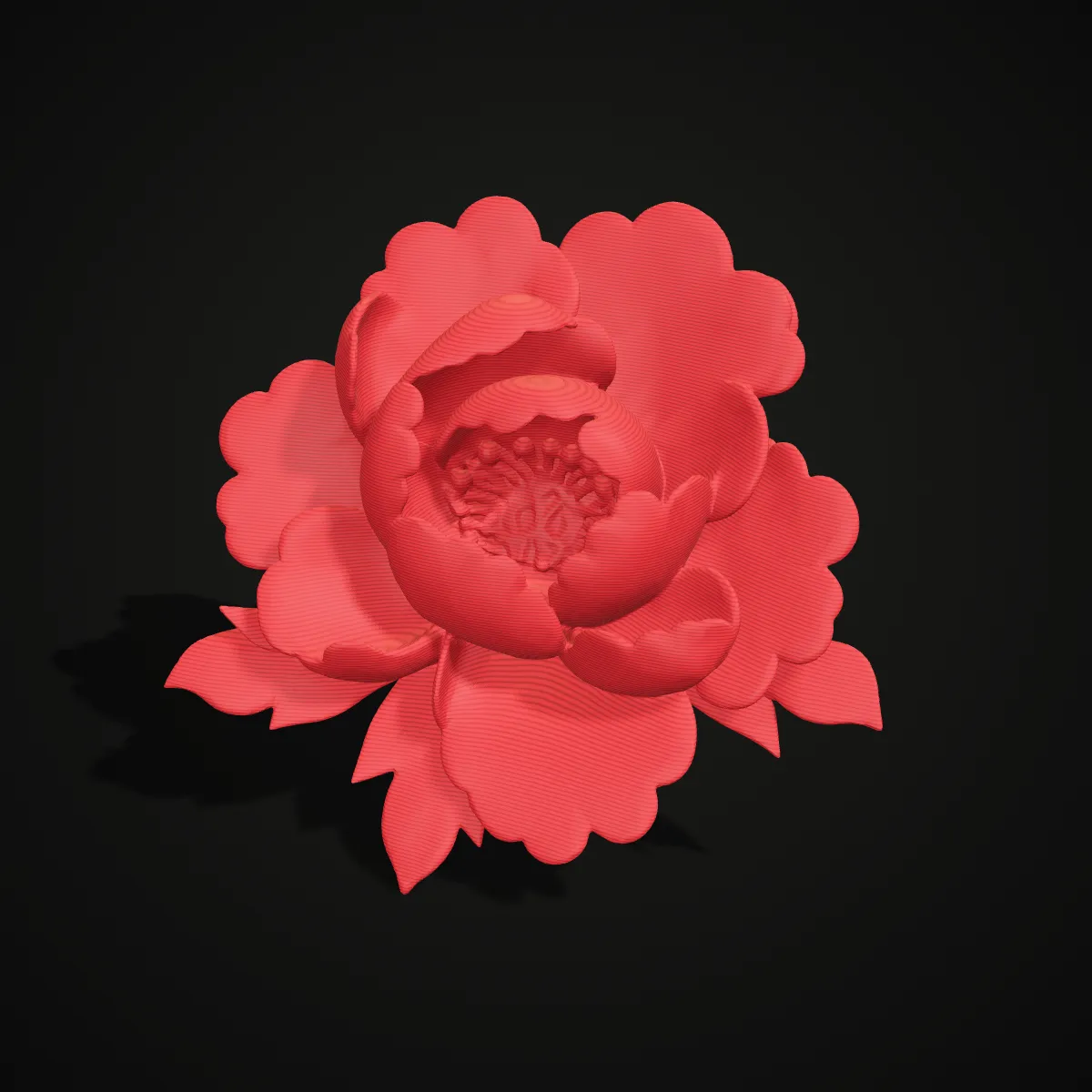
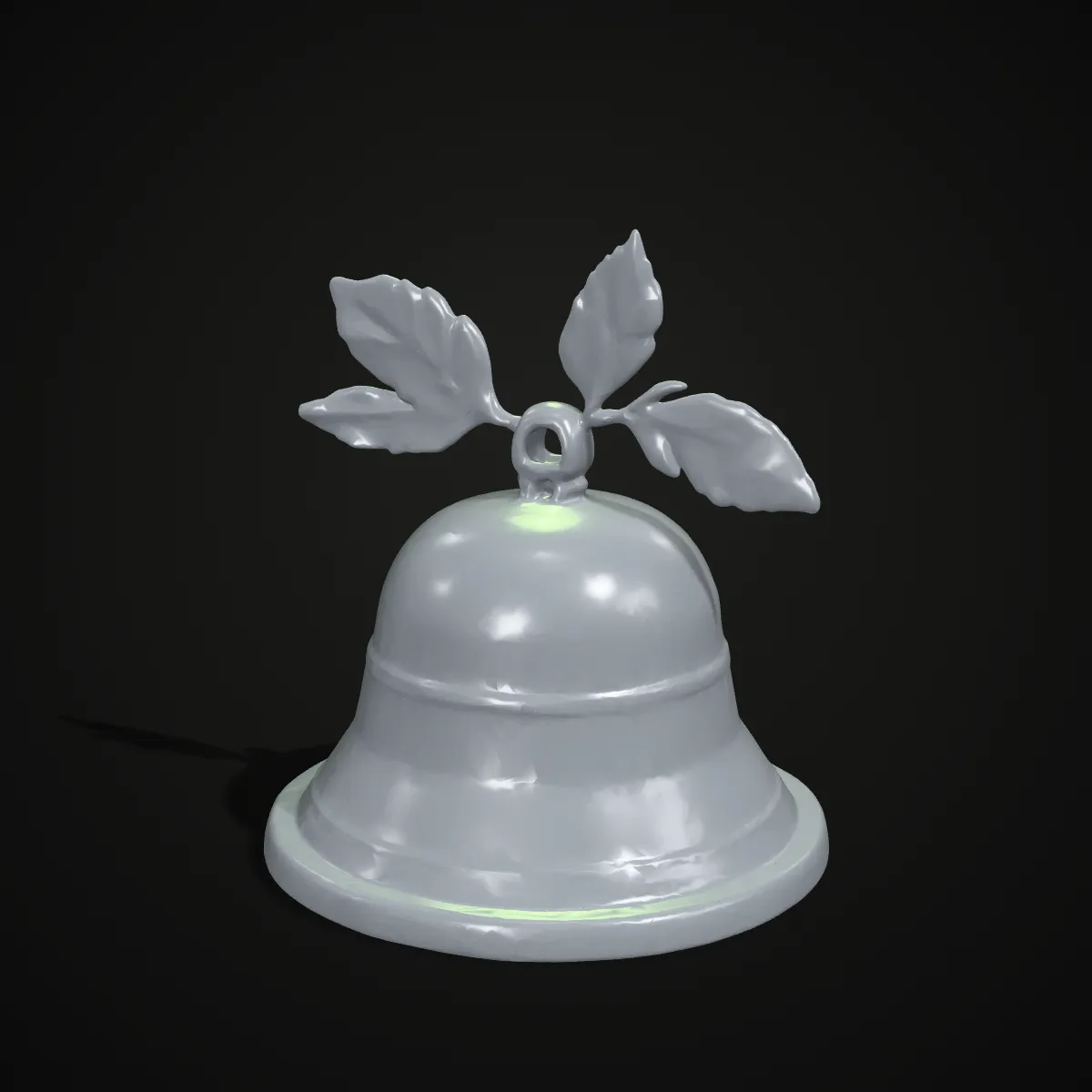
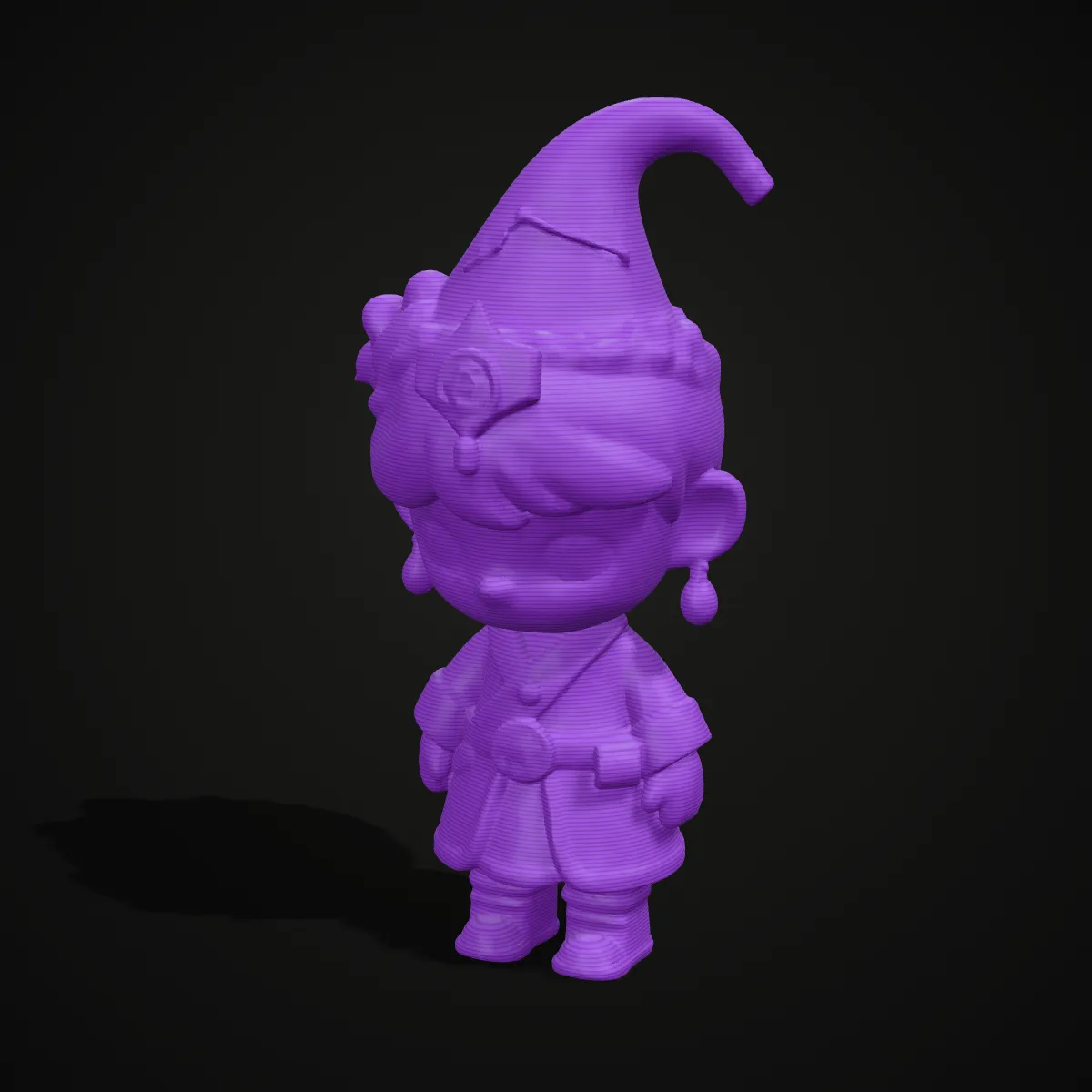
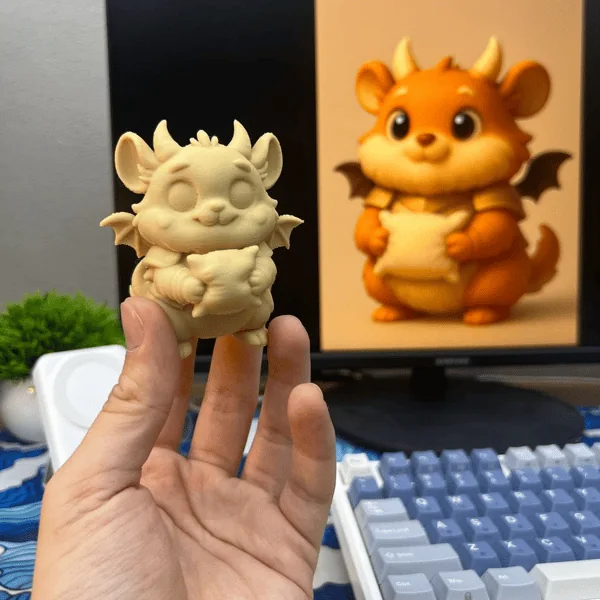
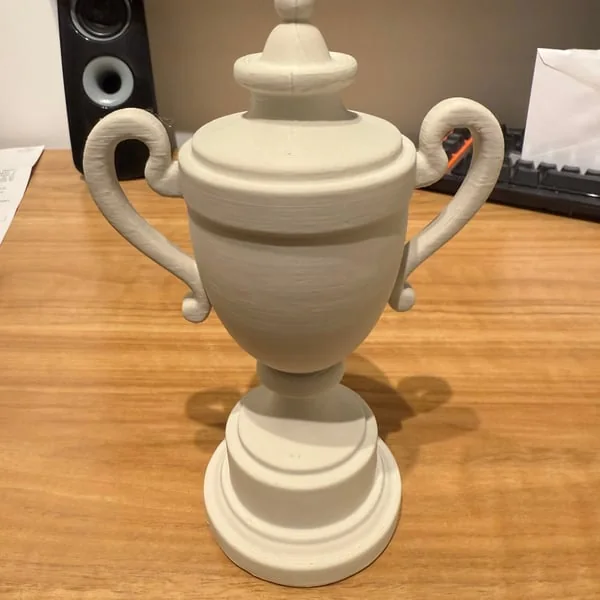
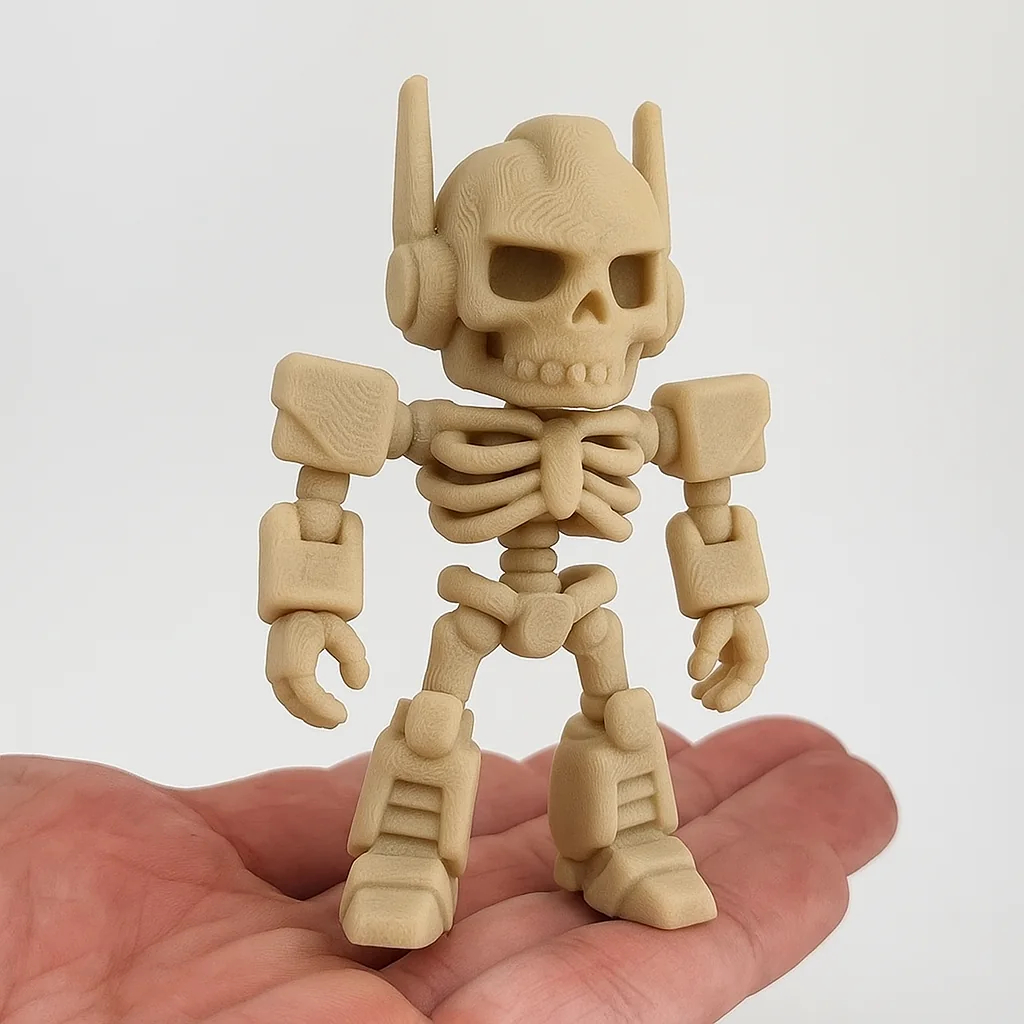
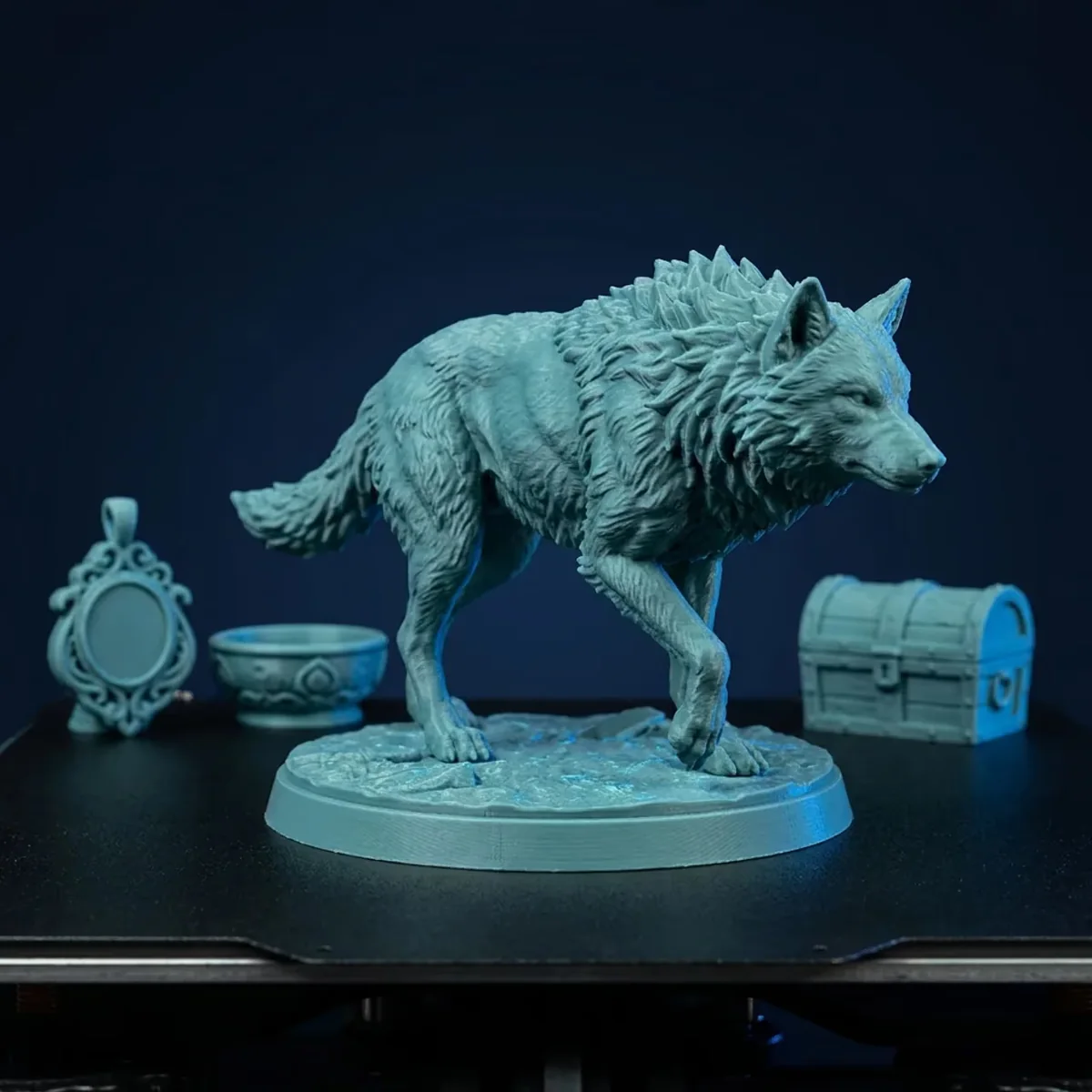
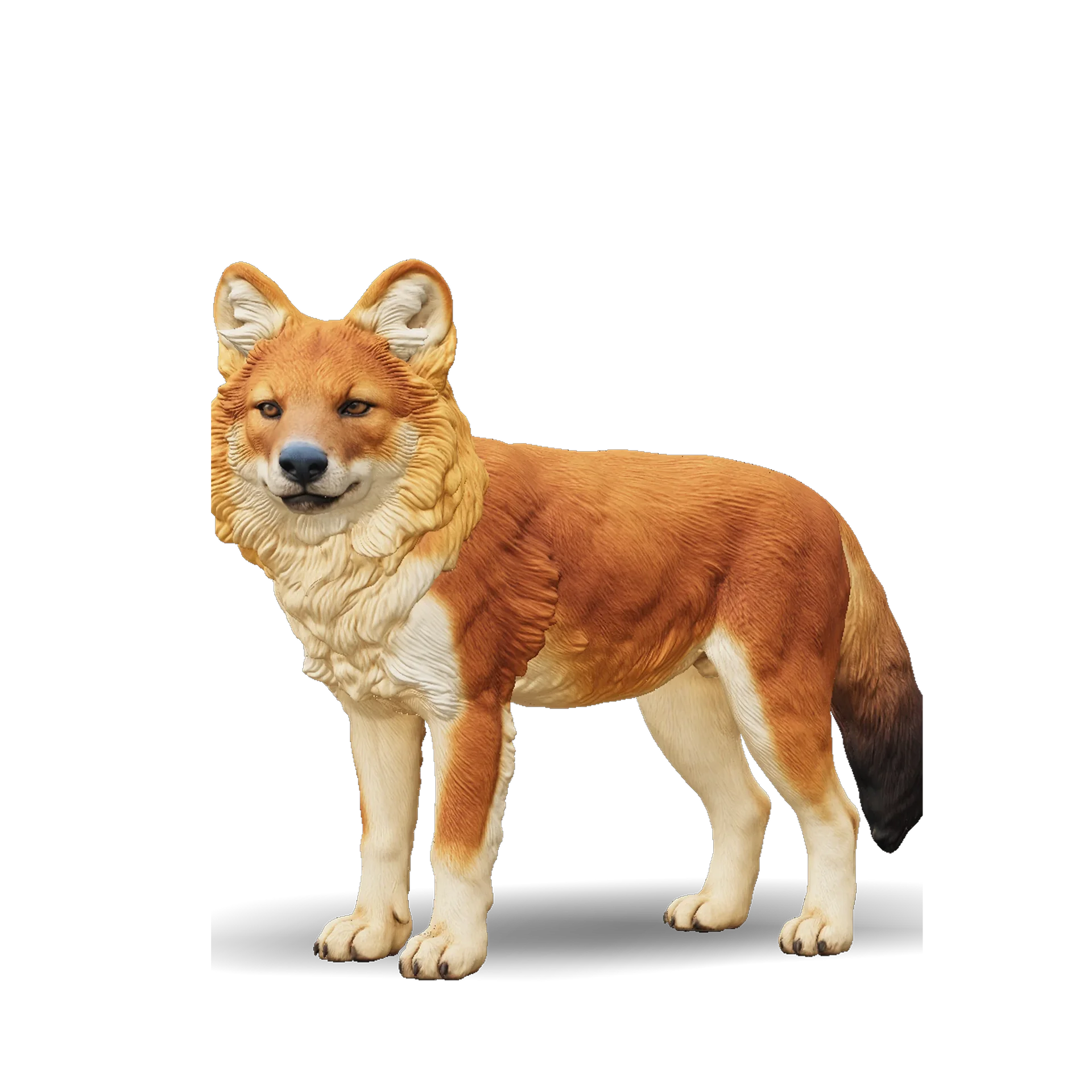
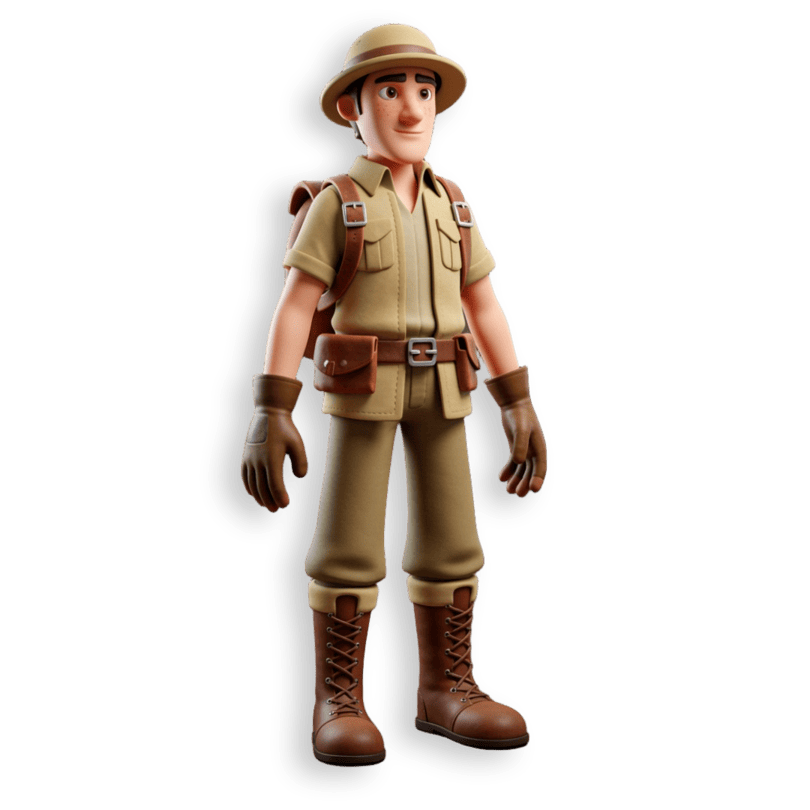
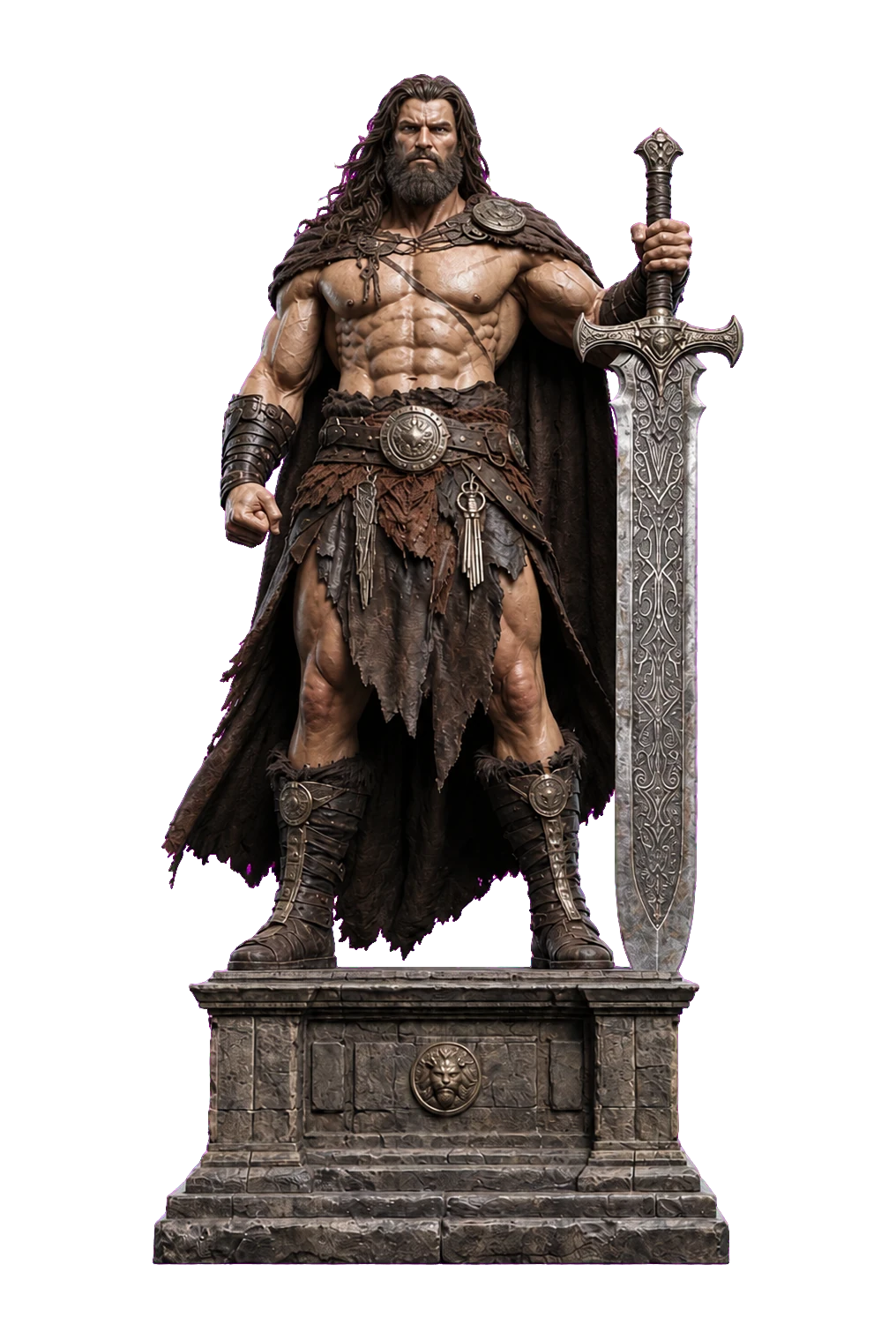
AI STL generator examples, shown as prints
The first eight are AI-generated models that we rendered as 3D prints in PLA and resin colors. They show what an AI STL file generator handles well: rounded animals, chibi characters and small decor on a base. The last four are photos of real prints of AI-generated models made with other 3D tools, so you can see how such meshes come off the printer.
From prompt to print with the AI STL generator
- 11
Describe one printable object
Open the AI STL generator and name a single object, then add its style, its pose and what it stands on. "Owl figurine on a round base" prints far better than "an owl in a forest". The box takes up to 500 characters.
- 22
Generate and inspect
Sign in, press Generate and let the progress bar run; it takes about three minutes. When the mesh appears, rotate it and look for thin spikes, loose bits and a rounded underside. If a generation fails, your credits come back automatically.
- 33
Download the STL
The AI STL generator puts STL first and highlights it. Your browser converts the generated GLB into a binary STL and turns it Z-up, so it lands upright on the slicer bed. Want the colors? Download the GLB.
- 44
Set the real size
STL has no units, so a text to STL model can import tiny or huge. In the slicer, lock uniform scaling and type the height you want, for example 80 mm for a desk figurine.
- 55
Orient, repair, support
Let the slicer fix small mesh errors, put the flattest side on the bed and add supports under raised arms, tails, wings and hat brims. Tree supports leave fewer marks on organic shapes.
- 66
Slice, print, paint
Use your usual figurine settings for layer height and infill. The STL carries shape only, so print in one color and paint afterwards if you want the look from the preview.
Print-ready checklist for AI STL files
No STL generator AI can promise a printable mesh every time, because these models sculpt for looks, not for your printer. Run these checks before you slice; most fixes take a minute in the slicer or in Blender.
| Check | What goes wrong with AI models | What to do |
|---|---|---|
| Wall and feature thickness | Ears, petals, flags and fingers turn paper-thin once you scale the model down. | Keep features two to three nozzle widths thick (about 0.8–1.2 mm on a 0.4 mm nozzle). If a part vanishes in the slicer preview, print larger or thicken it in Blender. |
| Overhangs | Raised arms, tails, wings and brims hang in the air. | On FDM, support anything that leans more than about 45° from vertical. Resin needs supports too, placed under the lowest points. |
| Flat base | A rounded belly or feet touch the bed at one point, so the print tips or lets go. | Ask for "on a round base" or "flat bottom" in the prompt, or cut a flat underside with the cut tool in PrusaSlicer, Bambu Studio or OrcaSlicer and add a brim. |
| Size and scale | The model has no real-world size; STL stores bare numbers without units. | Scale uniformly to your target height in the slicer. Very small prints lose fine detail on FDM, so go bigger or use resin for minis. |
| Floating or barely attached parts | The AI STL generator can add pieces that hover or touch the body at one point, like a bell hanging from a tail. | Check the preview from all sides. Remove or merge loose parts in Blender, or support them, and add "one solid piece" to the prompt. |
| Holes and mesh errors | This AI STL file generator exports the mesh as it was generated, with no automatic repair step. | Most slicers fix small holes on import. If yours reports errors, Blender's 3D-Print Toolbox add-on can find and fix non-manifold edges. |
| File size | Ship3D caps Tripo H3.1 at 200,000 faces, and a binary STL takes 50 bytes per triangle. | At the limit the file is about 10 MB, which slicers open easily. Decimate in Blender only if you need a lighter file. |
| Color | The texture you see in the preview is dropped, because STL keeps shape only. | Print in one color and paint, or keep the GLB if you need the colors elsewhere. |
What makers create with an AI STL generator
Figurines and desk toys
Chubby animals, mascots and chibi characters on a base are the sweet spot for an AI STL generator: rounded forms, few thin parts, and paint hides the texture the STL leaves behind.
Tabletop minis and scatter terrain
Describe a monster, a hero pose or scenery such as a well or a treasure chest, then use text to STL and scale the result to your game in the slicer. Resin printers hold small details best.
Planters, pen cups and decor
Shaped planters, pen holders and bookends work when you ask for thick walls and a flat bottom. The AI STL generator does not follow measurements, so model exact holes and fits in CAD.
Ornaments and small gifts
Text to STL handles holiday baubles, keychain charms and one-off presents. Ask for a thick hanging loop, check that it survives slicing, or drill the hole after printing.
Physical drafts before sculpting
Use the AI STL generator to print a quick, rough version of a creature or prop and check its proportions in your hand before you spend an evening sculpting it in Blender or ZBrush.
Classrooms and maker spaces
With an AI STL generator, students turn a written idea into an object they can hold and learn scaling, orientation and supports along the way, without modelling first.
AI STL generator FAQ
Yes. An AI STL generator like this one builds a 3D mesh from a text description and saves it as STL, the format every slicer reads. The AI decides the shape but does not engineer it for printing, so you still check scale, supports and thin parts.
Not guaranteed. The STL is the generated mesh exported as is, with no automatic repair. Most slicers close small holes when they import a file; if yours reports errors, use its repair function or the 3D-Print Toolbox in Blender.
Describe one object, its style and its pose, and say how it stands, for example "chunky owl figurine on a round base". Ask for thick parts and a flat bottom. Leave out scenes, chains, lettering, thin spikes and anything that floats.
Yes, if you generated the model on a paid plan: our terms allow commercial use of those models, including printed goods. Other models are for personal projects. Either way, make sure the design does not copy someone else's character, logo or artwork.
The Generate button shows the current price in credits before you start, so check it there. Downloading the result as STL, OBJ or USDZ is a browser conversion and costs nothing more, and a failed generation is refunded automatically.
Use text to STL when the object only exists as an idea. If you have a photo or drawing of the exact thing, image to STL follows its look more closely. For a game or AR asset in GLB rather than a print, text to 3D is the better fit.
Related tools

Describe your next print
Type an object, check the AI model in the preview and download it as an STL for your slicer.
Free to sign up, no credit card required. Try it once for free.