STEP File Viewer
View STEP, STP and IGES Files Online
This STEP file viewer opens .step and .stp CAD files right in your browser, with no CAD licence and nothing to install.
Try a sample
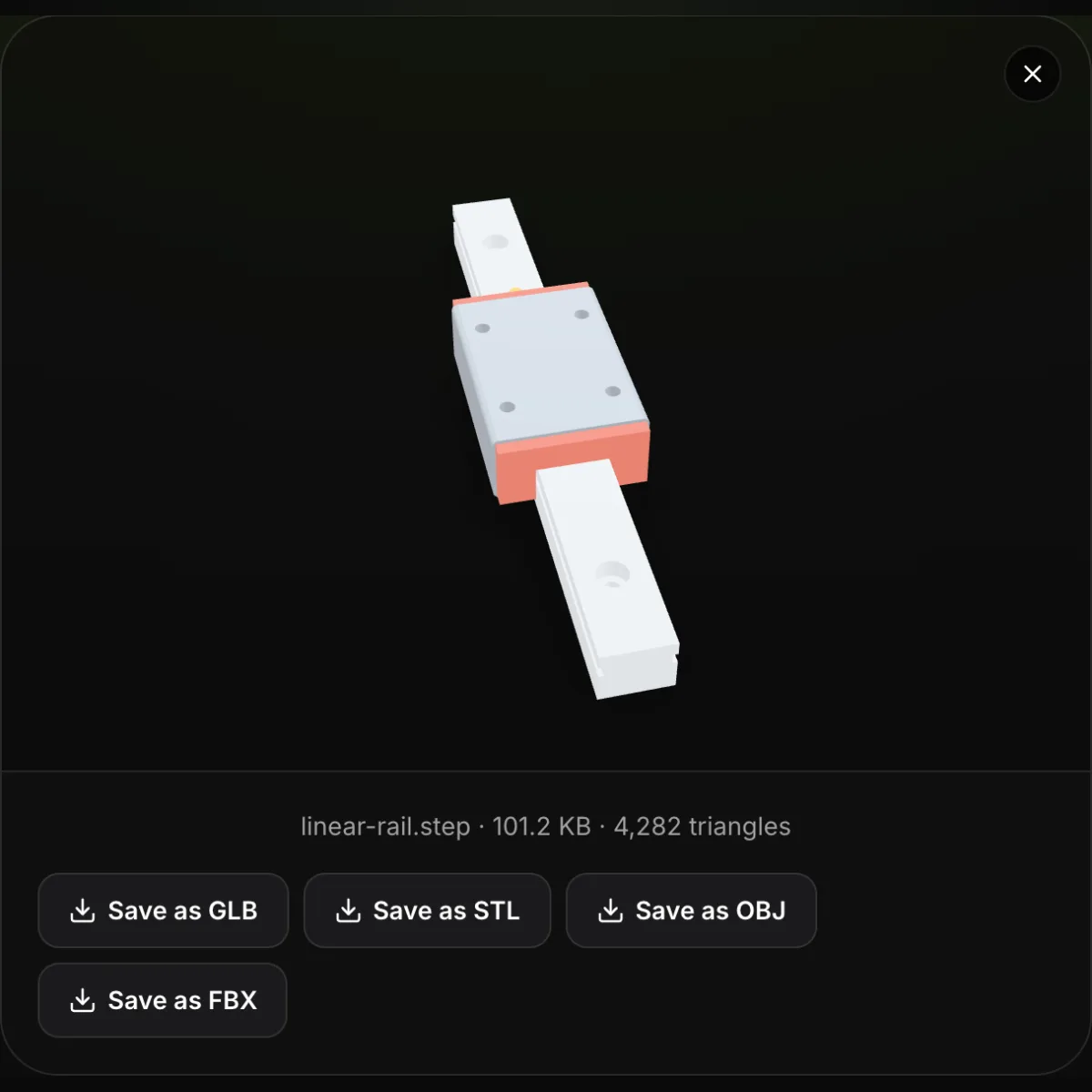
Drop in a part or assembly exported from SolidWorks, Fusion, Inventor, Onshape, CATIA or FreeCAD, or a model from a supplier catalogue, and it appears as a shaded 3D model you can rotate, zoom and pan. Assemblies show every part in its place with the colours stored in the file, and the part names travel with the model when you save it. Below the view you get the file name, file size and triangle count. The engine is Open CASCADE, the open-source CAD kernel, compiled to WebAssembly: about 7 MB that loads once on first use and then meshes each file in a background worker on your own computer, so nothing is uploaded. IGES files (.igs, .iges) open the same way, which makes this an IGES viewer as well, and STL, OBJ, 3MF, GLB and FBX files work too. When the model has to go somewhere else, Save as GLB, STL, OBJ or FBX.
Sample files for the STEP file viewer
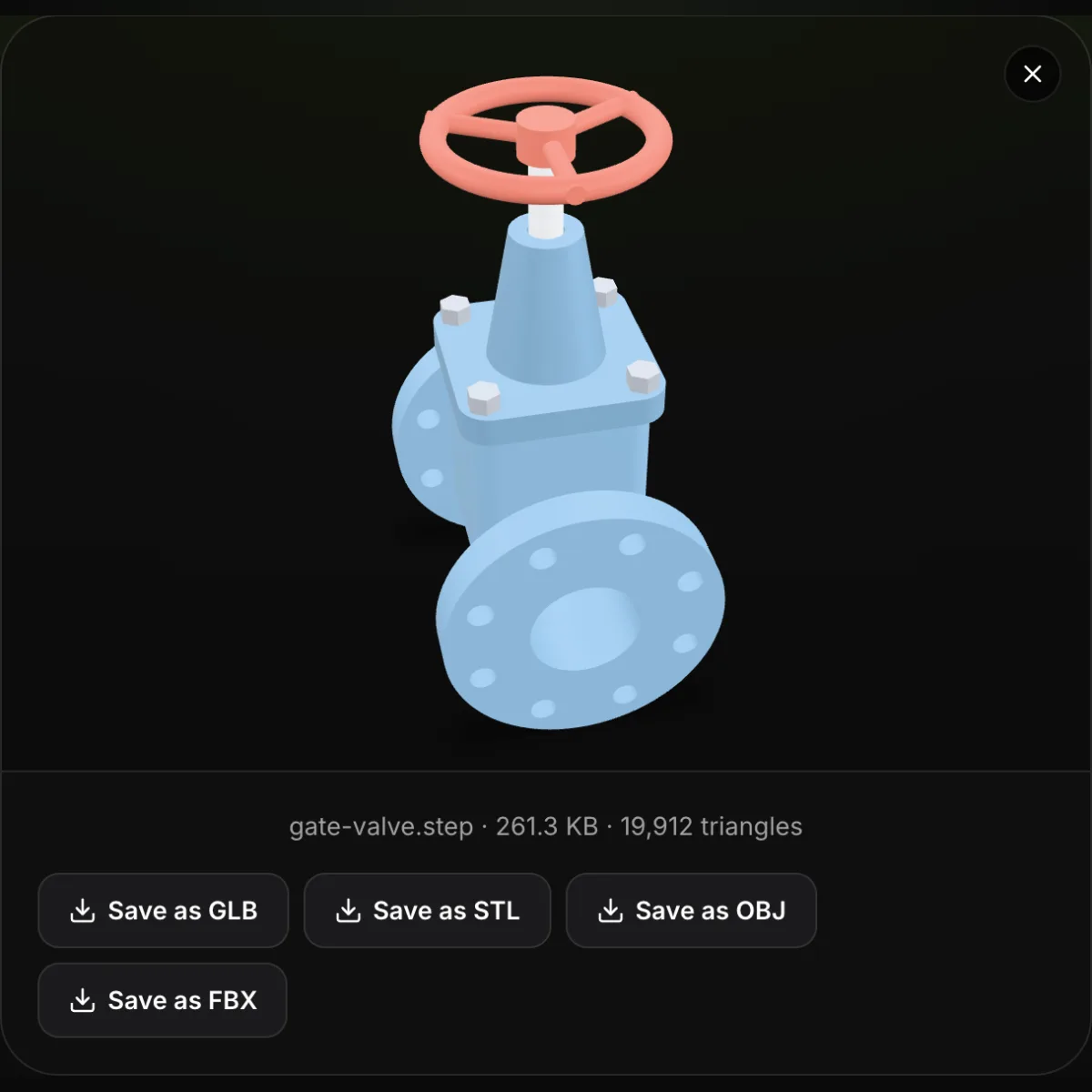
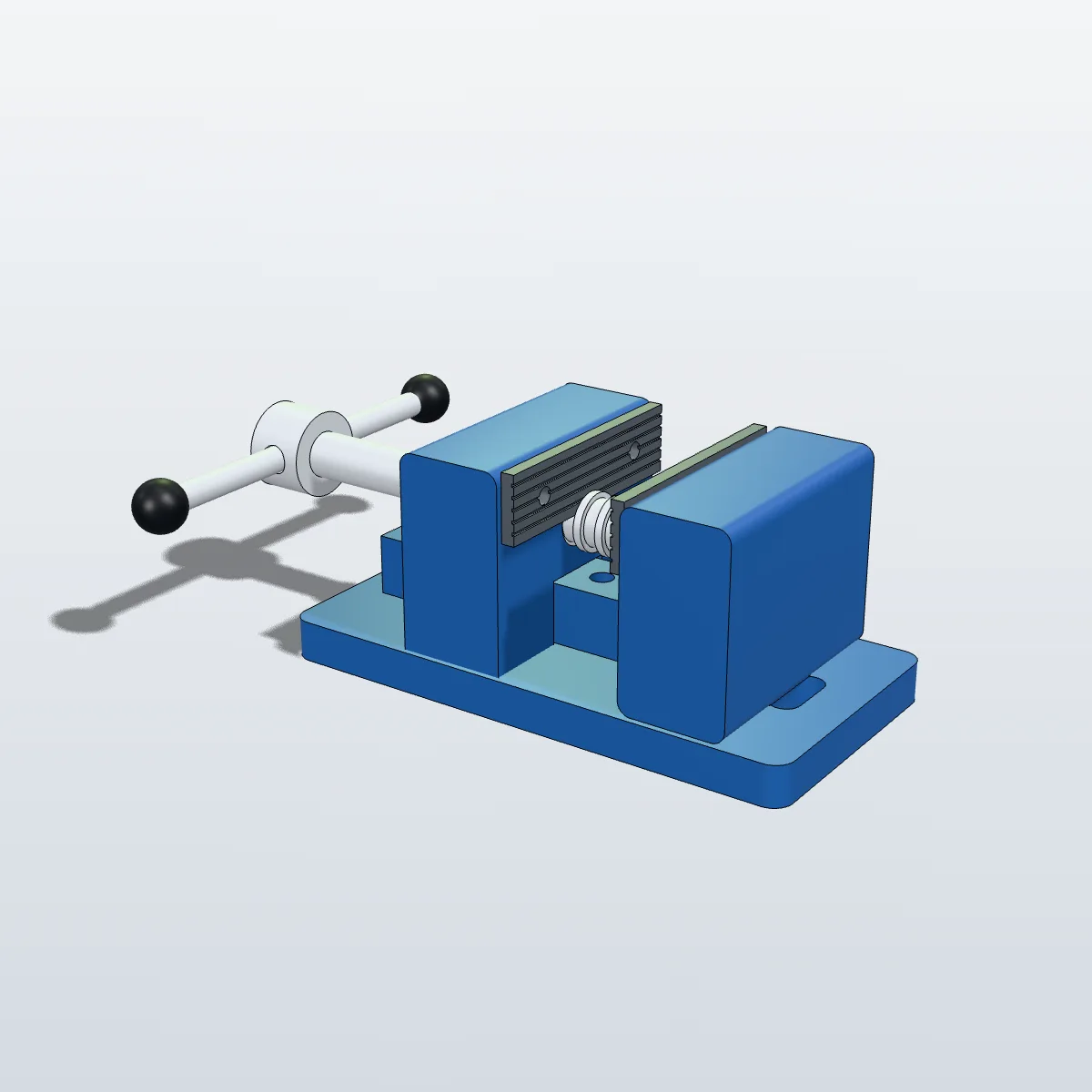
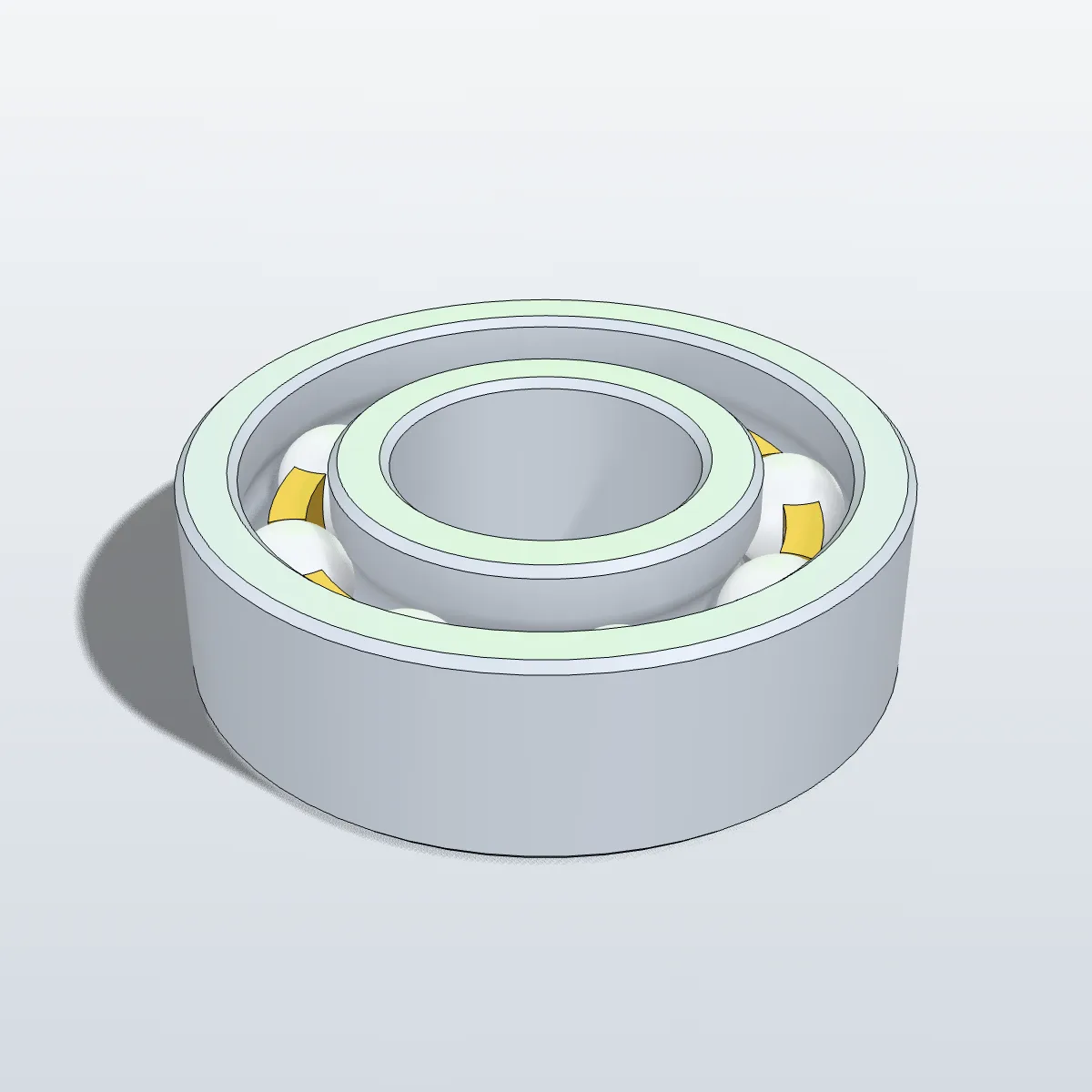
Four CAD files we modelled in CadQuery for this page: three STEP files in the AP214 schema, one of them saved with the .stp extension, and one IGES file. The vise and the bearing are real assemblies with named, coloured parts. Press Try it to open a file in the STEP file viewer above, or Download to test it in your own CAD program.
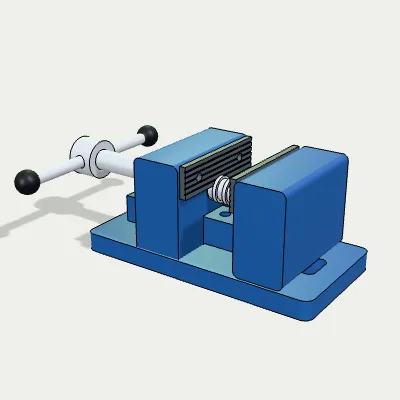
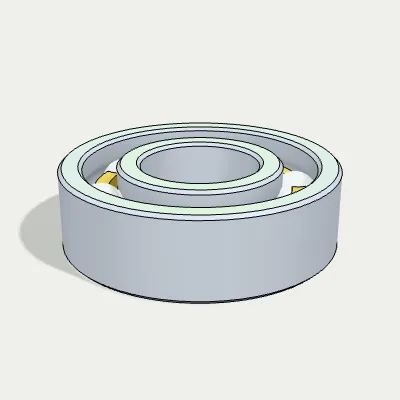
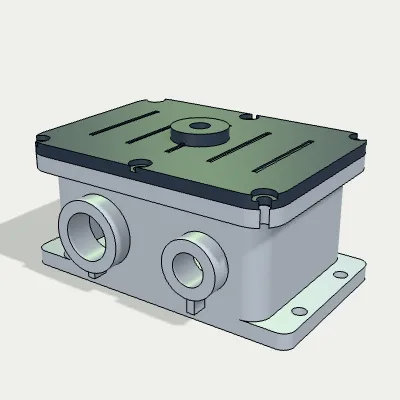
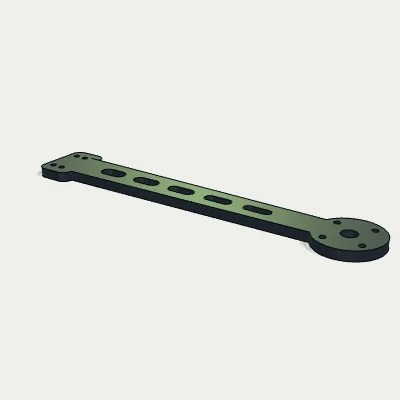
Watch the STEP file viewer open a bench vise
A 15-second screen recording with the bench vise sample. bench-vise.step is dropped onto the empty viewer, “Meshing…” shows for about a second, and the eight-part vise appears with bench-vise.step · 260.0 KB · 12,006 triangles under it. It is dragged round and zoomed in on the jaws, the pointer passes over Save as GLB, STL, OBJ and FBX, and Save as STL downloads bench-vise.stl (586 KB), already in millimetres.
From a STEP file on disk to a 3D view in the browser
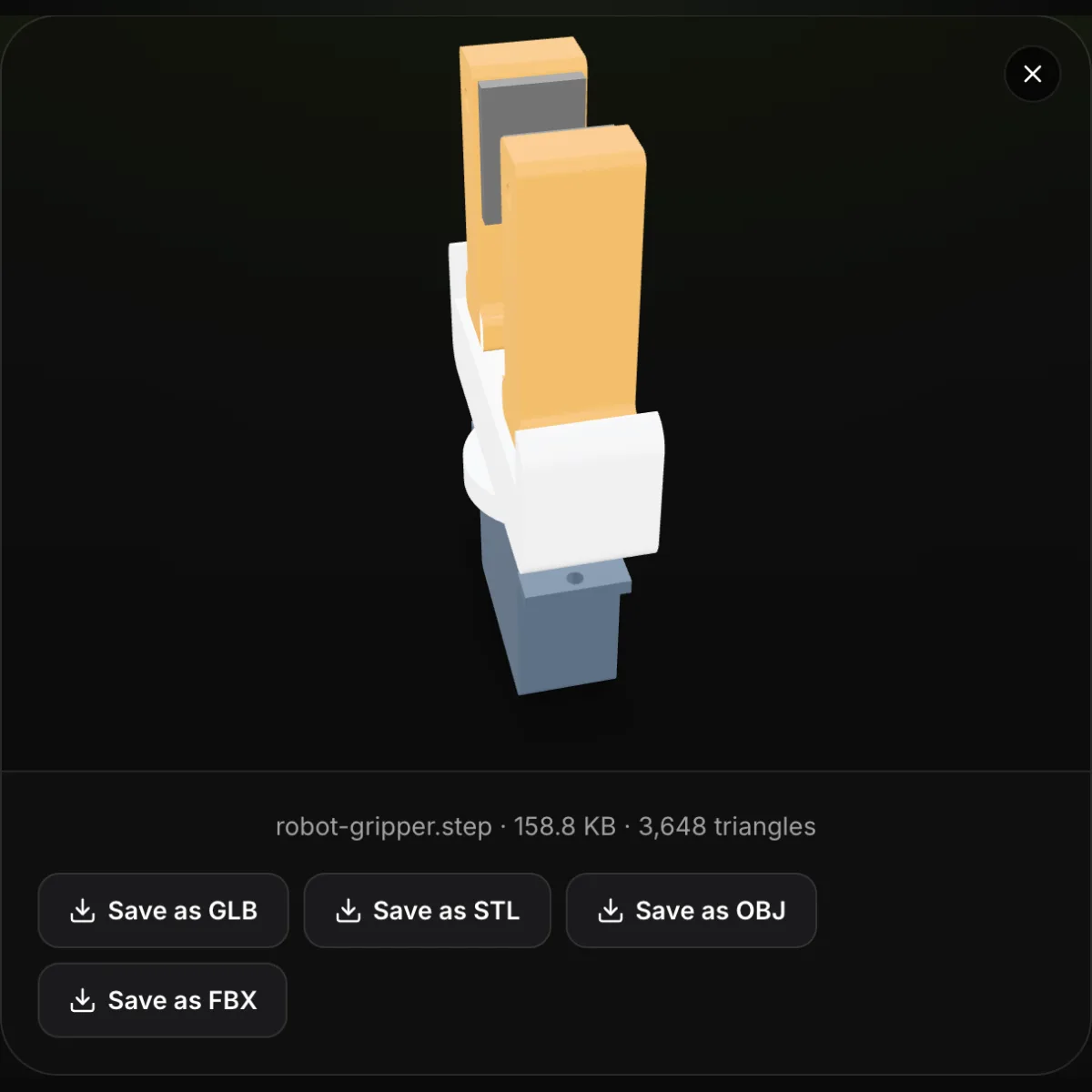
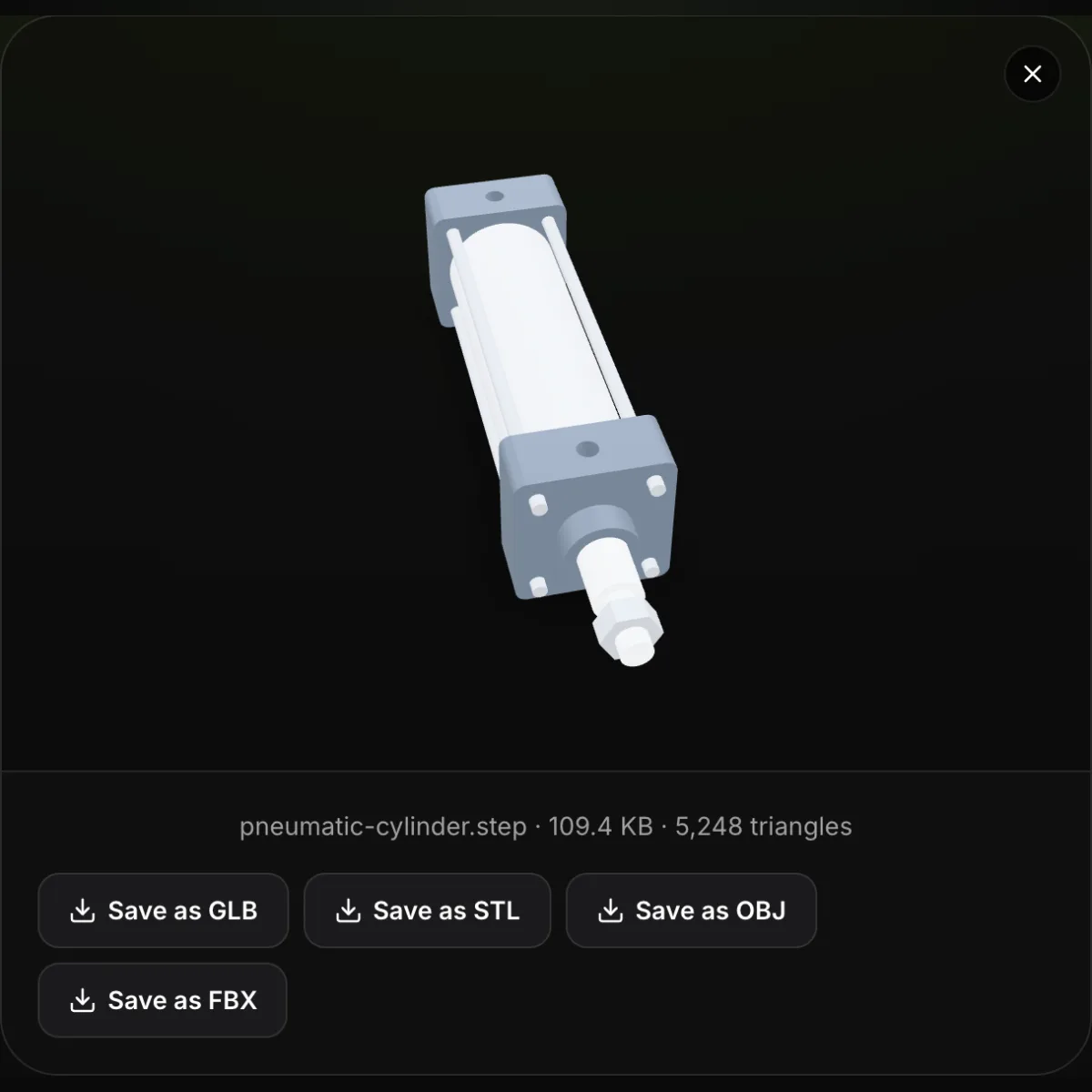
Each pair starts with what a CAD file is before anyone opens it: name, size, STEP schema, unit, overall dimensions and the parts listed inside. Next to it is the same file in this STEP file viewer, meshed and shaded, with the triangle count and the four save buttons underneath.
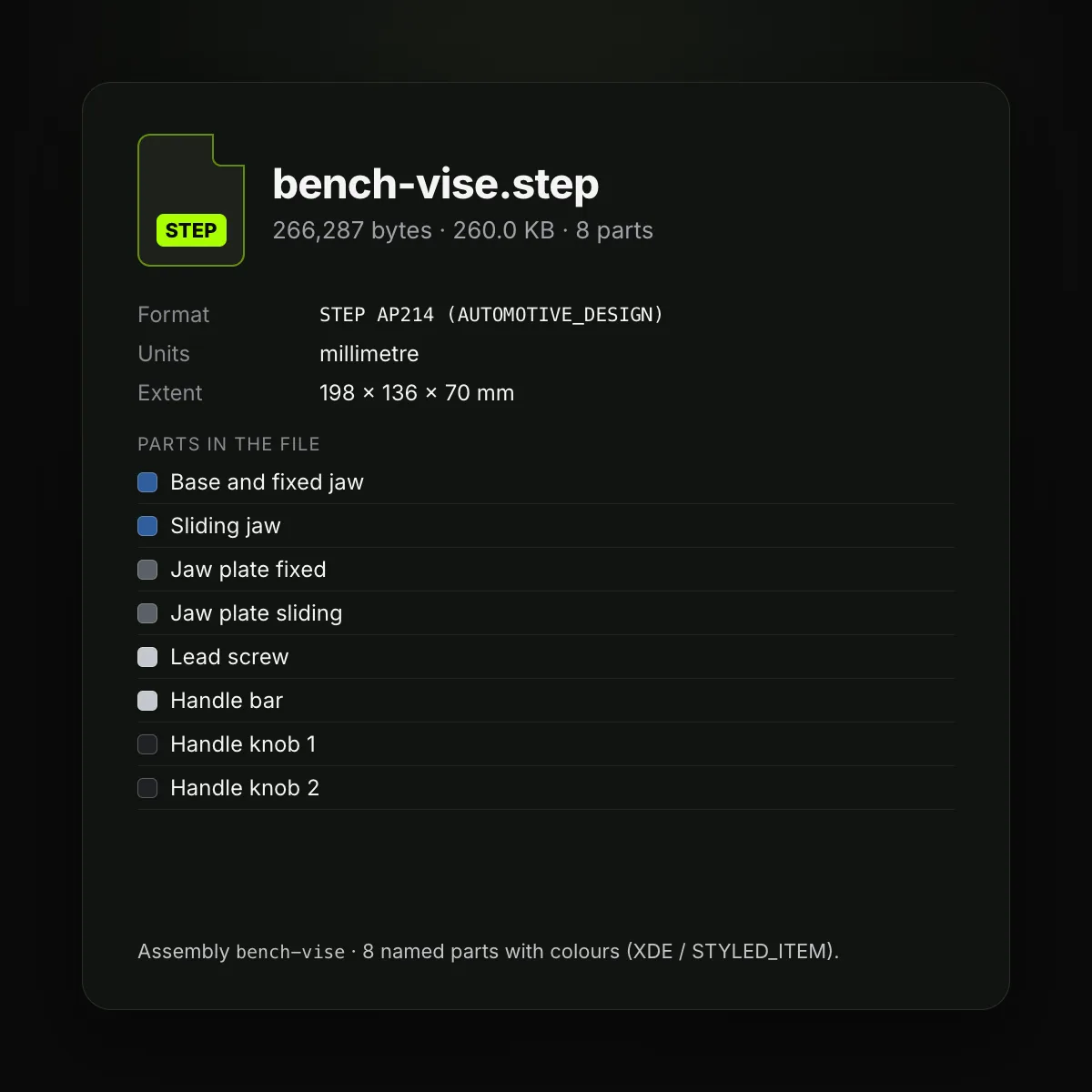
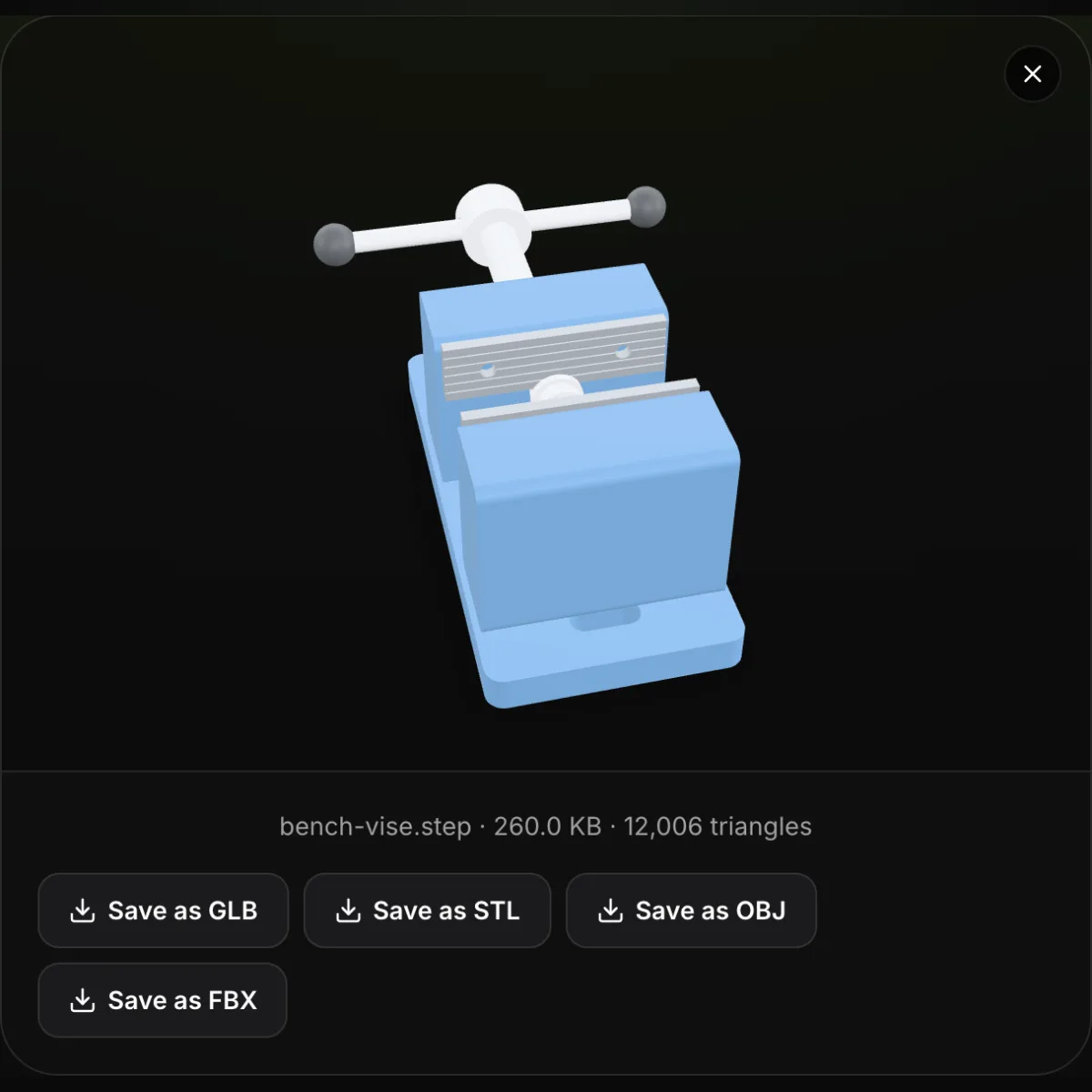
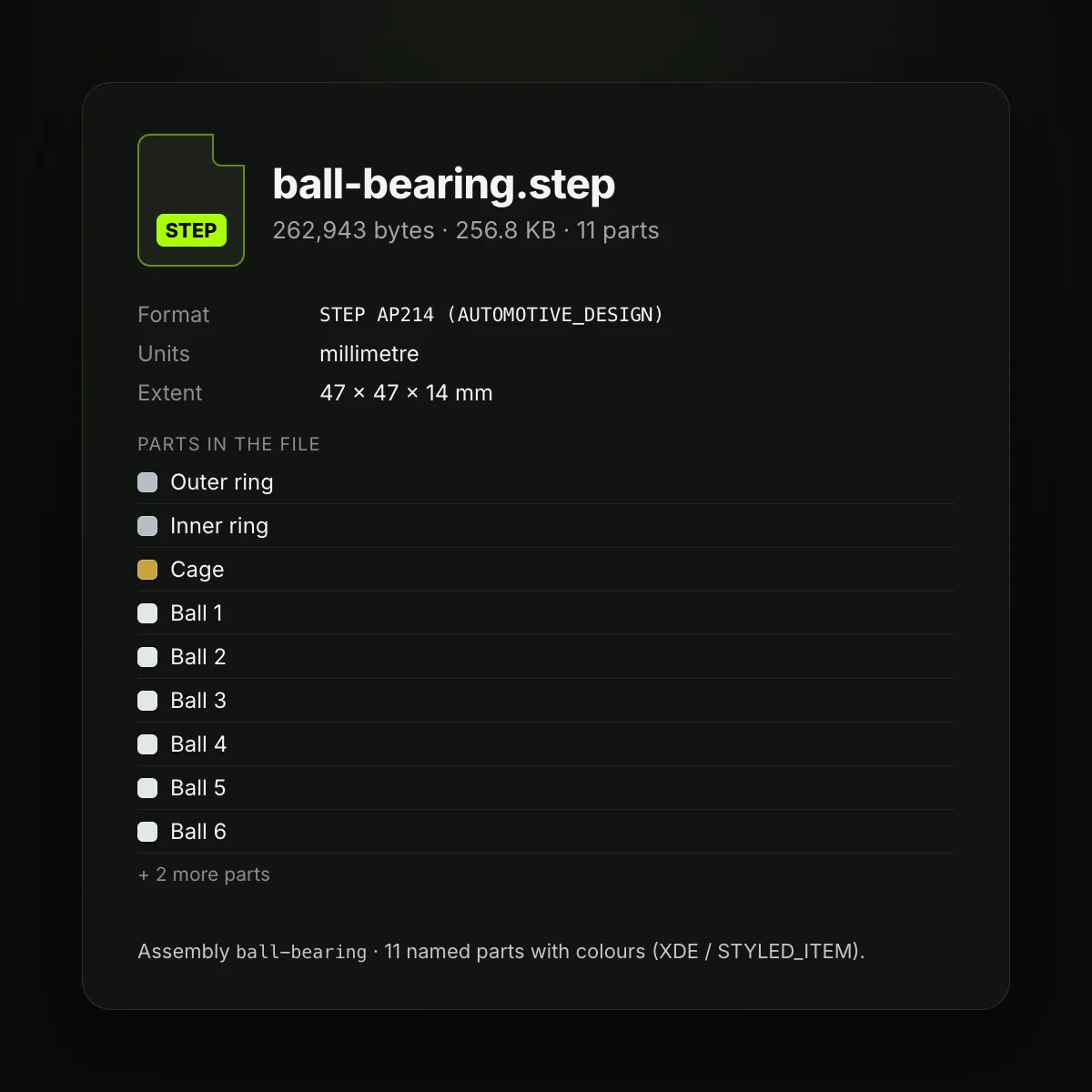
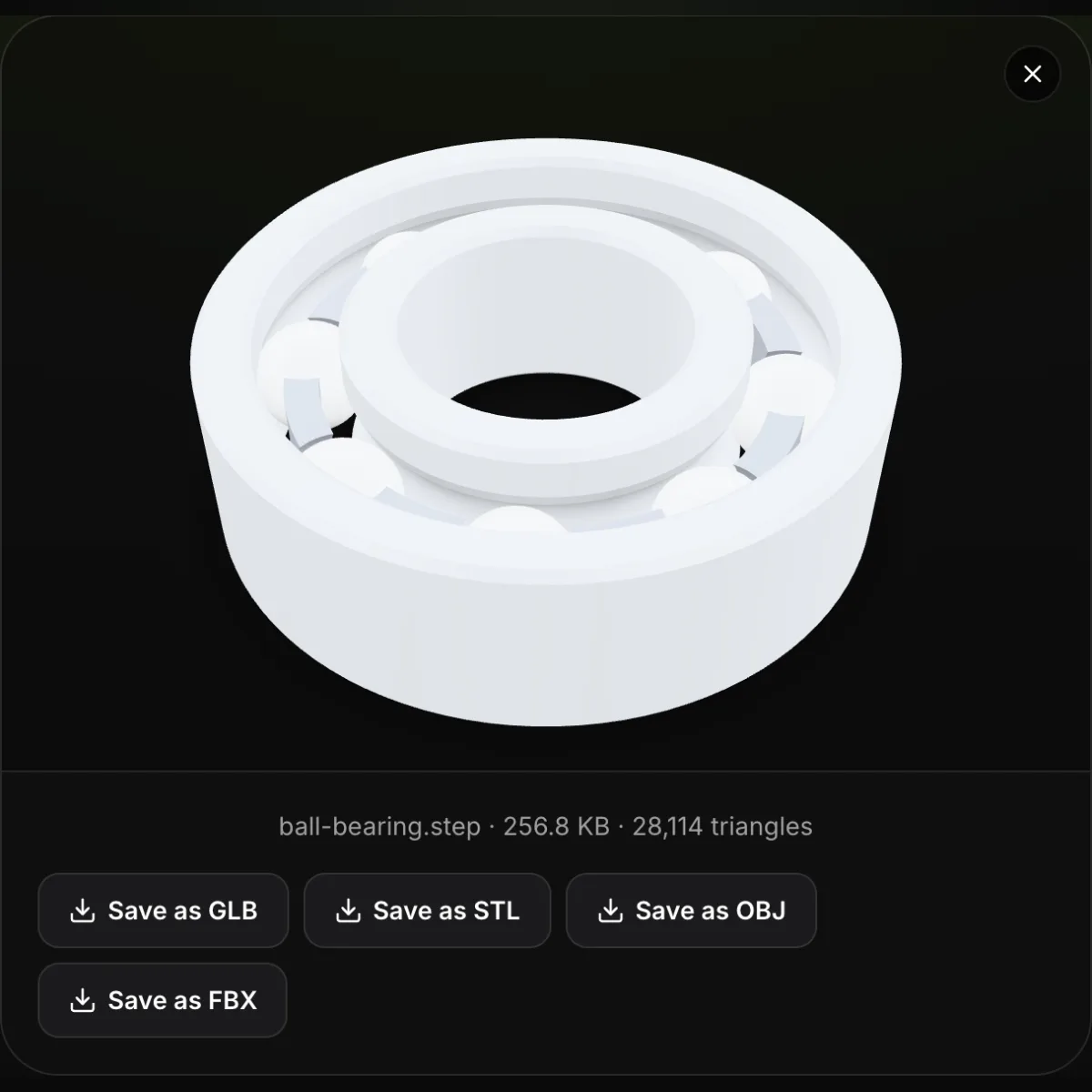
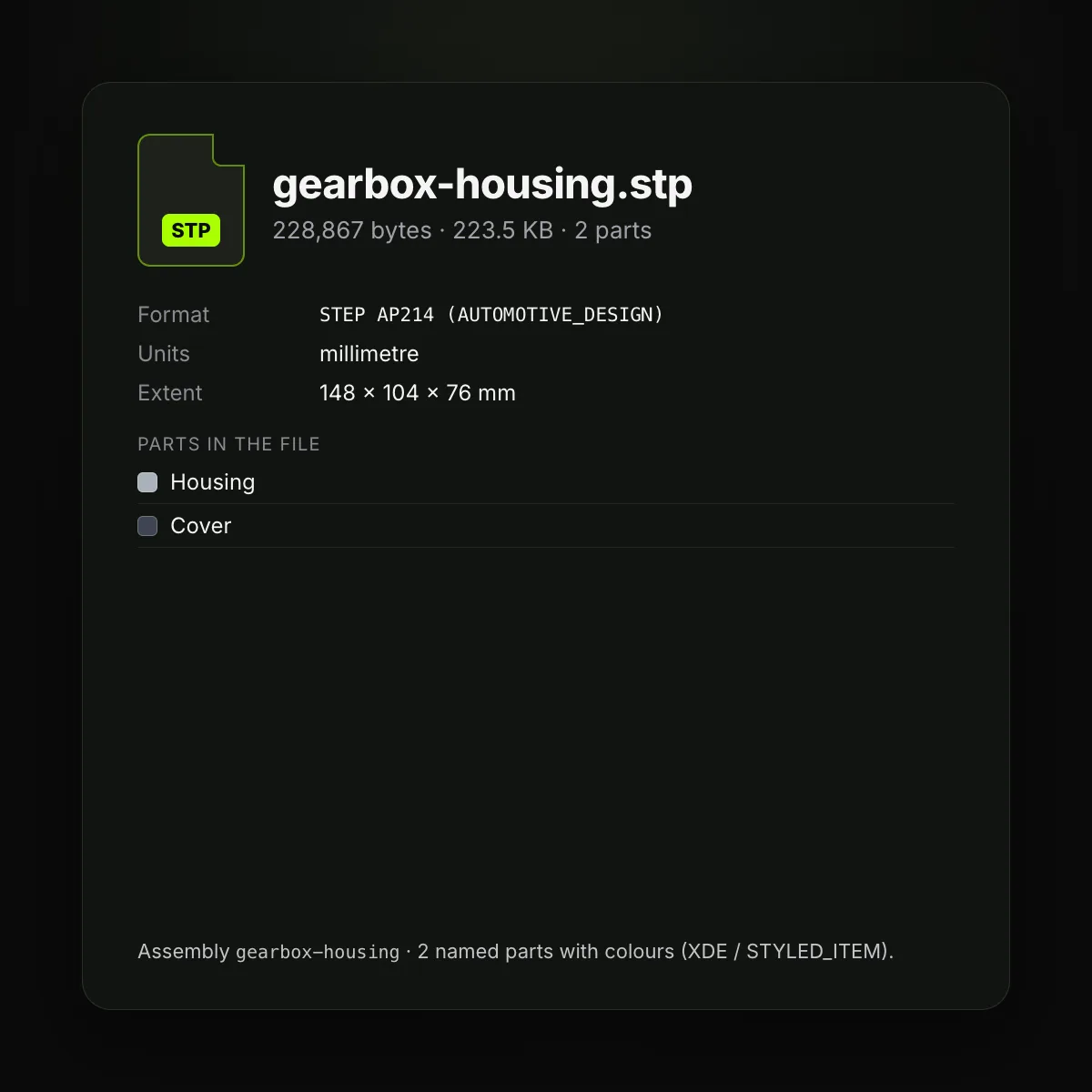
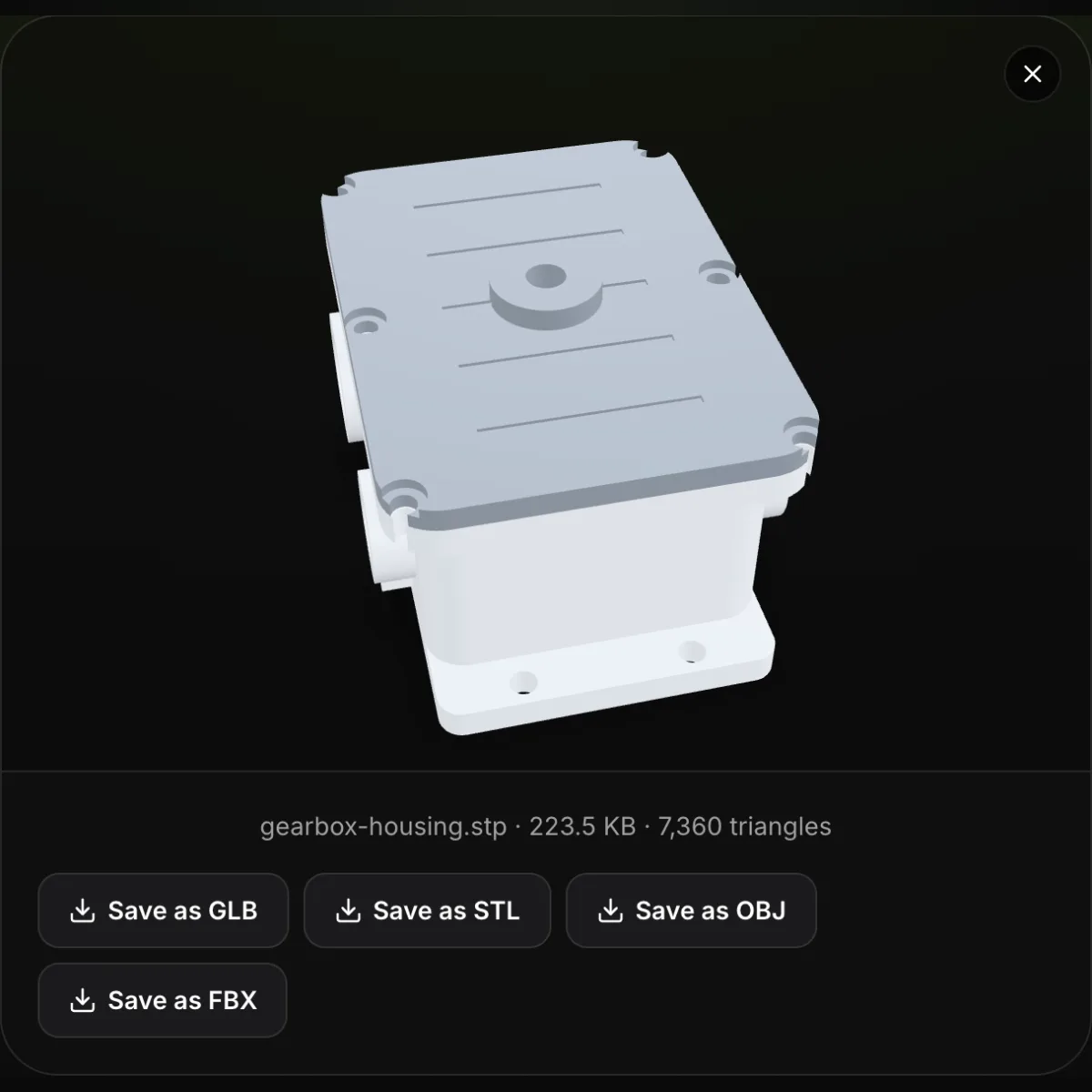

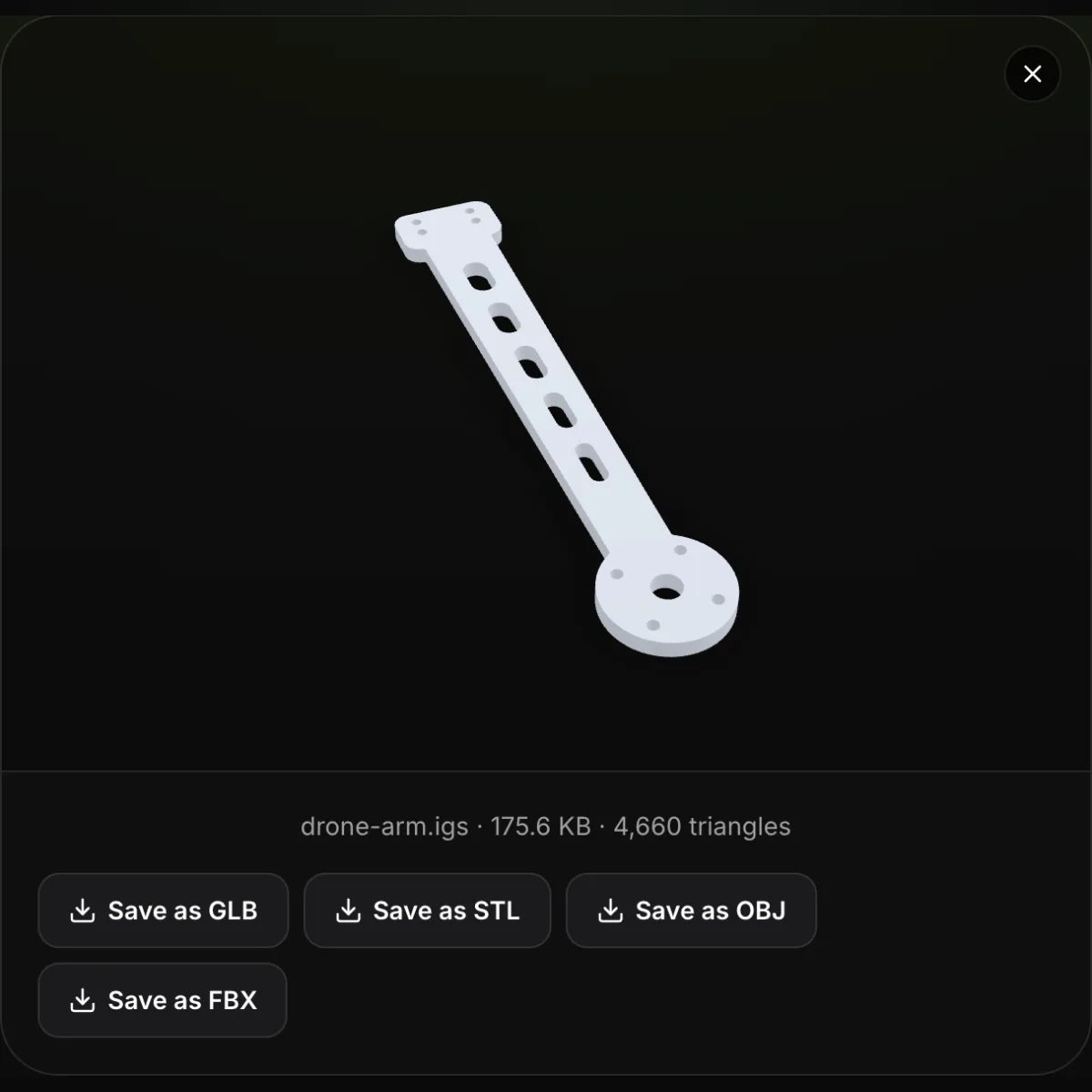
CAD files in the STEP file viewer, plus reference renders
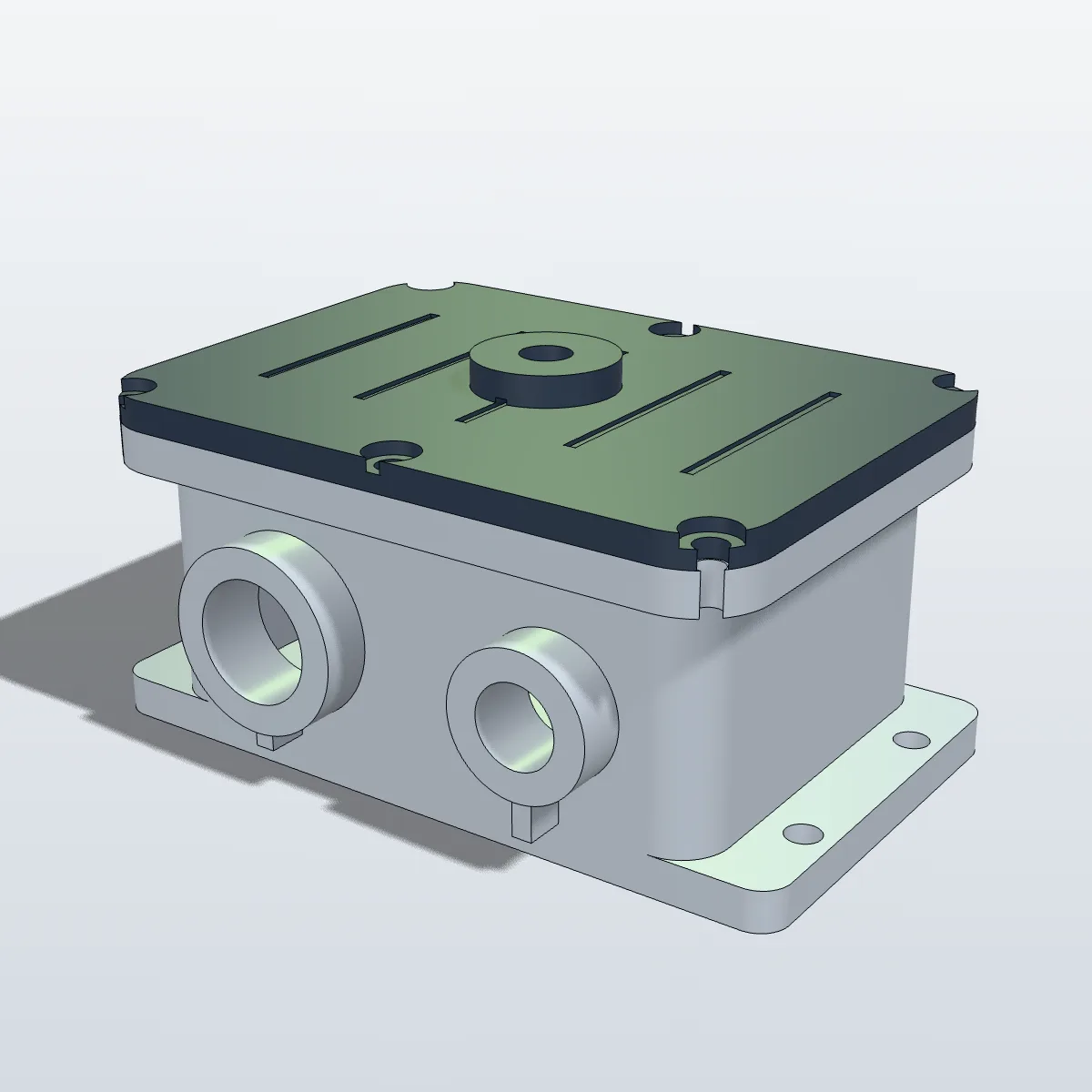
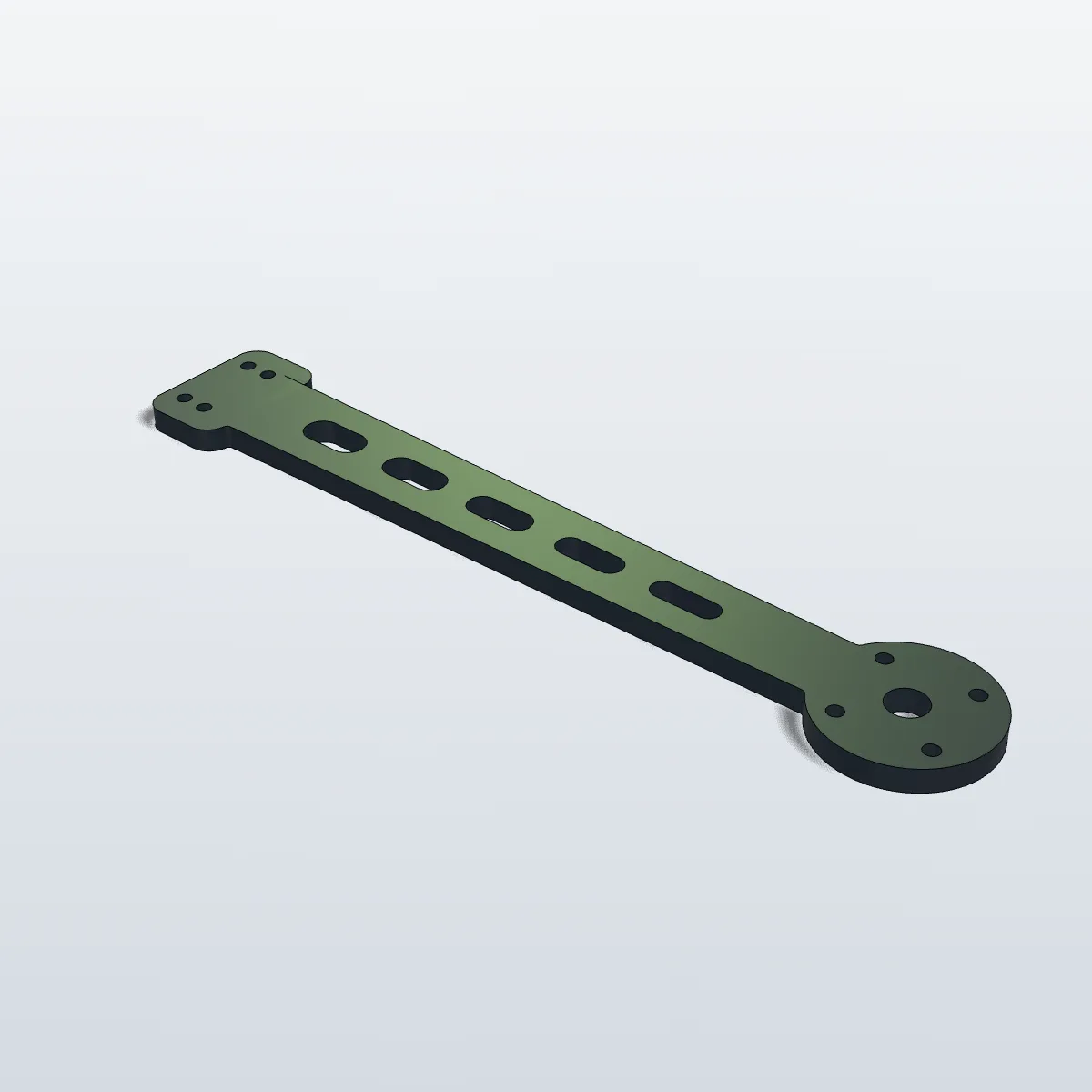
Four screenshots of this STEP viewer online with real CAD files open (gate valve, robot gripper, pneumatic cylinder, linear rail), each showing its triangle count and save buttons, alternating with four CAD-style renders of the sample files that show their part colours and feature edges. The viewer itself draws shaded surfaces without edge lines.
How to view STEP files online
- 11
Open the .step or .stp file
Drag the file onto the viewer or press Open STEP File; .igs and .iges are read too. The first CAD file loads the 7 MB engine once, then the exact B-rep solids are turned into triangles in a background worker (“Meshing…”): a second or two for a part of a few hundred kilobytes, longer for big assemblies.
- 22
Rotate, zoom and pan
Drag to orbit, scroll or pinch to zoom, right-drag or use two fingers to pan. The line under the view gives the file name, size and triangle count.
- 33
Save it in another format
Save as GLB for the web and AR, STL for a slicer, OBJ or FBX for Blender, Unity and other 3D software. The download starts straight away, without a second meshing pass.
What the STEP file viewer shows, and what each download keeps
A STEP file describes exact solids; the viewer shows them as a triangle mesh. This table lists how each kind of data in a .step, .stp or IGES file appears in the viewer and which Save as button carries it on.
| In the CAD file | In the viewer | When you save |
|---|---|---|
| Solid bodies (B-rep) | Meshed into shaded triangles at standard detail; the count is shown under the view | All four formats get the same triangles. For a finer mesh, use the STEP to STL converter’s Fine setting |
| Assembly structure | Every part drawn in its assembled position | GLB, OBJ and FBX keep one object per part with its name; STL merges all parts into one mesh |
| Part colours (AP214 / AP242 styling) | Shown on each part | GLB and FBX as materials, OBJ as vertex colours; STL has no colour |
| Units (mm, inch, …) | Converted to millimetres | STL in millimetres, Z-up as in CAD; FBX declares millimetres; GLB and OBJ write the millimetre numbers, which metre-based tools read as metres |
| IGES solids and surfaces | Meshed and shown like STEP; IGES files often carry no part names or colours | Same four formats |
| Feature tree, sketches, parameters, exact curves | Not available: this is a mesh preview, not editable CAD | — |
| PMI, dimensions, tolerances | Not shown, and there are no measuring or section tools | — |
| Other formats: STL, OBJ, 3MF, GLB, glTF, FBX, PLY, DAE, USDZ | Open in the same viewer | Same four formats |
Who uses an online STEP file viewer
Checking supplier CAD downloads
Bearings, motors, connectors and fasteners come as STEP from catalogue sites. View the STEP file in the browser to confirm it is the right variant before you place it in your own assembly.
Reviewing parts without a CAD seat
Buyers, managers, machinists and clients can open STEP files a designer sent without a SolidWorks or Fusion licence, on any laptop, tablet or phone.
Pre-checking jobs for printing or machining
Look over a customer’s .step before quoting a 3D print or CNC job: see the parts, the size of the mesh and anything missing, then save an STL for the slicer.
Turning CAD into visuals
Save as GLB to show a product on a website or in AR, or as FBX or OBJ to render it in Blender with every part still named and coloured.
STEP file viewer FAQ
Use a browser-based .step file viewer like this one: drop the .step or .stp file onto the viewer at the top of the page and the model appears within seconds. It works in Chrome, Edge, Firefox and Safari on Windows, macOS, Linux and ChromeOS, with nothing to install and no account.
A STEP file (.step or .stp) is the ISO 10303 neutral CAD format. It stores exact solid geometry, and usually the assembly structure, part names and colours, so a model moves between SolidWorks, Fusion, Inventor, CATIA, Creo and FreeCAD with its true curves intact, unlike STL, which only holds triangles.
Yes. STP is just the three-letter extension of STEP, and the viewer reads both. Older IGES files (.igs and .iges) open with the same engine, so the page doubles as a free .step viewer, STP viewer and IGES viewer.
Not in this viewer. It is a mesh preview for looking at shape, parts and colours, with no measuring, cross-sections or part list, and the exact B-rep is not kept. For dimensions, open the file in your CAD program or in FreeCAD, which is free and open source.
Most often the file is damaged, cut short during download, or not a real STEP export, and the viewer asks you to export it again as STEP AP214 or AP242. A file that holds only sketches or curves shows “No mesh or solid found in this file”, files over 200 MB are refused, and very large assemblies can run out of browser memory, especially on phones.
Yes. Press Save as STL and you get one merged mesh in millimetres, standing the way it stood in CAD, ready for a slicer. The viewer meshes at standard detail; for smoother holes and fillets, use the STEP to STL converter, which also has a Fine setting.
Related tools





Have a photo rather than a CAD file?
Ship3D’s AI generator turns a photo or a text prompt into a textured 3D model. Open it in this viewer, then save it as STL for printing or GLB for the web.
Free to sign up, no credit card required. Try it once for free.