OBJ to STL Converter
Scans, Sculpts and Downloads, Ready to Print
This OBJ to STL converter takes a Wavefront .obj, the plain-text mesh format written by Blender, ZBrush, photogrammetry apps and museum scan archives, and saves it as a binary STL for your slicer.
OBJ → STL
Drop a 3D model file to preview it in 3D before converting.
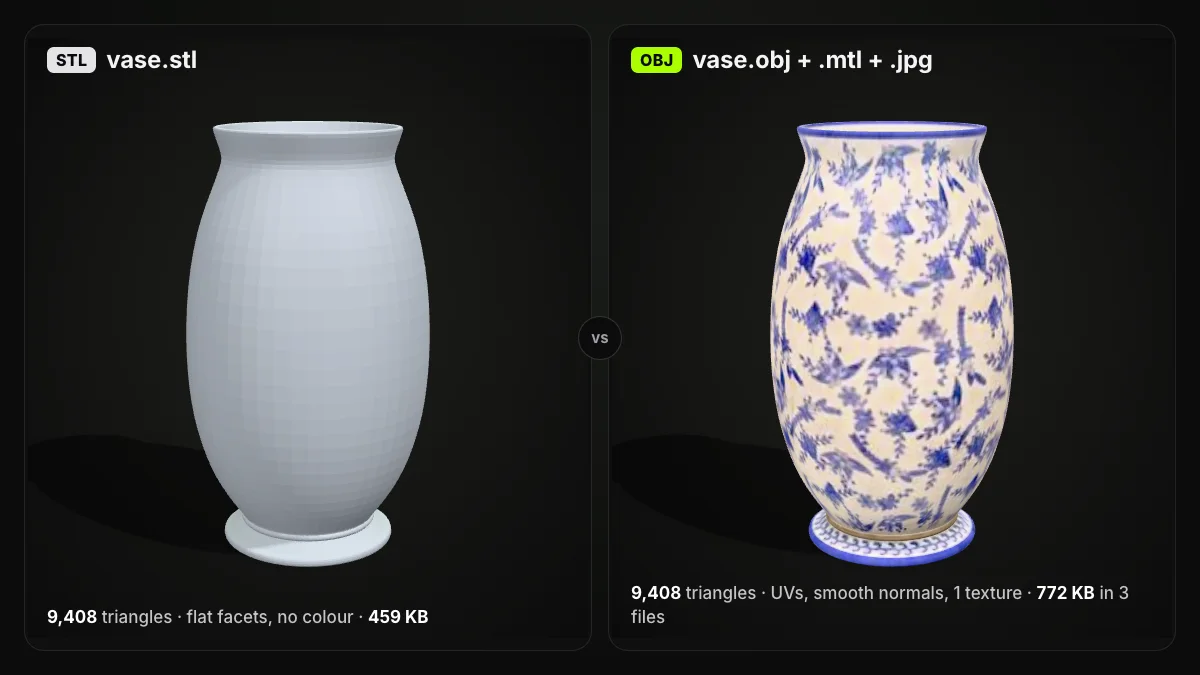
It runs entirely in your browser with three.js: the file is read on your own computer, never uploaded, and the tool is free without an account. Quads and n-gons are split into triangles, every object and group in the file goes into one STL, and the model is turned from OBJ’s Y-up to the Z-up that slicers use, so a bust or a vase stands on the plate rather than lying on its side. OBJ files often carry extras that STL cannot hold: UV coordinates, smoothing normals, vertex colours and a link to an .mtl material file. Those are left out, and each triangle gets a fresh facet normal instead. The mesh is not repaired or decimated. Neither format stores units, so the numbers pass through unchanged; whether your OBJ file to STL comes out at the right size depends on how it was exported, which the FAQ explains.
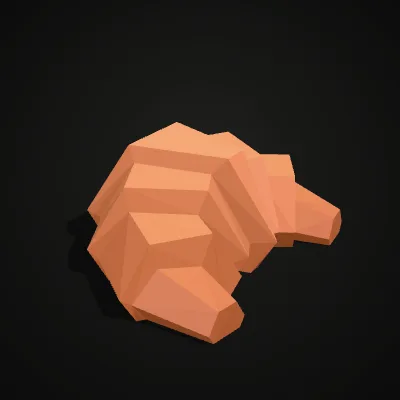
Two OBJ files from a food kit
Both come from Kenney’s CC0 food kit and store their colours per vertex, so they need no .mtl. The croissant converts to 324 triangles and 15.9 KB; the sundae is the file from the recording. Their coordinates are small (the croissant is under half a unit long), so each STL opens as a crumb in the slicer until you scale it to the size you want.
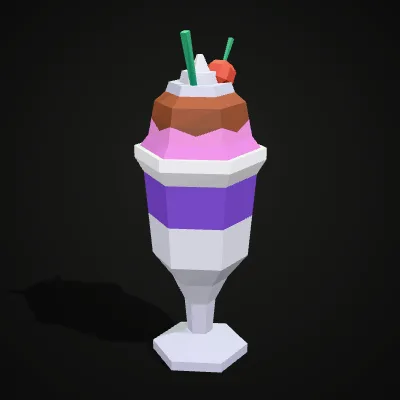
See an ice-cream sundae go from OBJ to STL
An 11-second capture of this converter with the sundae sample, a 23.5 KB OBJ from Kenney’s food kit whose layers are coloured per vertex. The preview shows the pink, purple and white layers and the green straws; Convert to STL is clicked and the result line reads sundae.stl · 27.4 KB · 560 triangles. The download is one colourless mesh standing upright, and slightly bigger than the OBJ, because each of the 560 triangles now carries its own three corners.
OBJ to STL, before and after: colour scans become print meshes
Each pair starts with an OBJ carrying per-vertex colour, as scans and CAD exports often do, and ends with the STL this page wrote: the same triangles, now grey, shown with a light wireframe. Sizes and triangle counts are taken from the converter’s result line.
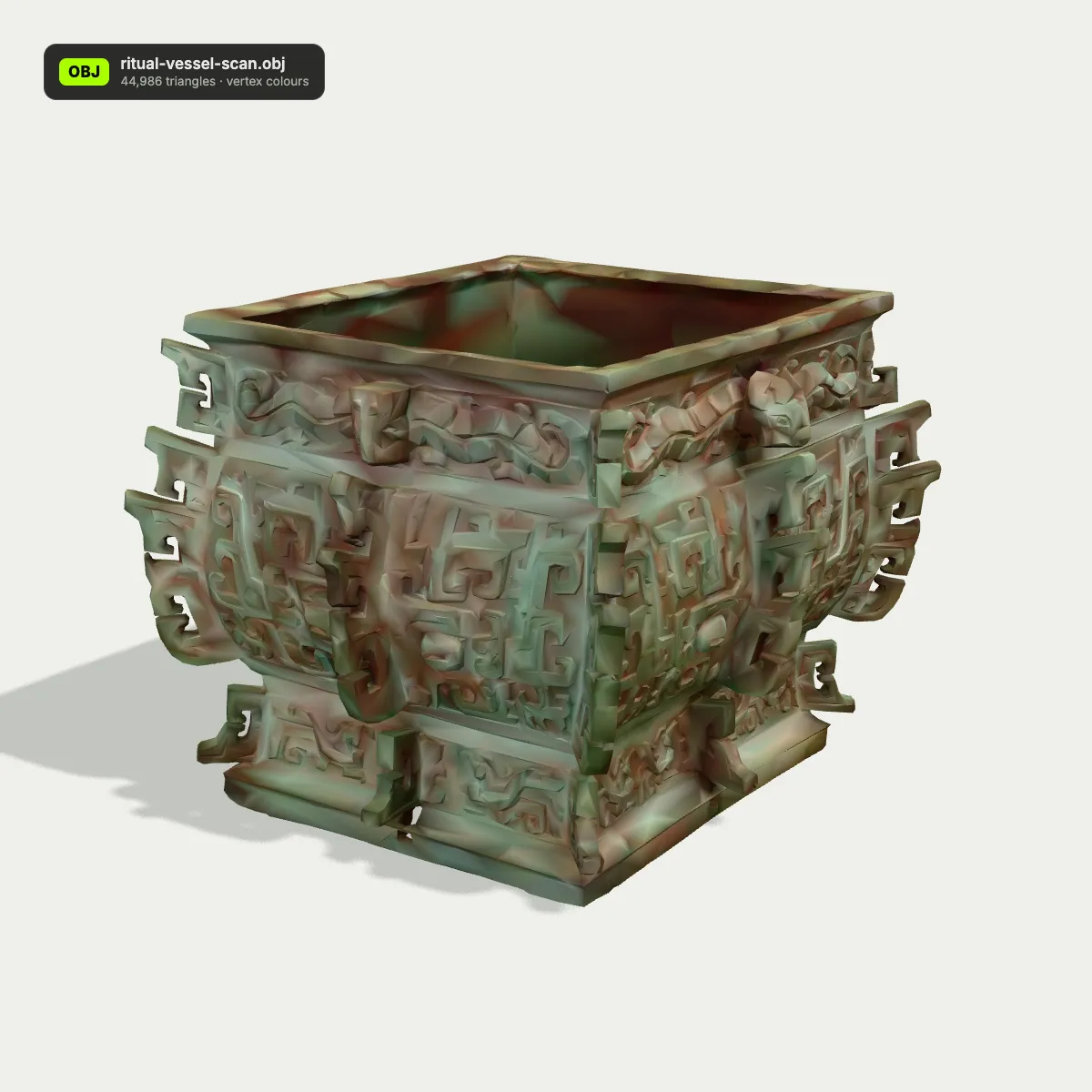
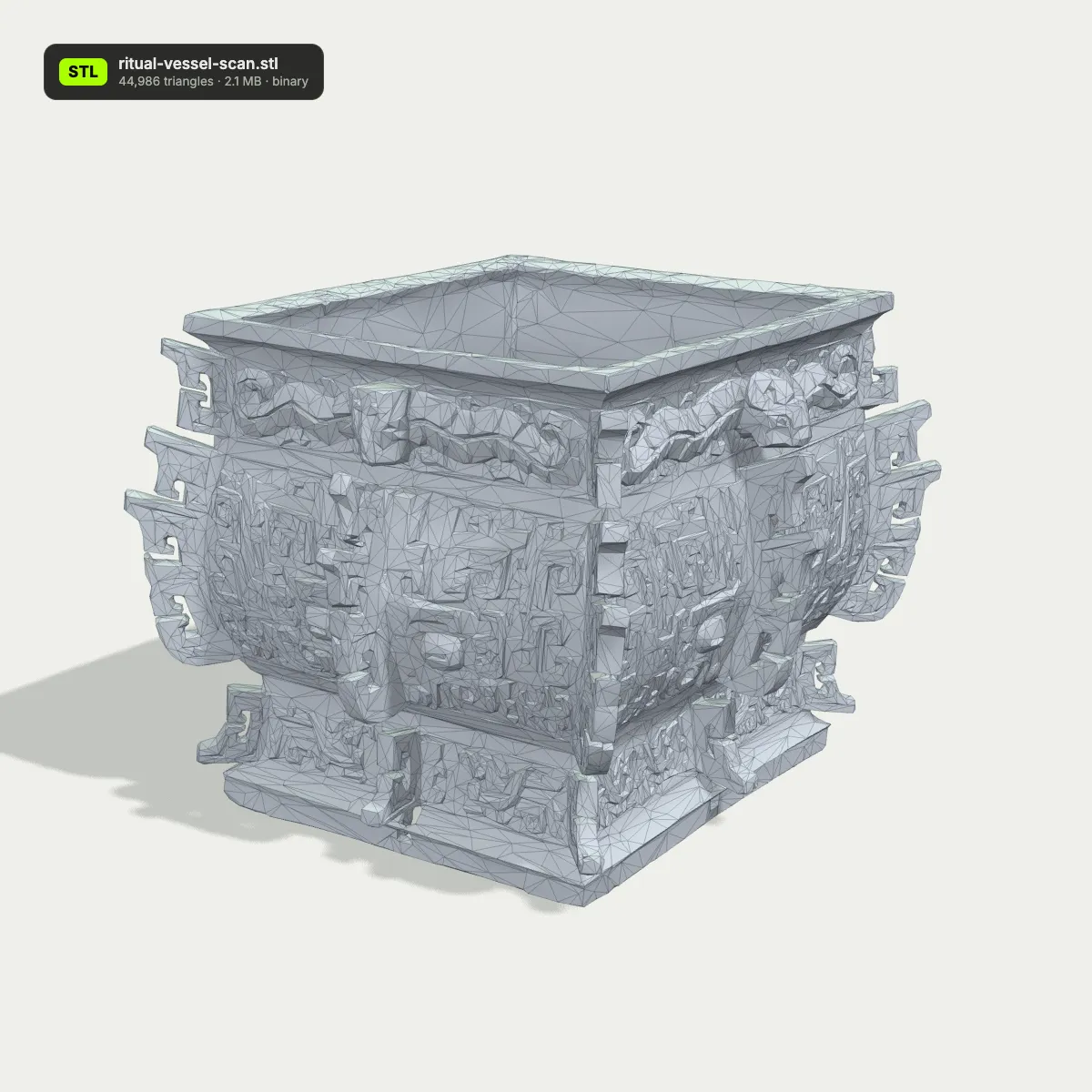
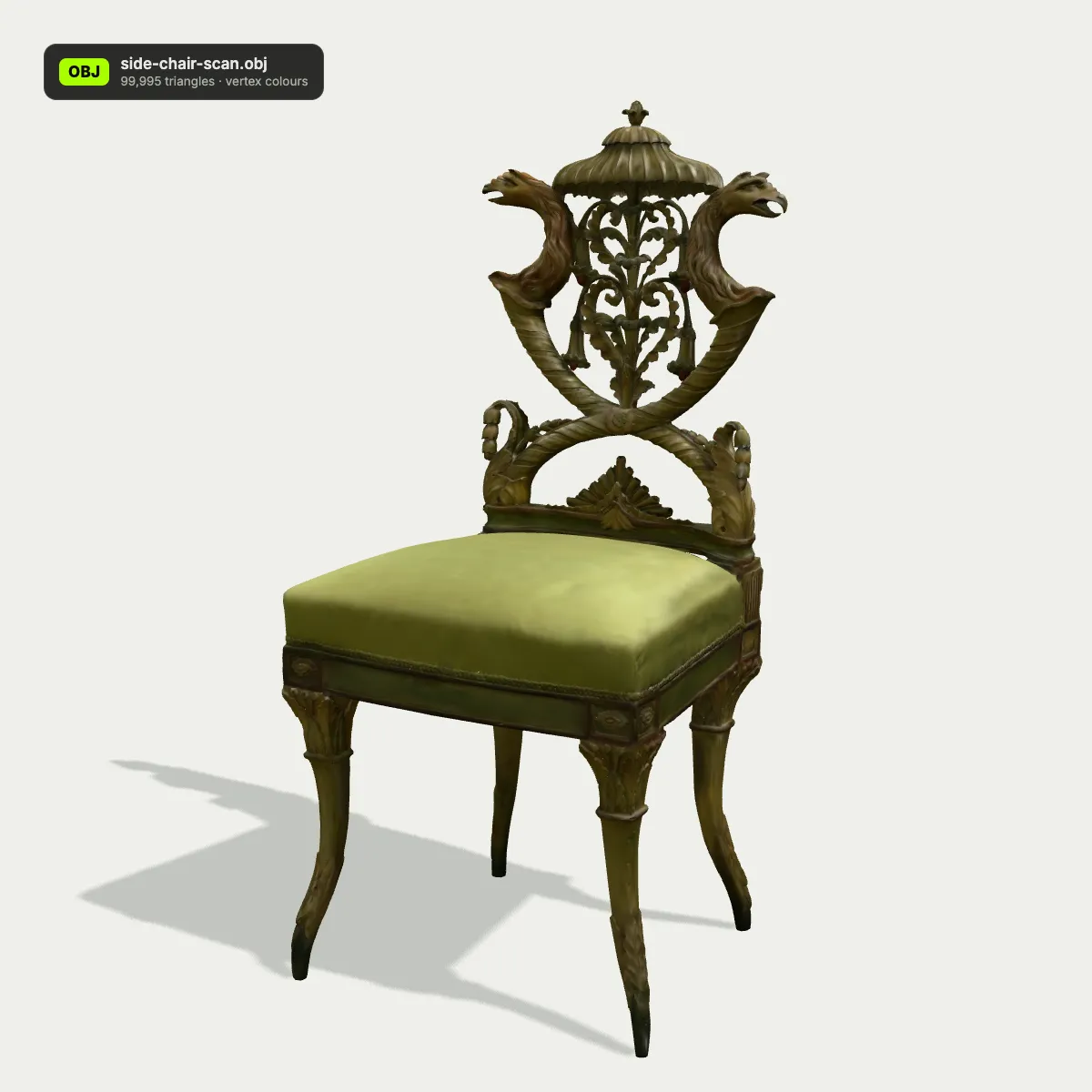
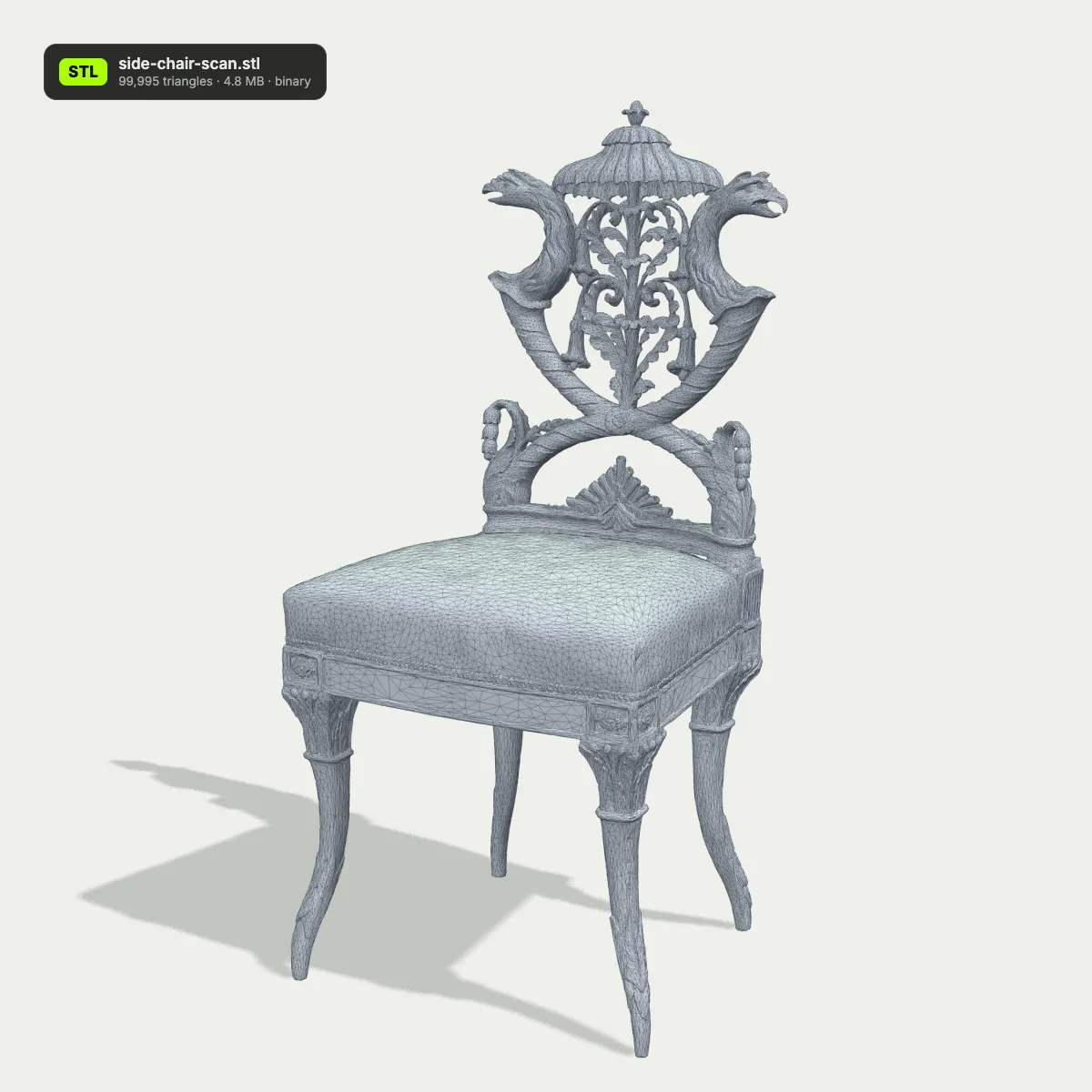
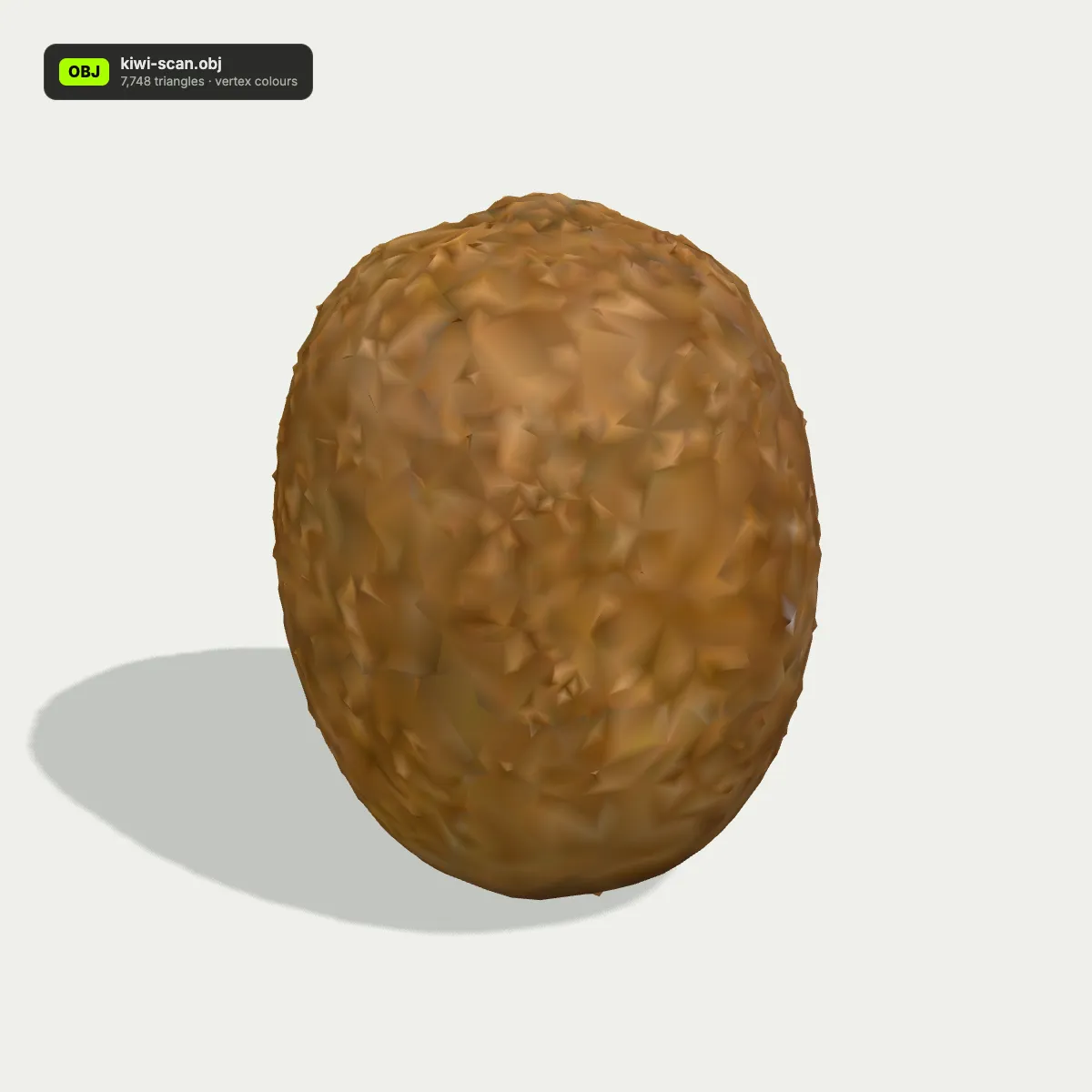
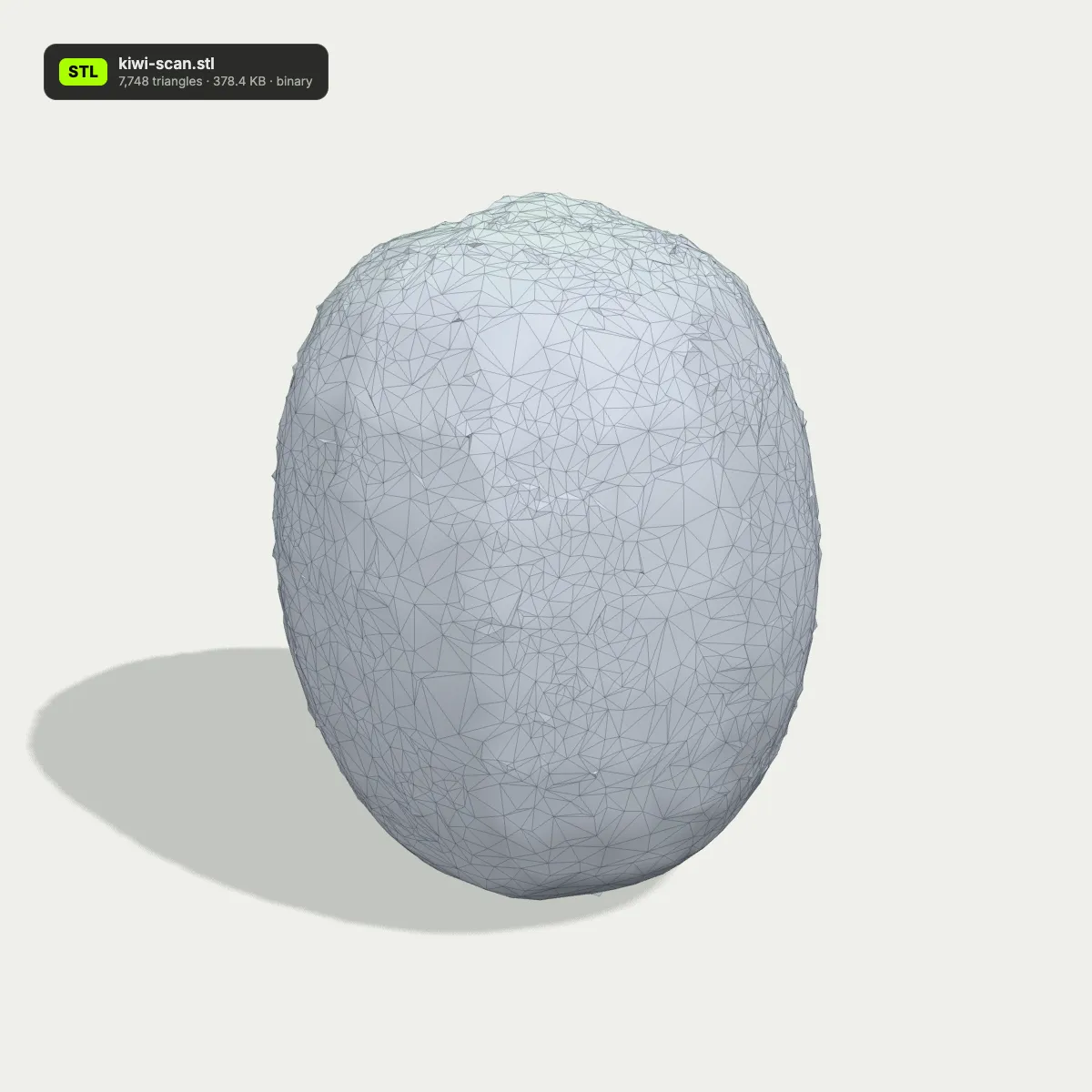
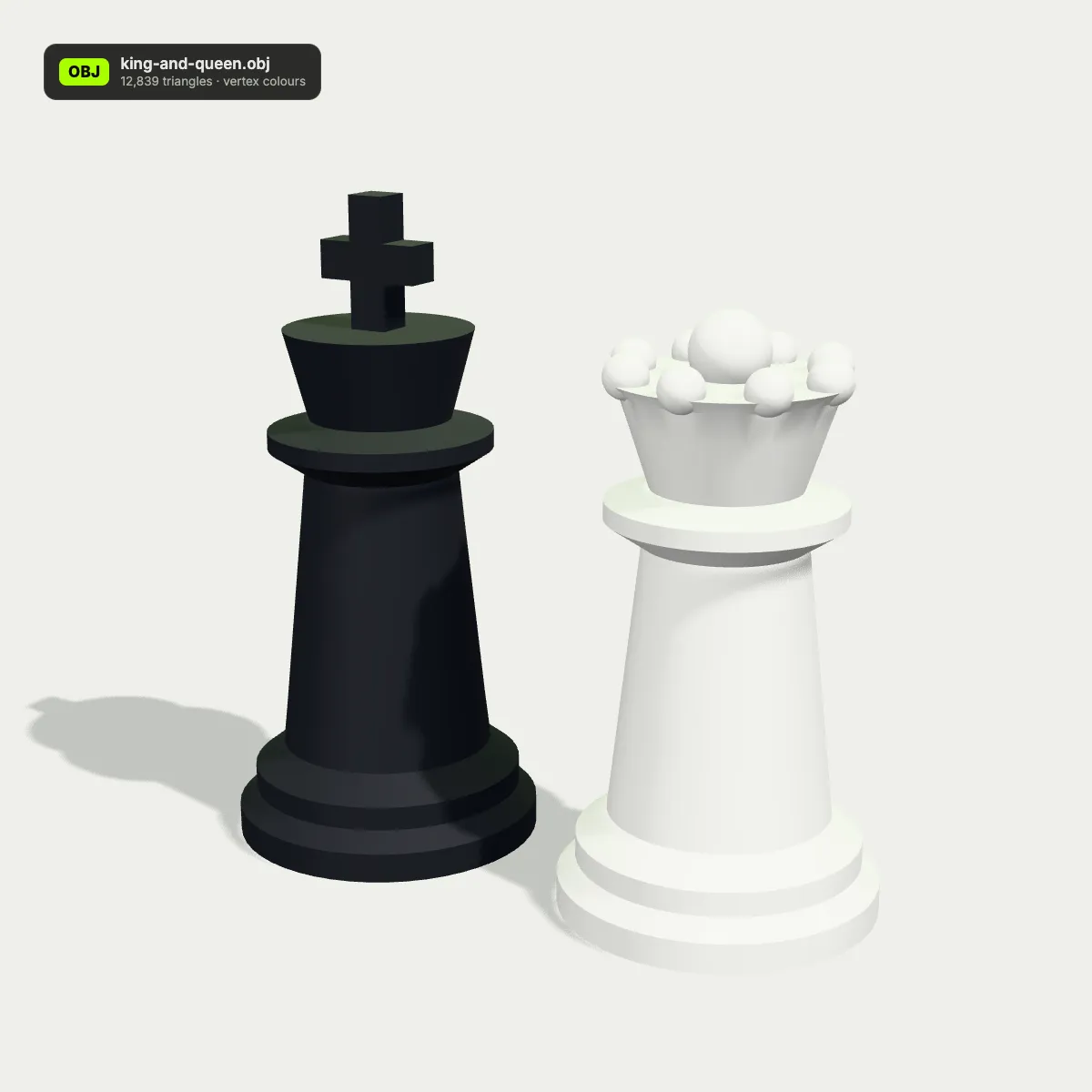
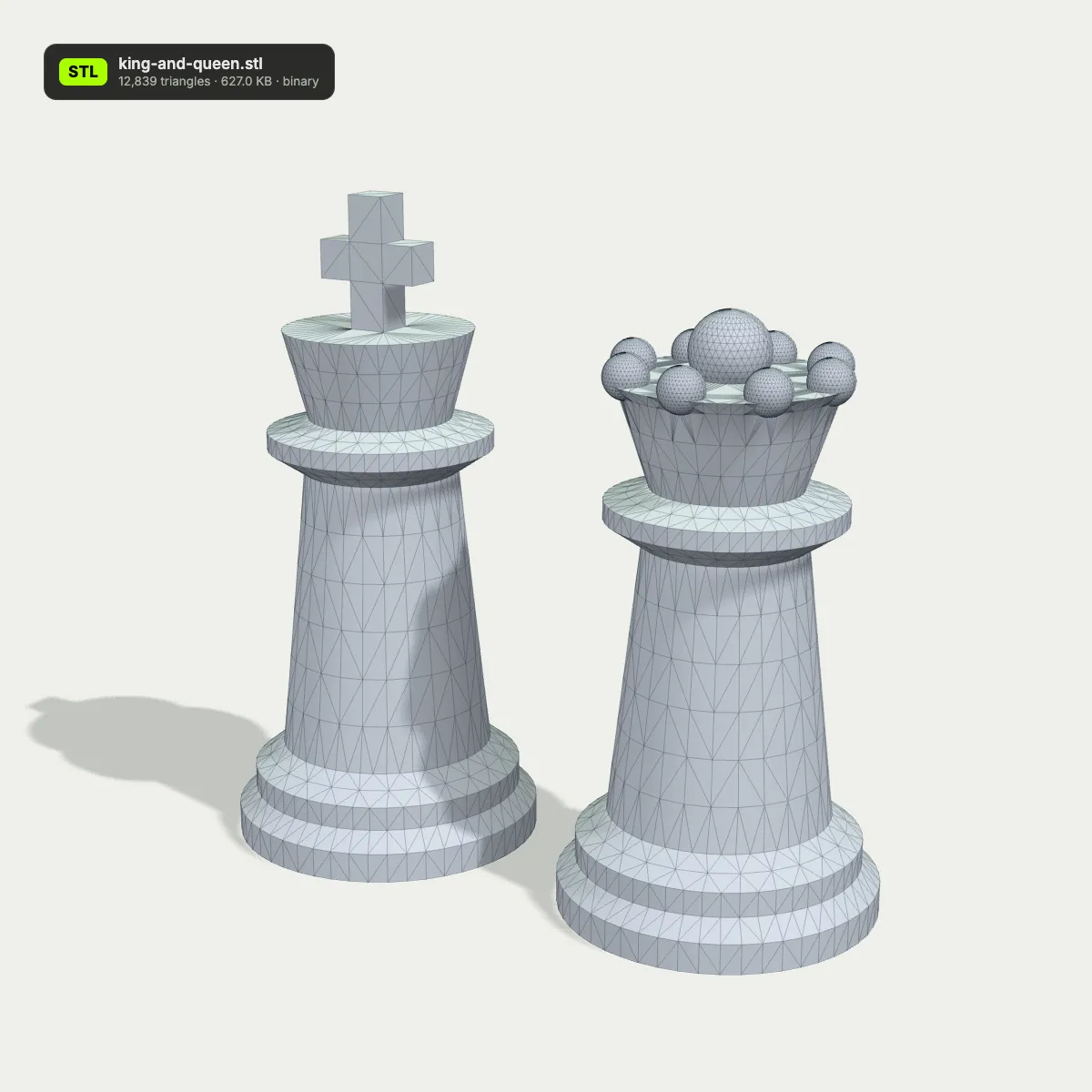
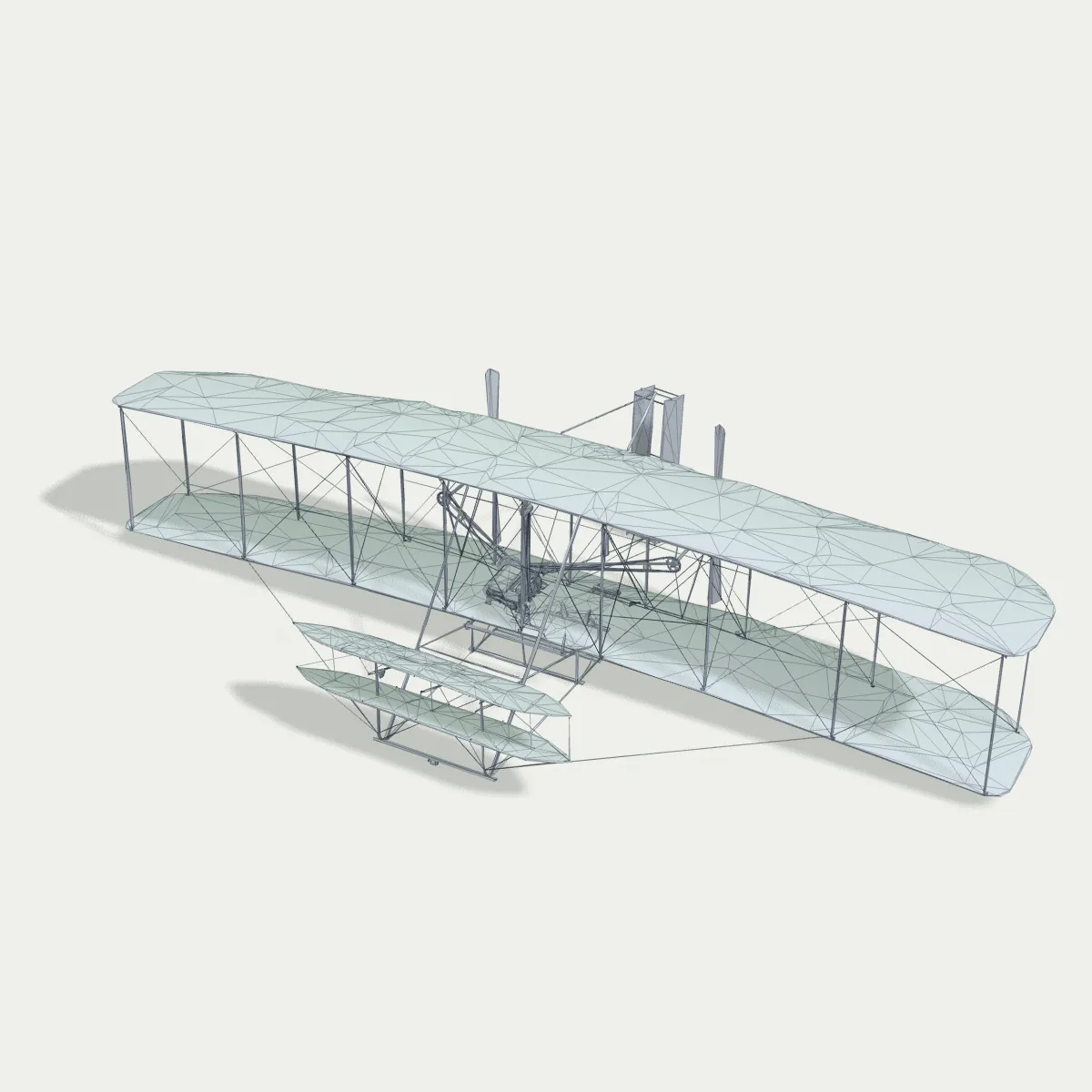
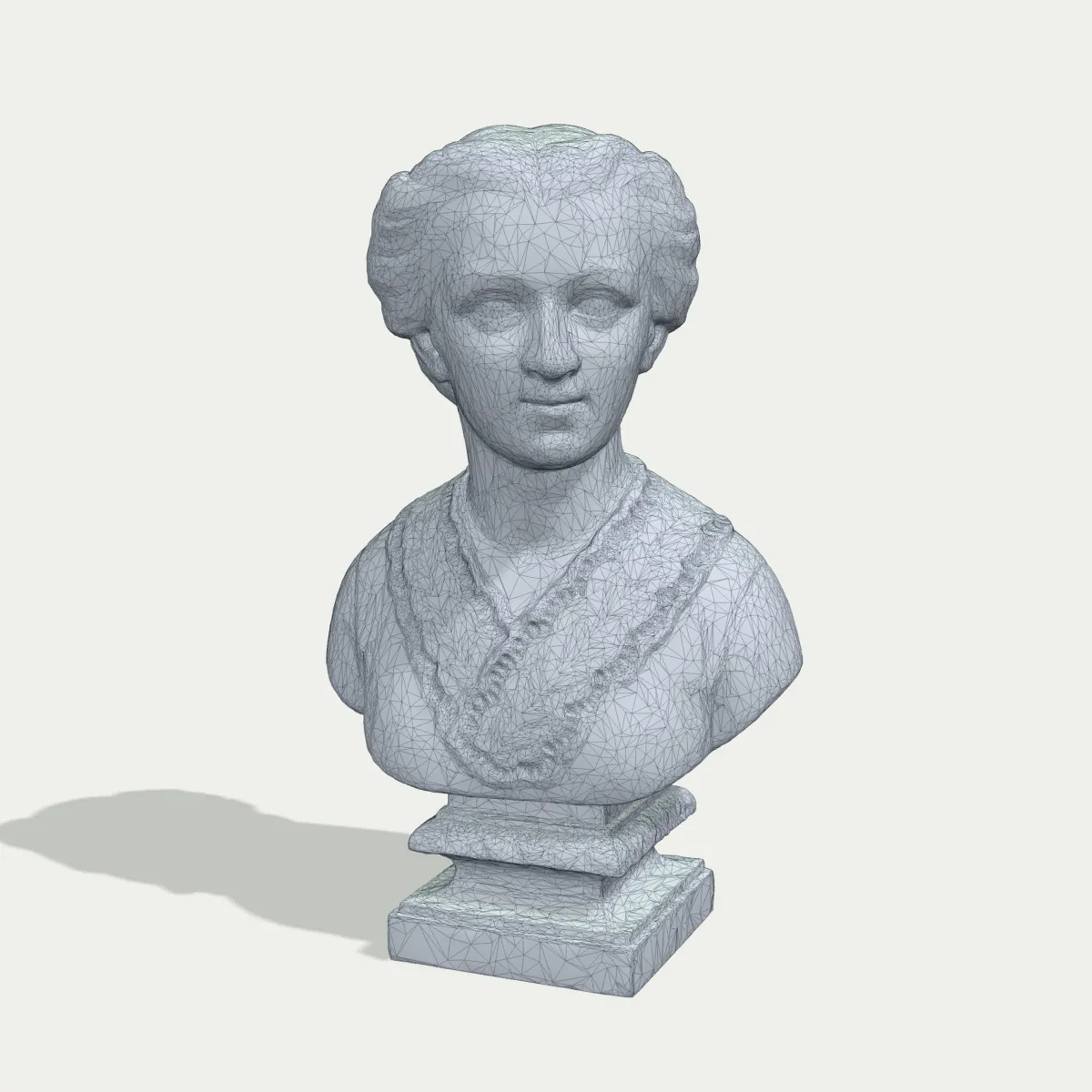
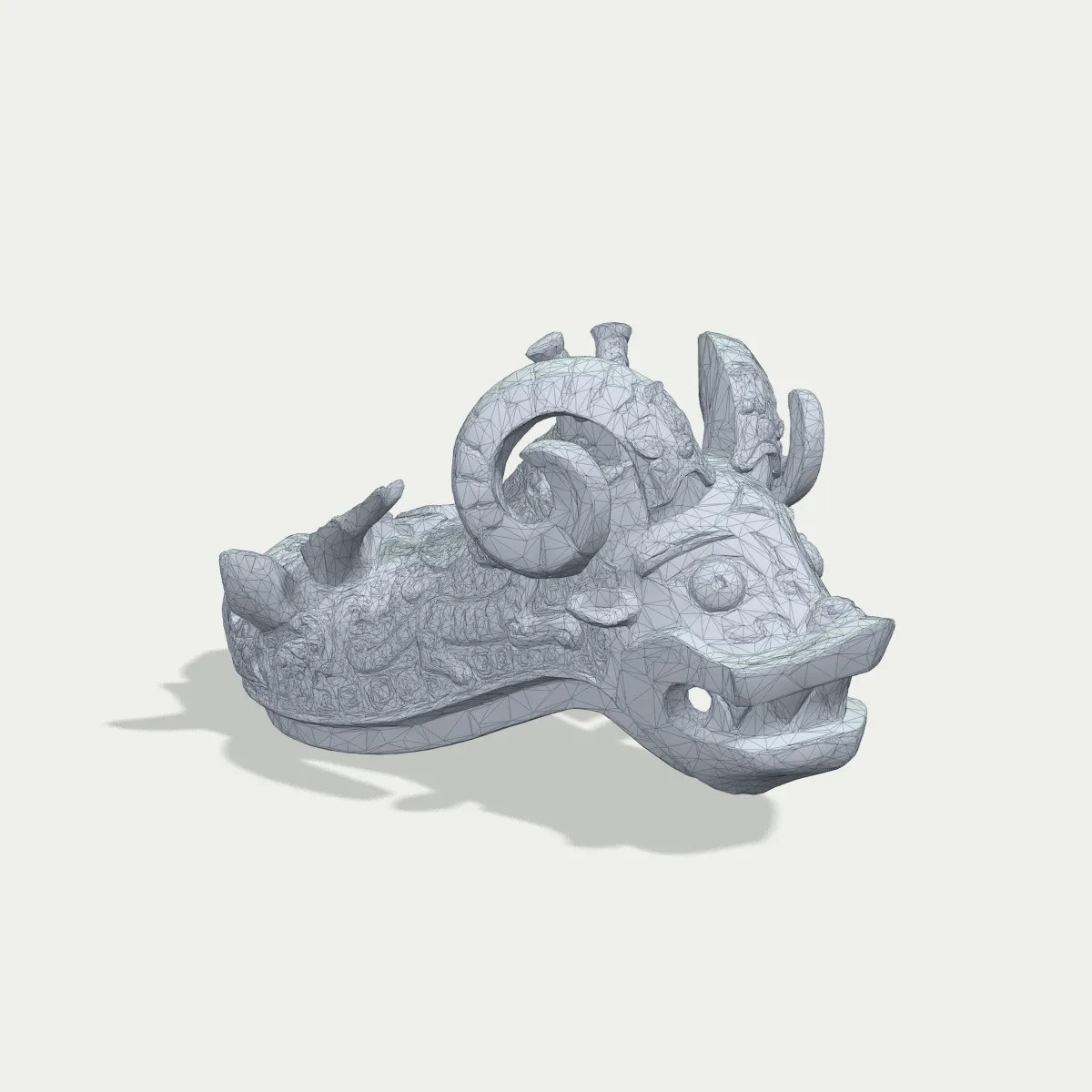
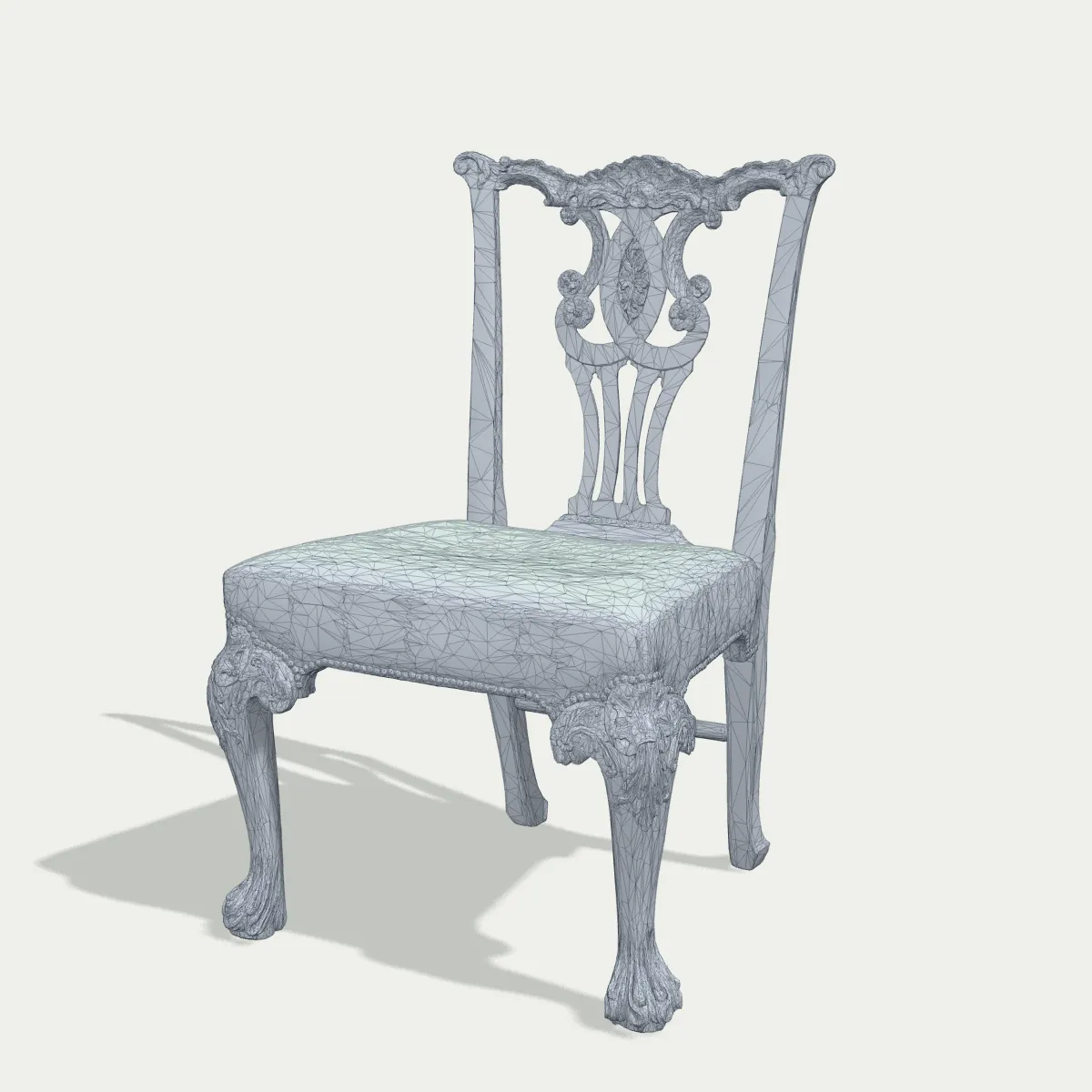
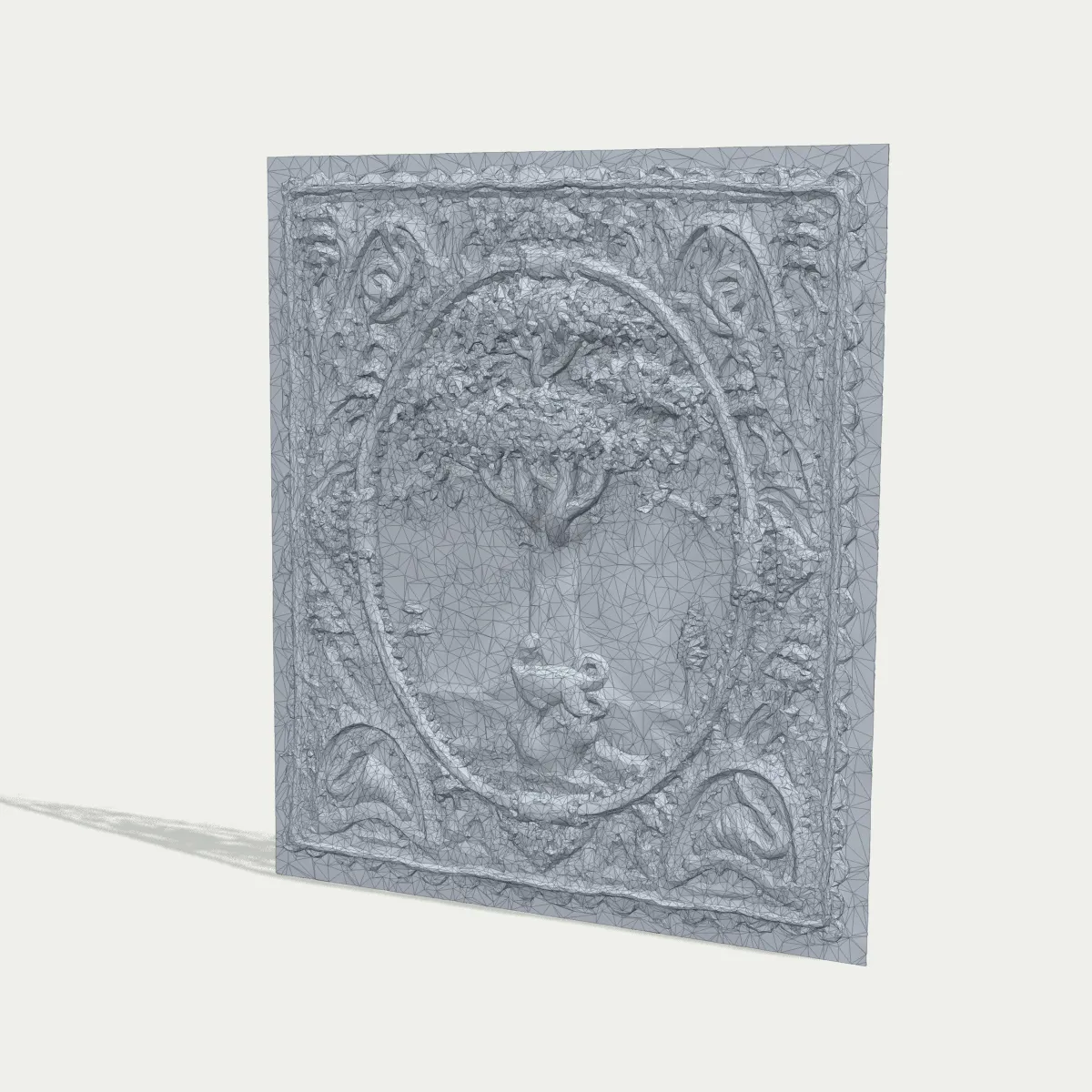
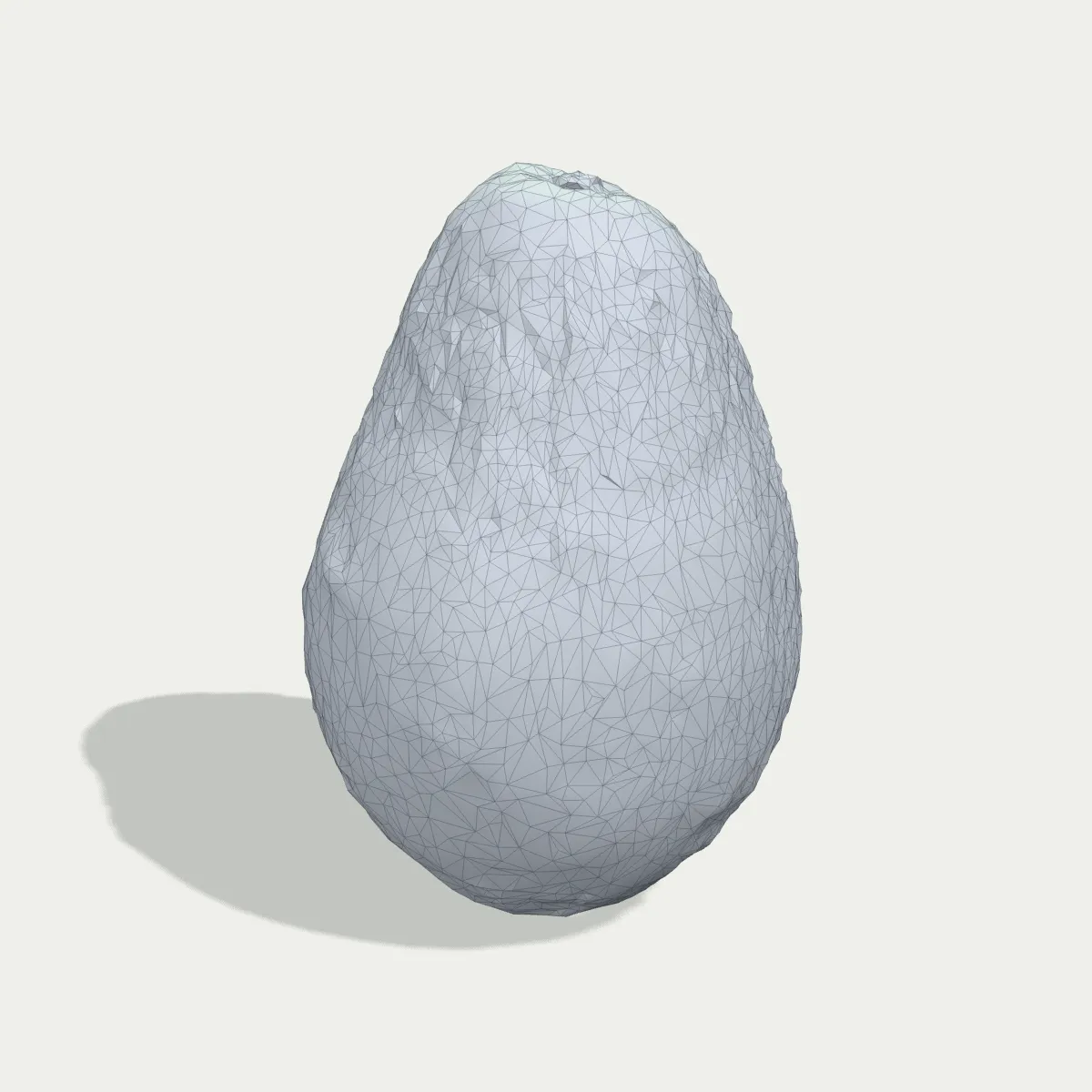
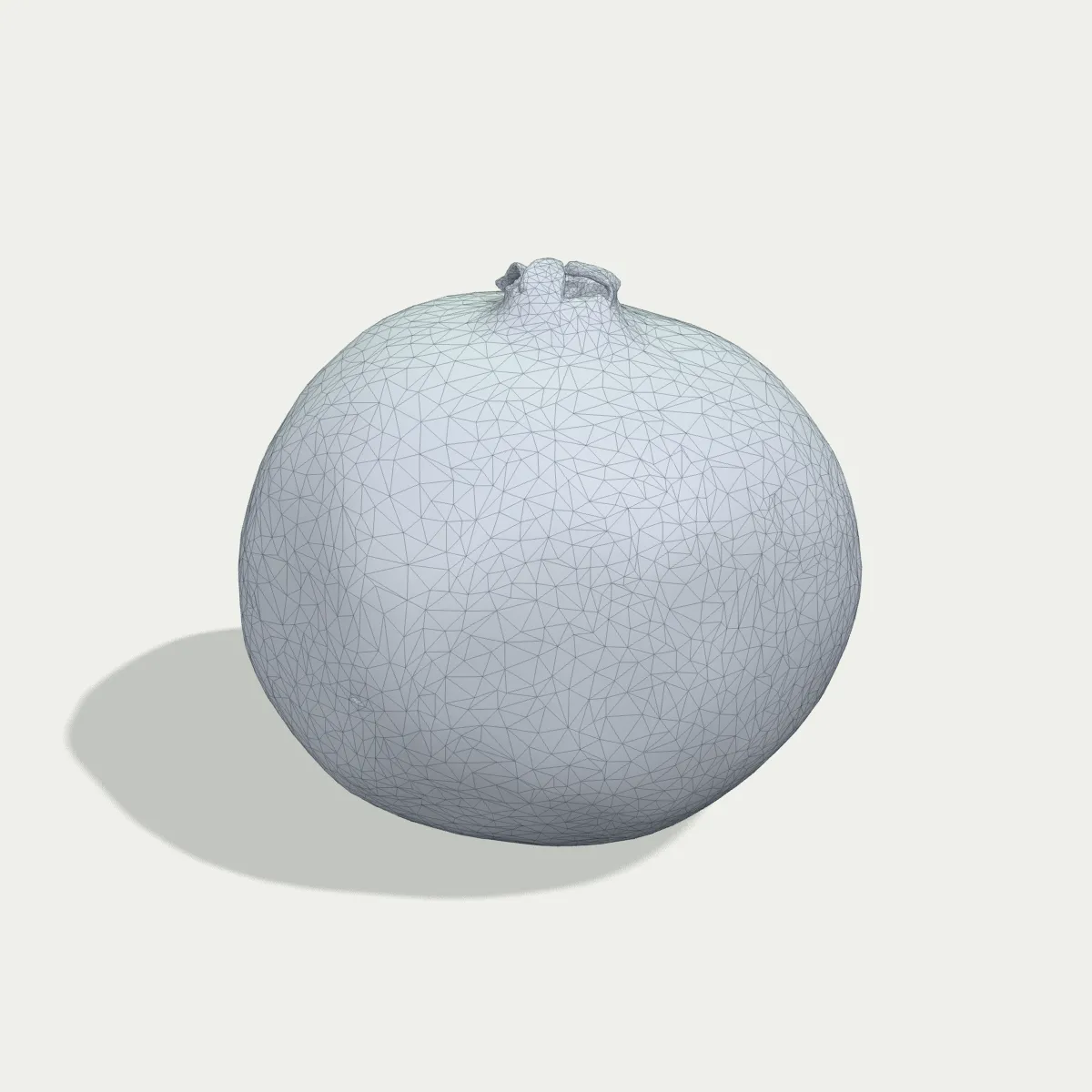
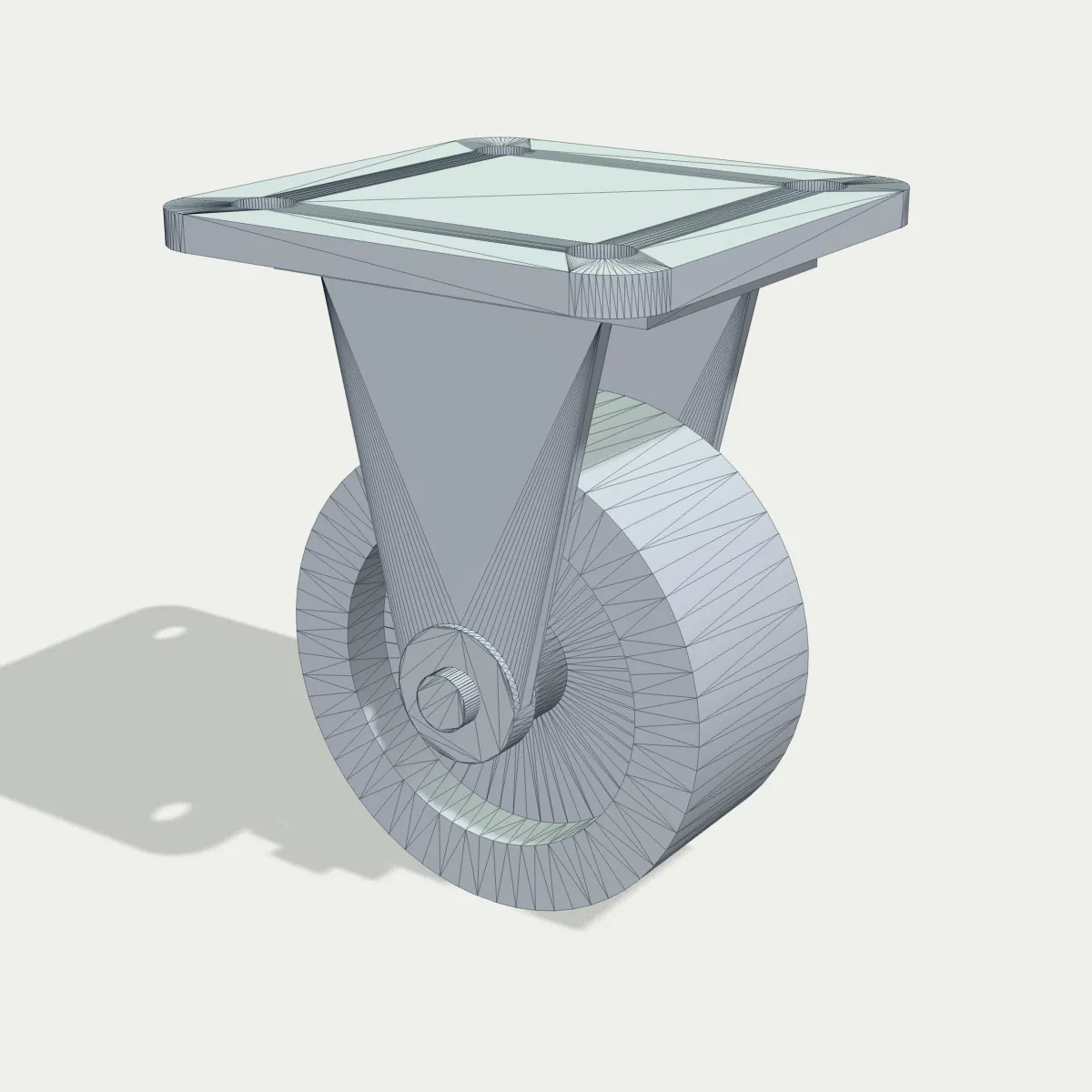
OBJ to STL examples: museum scans, food scans and a CAD part
Eight OBJ files converted to STL here and rendered as grey meshes with a wire overlay, the way you would inspect them before slicing. Five are museum objects from Smithsonian Open Access, two are photogrammetry scans from Poly Haven and one is a caster we modelled in CAD; all are CC0.
How to convert OBJ to STL
- 11
Load the .obj
Drop the file on the converter or click to choose it. Only the .obj itself is read; an .mtl or texture images next to it are not needed and not used. The preview shows the mesh, coloured if the OBJ stores vertex colours and grey otherwise.
- 22
Click Convert to STL
Polygons are triangulated, all objects are combined and the model is rotated to Z-up, then written as binary STL. A 15 MB scan is no problem; the limits are 200 MB and your browser’s memory.
- 33
Download and check the scale
The result line lists the file name, size and triangle count. After Download STL, open the file in your slicer and read the dimensions before anything else; scale up if the OBJ was exported in metres.
OBJ to STL: what goes in, what comes out
OBJ can describe far more than shape; STL describes shape only. Here is what happens to each kind of data in your .obj file.
| In the OBJ | In the STL you download |
|---|---|
| Faces: triangles, quads, n-gons | All become triangles. Quads and n-gons are split into fans, which suits the convex faces most exporters write |
| Objects and groups (o / g) | Merged into a single STL with every part in its place; names are dropped |
| Up axis | OBJ is Y-up by convention, slicers are Z-up: the model is rotated 90° so it stands on the bed |
| Units | Neither format has any. Coordinates are copied unchanged, so a file exported in metres opens 1,000 times too small |
| Vertex colours, .mtl materials, textures | Not carried, since STL has no colour. The .mtl and images are not read at all |
| UVs and normals (vt / vn) | Dropped. Each triangle gets a facet normal computed from its corners |
| Lines and points (l / p) | Ignored; only faces become triangles |
| Holes, non-manifold edges, flipped faces | Copied as they are. Nothing is repaired, welded or simplified |
Who converts OBJ to STL, and why
Printing museum and heritage scans
Smithsonian Open Access and many museums publish 3D scans with OBJ downloads. Convert one to STL and print a replica of a bronze vessel or a carved panel at desk size.
From Blender or ZBrush to the printer
Sculpted something and exported OBJ out of habit? Bring the file here instead of reopening the scene, and the slicer gets an upright STL.
Phone and photogrammetry scans
Scanning apps and photogrammetry software usually export OBJ with a colour texture. The STL drops the texture and keeps the captured surface, which is the part a printer can reproduce.
Play food and dollhouse props
Free asset kits often ship OBJ alongside other formats. Low-poly food, furniture and props from kits like Kenney’s become play food, dollhouse furniture or quick test prints.
OBJ to STL FAQ
Drop the .obj on the converter above, click Convert to STL, then Download STL. It is free, works without an account and never uploads the file, because everything runs in your browser. The size limit is 200 MB.
Because neither format records units: the converter copies the numbers and your slicer reads them as millimetres. Blender writes OBJ in metres by default, so a 20 cm bust exported from Blender opens 0.2 mm tall; scale it by 1000, or set Scale to 1000 in Blender’s OBJ export next time. Files exported in centimetres need a factor of 10, and scans saved in millimetres open at the right size straight away.
No. STL has no field for colour, and the converter reads only the .obj, not its .mtl or images. Vertex colours appear in the preview but not in the STL. To print in colour, paint the model in a multi-material slicer or keep it in a format such as 3MF.
No, they are split into triangles automatically, which is why the triangle count in the result line can be about twice the face count your modelling app shows. Unusual faces, such as concave n-gons, can triangulate badly; if the STL shows odd spikes, triangulate in your modeller first (Ctrl+T in Blender) and export again.
This tool always writes one STL, with every object where it was. To print the parts on their own, split the STL into objects in your slicer, or export each object separately from the program that made the OBJ.
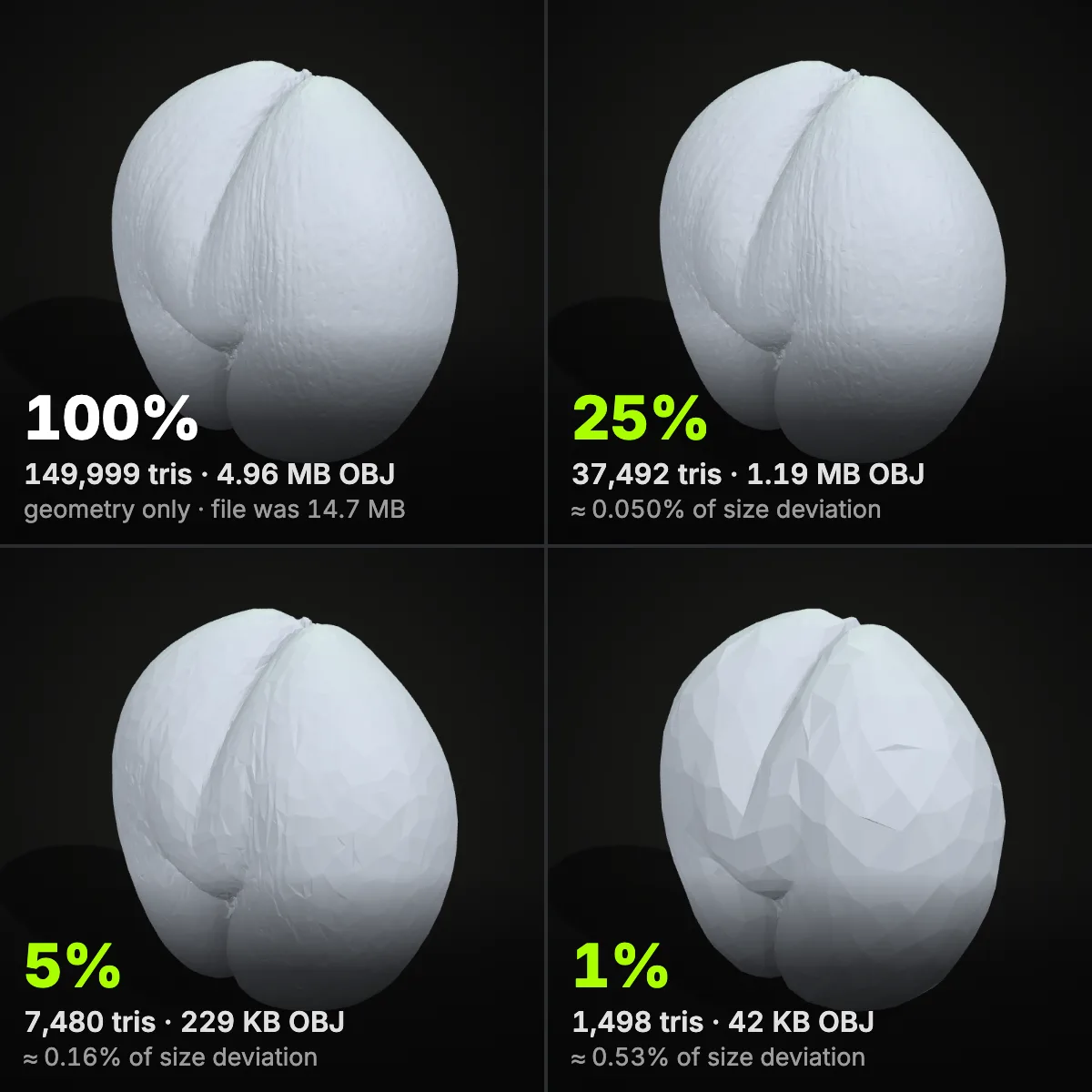
Converting already helps with big scans: binary STL leaves out UVs, colours and long text numbers, so our 15.6 MB chair scan became a 4.8 MB STL. For a bigger cut, run the STL through our Reduce STL File Size tool, or shrink the OBJ first with the OBJ File Shrinker. Holes are not repaired here, so fix those in your slicer or mesh editor.
Guides for this tool
Related tools
Have a photo instead of a model?
Ship3D’s AI generator turns a single photo into a 3D model that you can download as STL and print.
Free to sign up, no credit card required. Try it once for free.