STL to OBJ Converter
Print Files Into Modelling and Game Tools
This STL to OBJ converter turns a printable .stl, binary or ASCII, into a Wavefront .obj for the places STL does not reach well: Unity will not import STL out of the box, texture painters expect OBJ or FBX, and many renderers and sculpting tools treat OBJ as the common format.
STL → OBJ
Drop a 3D model file to preview it in 3D before converting.
The work is done by three.js in your browser, so the file stays on your computer and there is no account to create. The OBJ you download is one object named after your file. Vertices that share a position and a normal are shared, normals are written, and numbers are trimmed to six decimals. STL is Z-up and OBJ is Y-up by convention, so the part is rotated to stand upright in Y-up programs. Colour comes along as far as the STL has any: a binary STL with per-face colours, the kind Materialise Magics writes, comes out with matching vertex colours, while a plain STL stays a plain OBJ with no colour data. STL has no UVs, so neither has the OBJ; unwrap it before you texture it. Nothing is repaired or simplified.
Two STL parts to convert
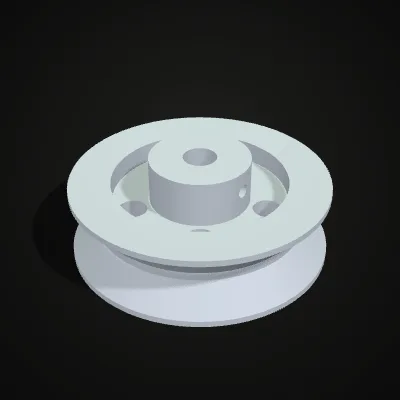
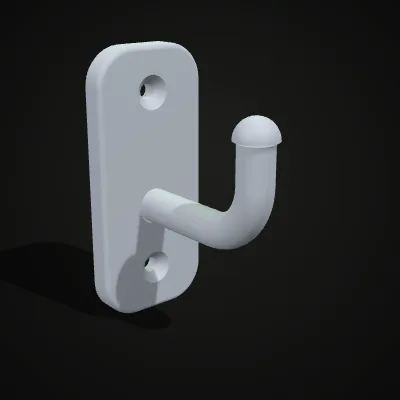
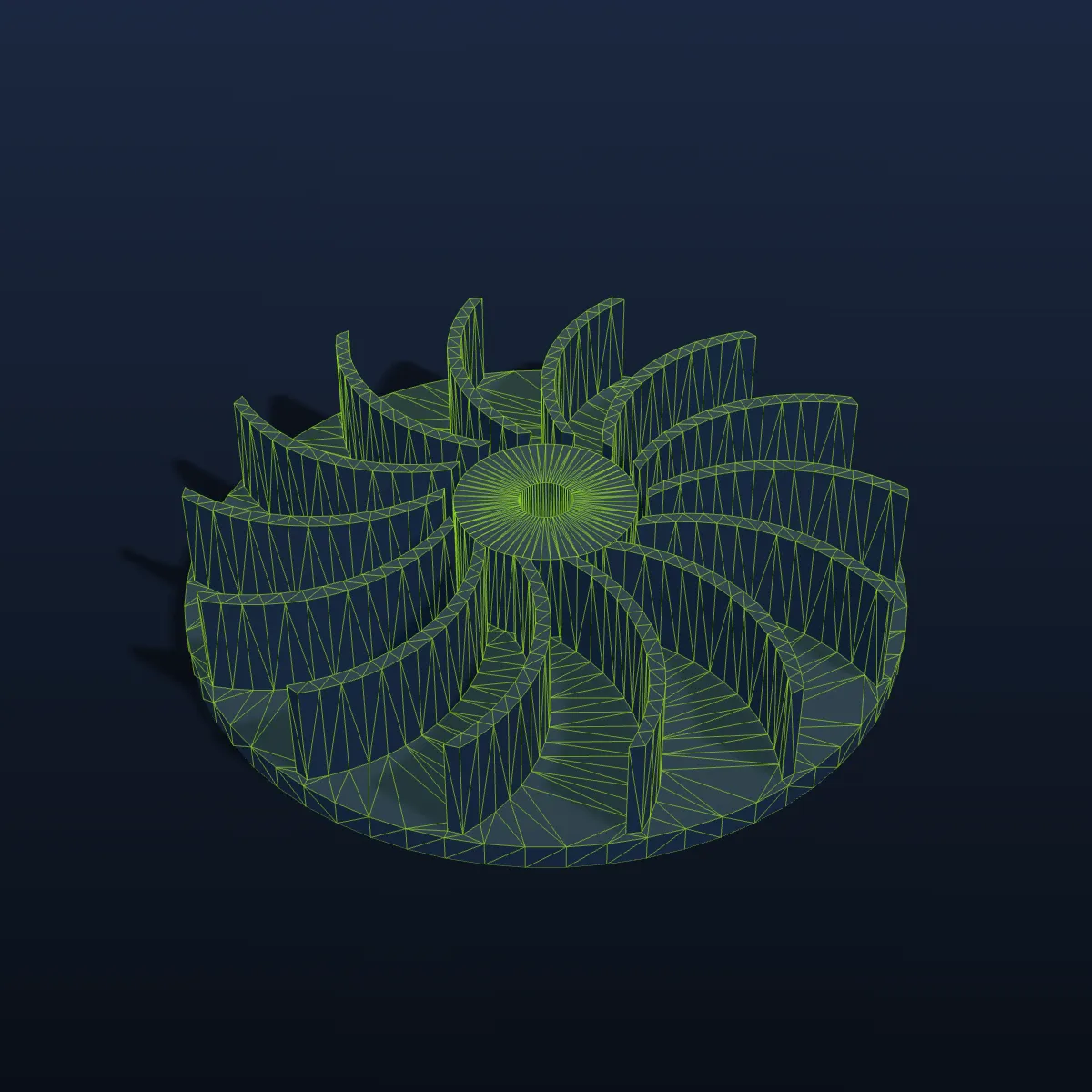
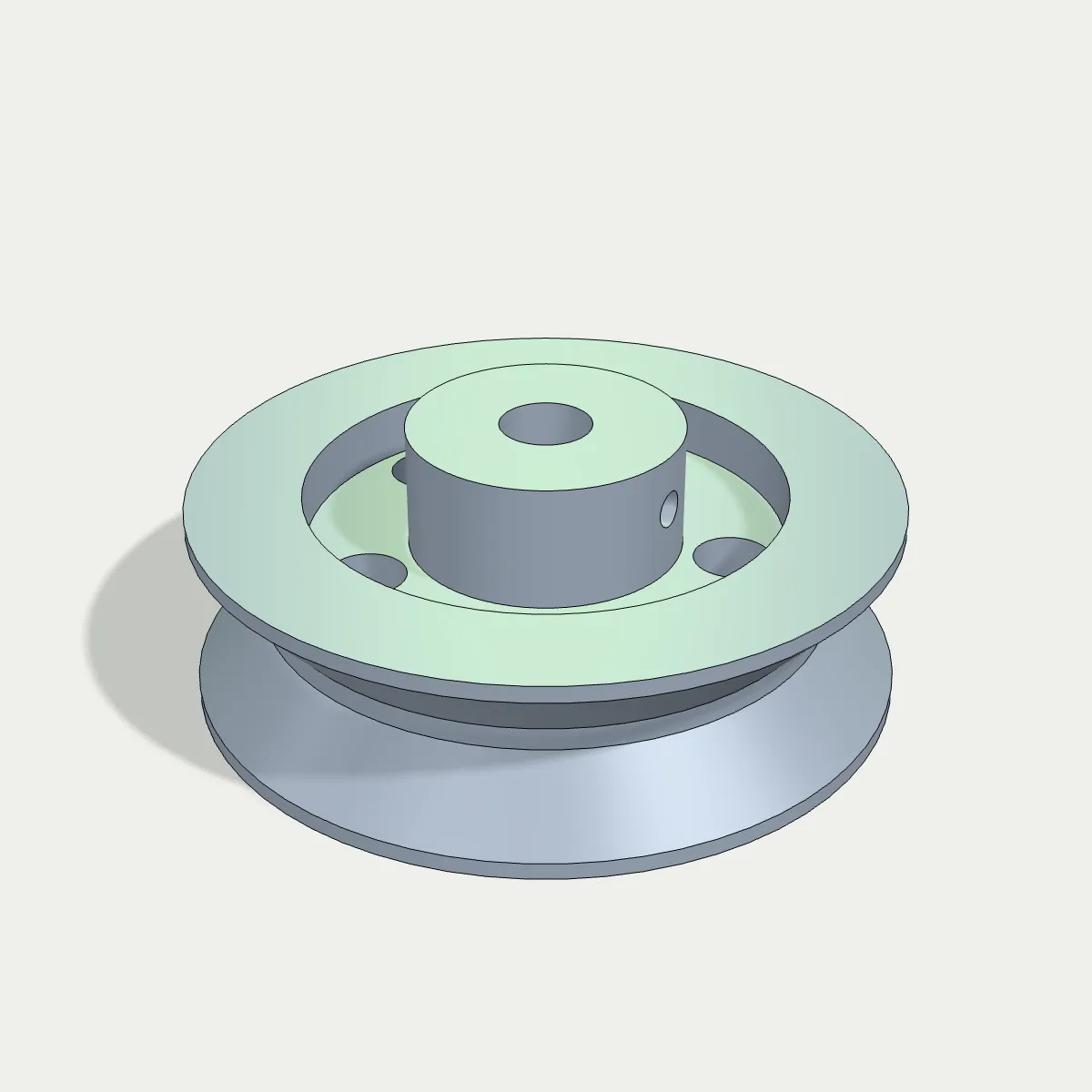
Both are parts we modelled in CadQuery and saved as binary STL. The pulley is 62 mm across with five spoke holes; after conversion it stands 24 mm tall along the Y axis, the way a Y-up app expects. The wall hook has a ball tip and two countersunk screw holes, and its curved surfaces make a good test of file growth: 342 KB of STL becomes 1.3 MB of OBJ.
Watch a V-belt pulley go from STL to OBJ
An 11-second recording of this page with the V-belt pulley sample, a 185.0 KB binary STL we modelled in CadQuery. It loads and spins in the preview, Convert to OBJ is pressed and the result line reads v-pulley.obj · 483.3 KB · 3,788 triangles before Download OBJ saves the file. The pulley is a plain STL, so the OBJ holds shared vertices, normals and faces, with no colour data.
STL to OBJ, before and after: colour STLs keep their colours
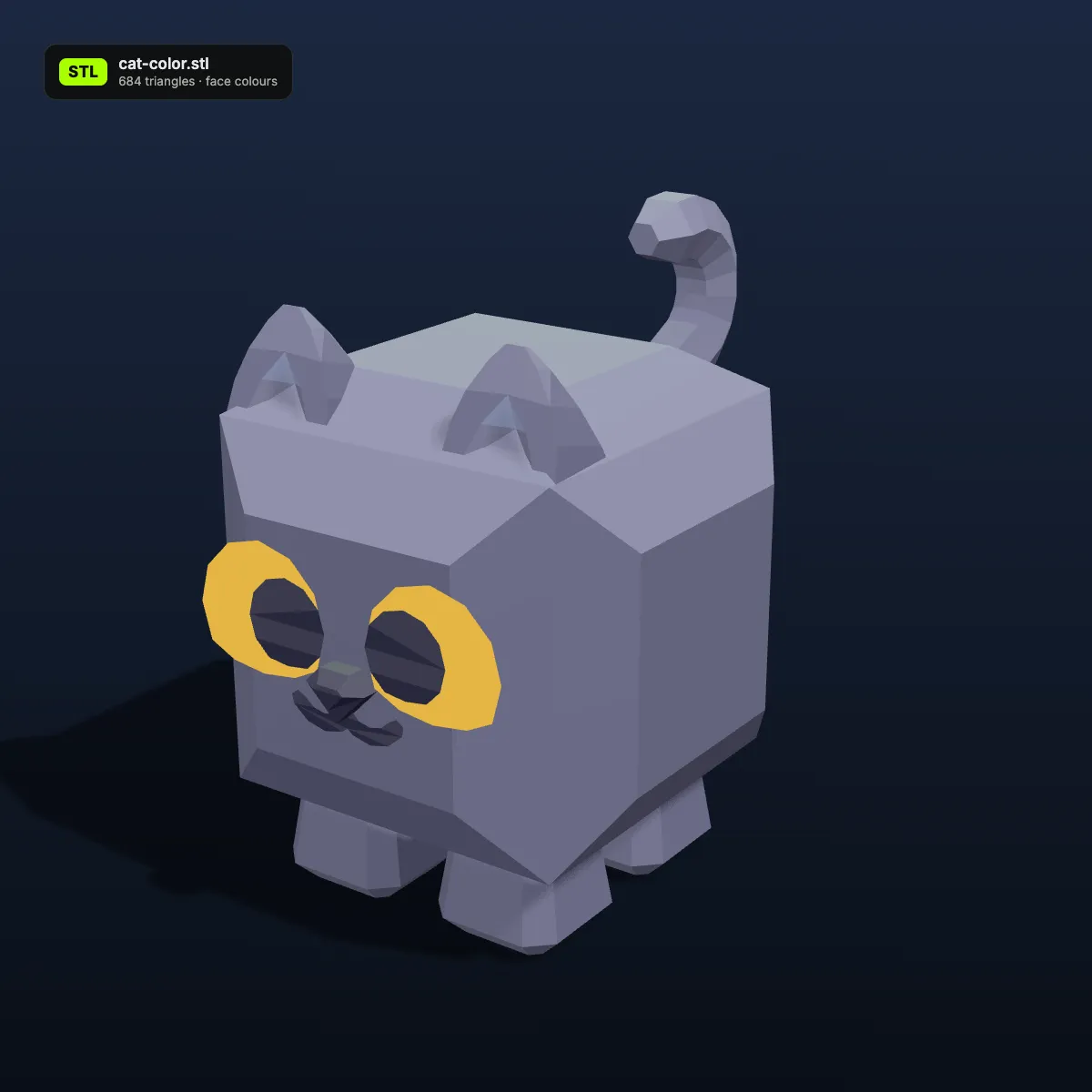
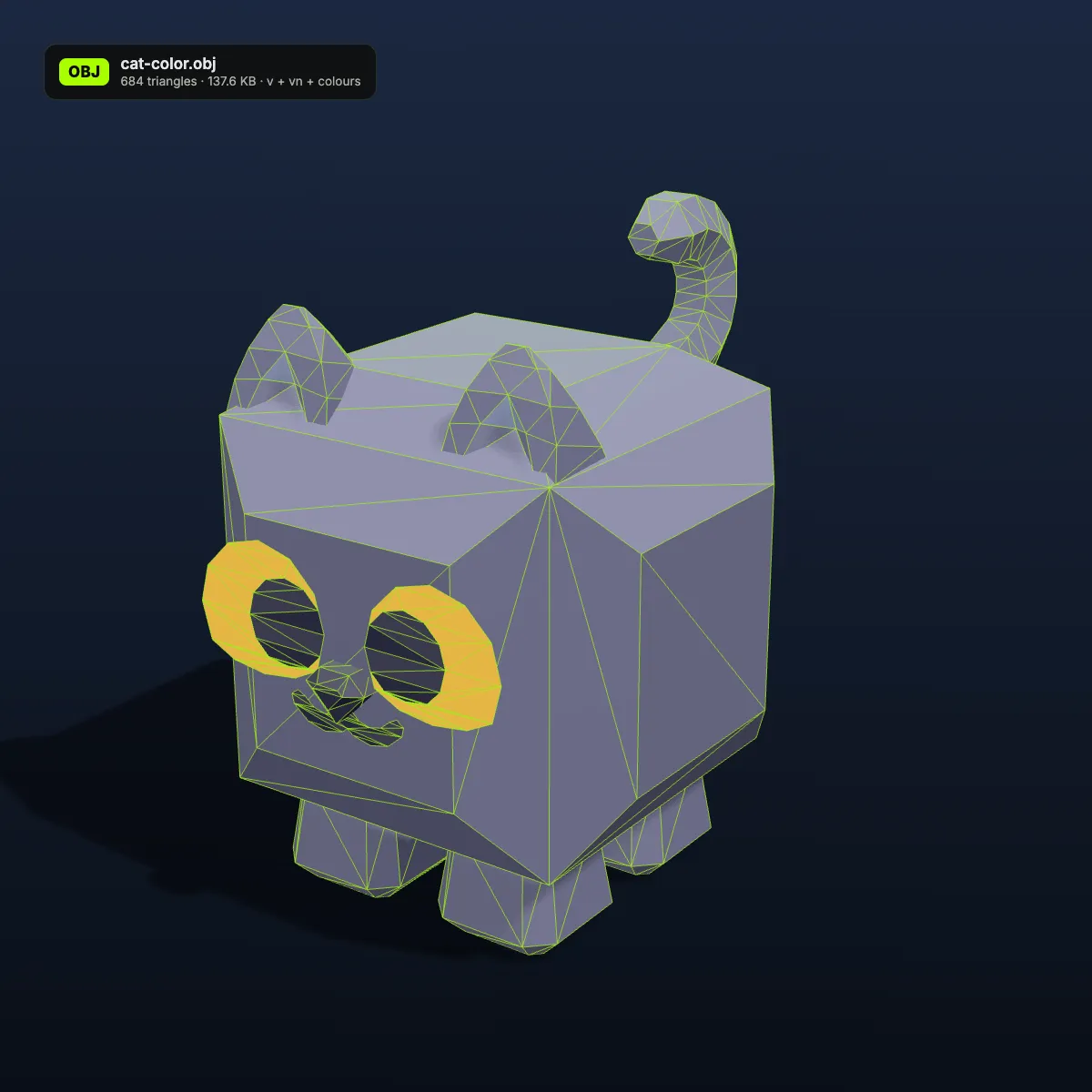
Left: the STL as it arrives. Right: the OBJ this page wrote from it, rendered with its wireframe. The cat and the speedboat are binary STLs with per-face colours, which carry over as vertex colours; the spring and the bracket are plain STLs, which come out without colour data. Sizes and triangle counts are the converter’s.

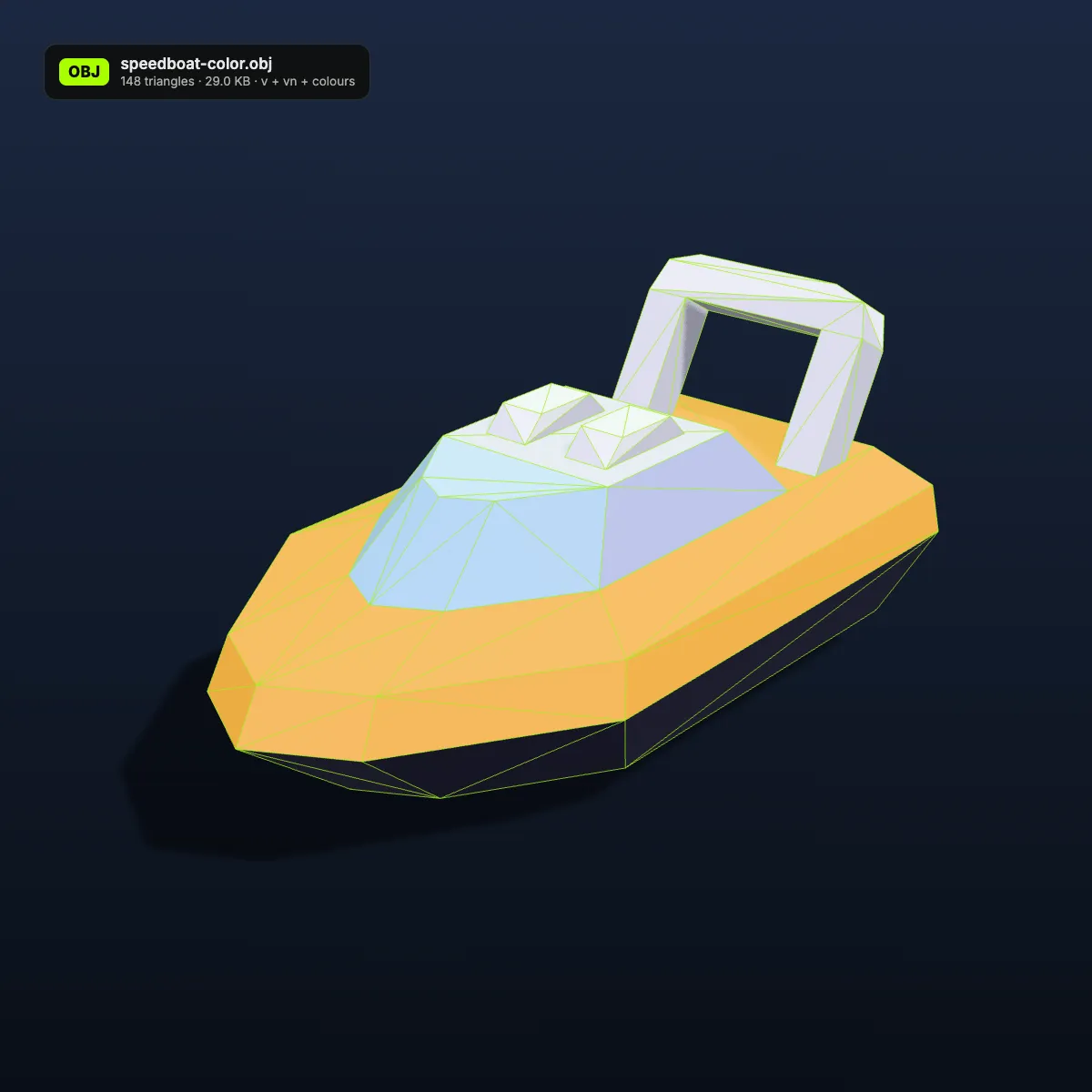


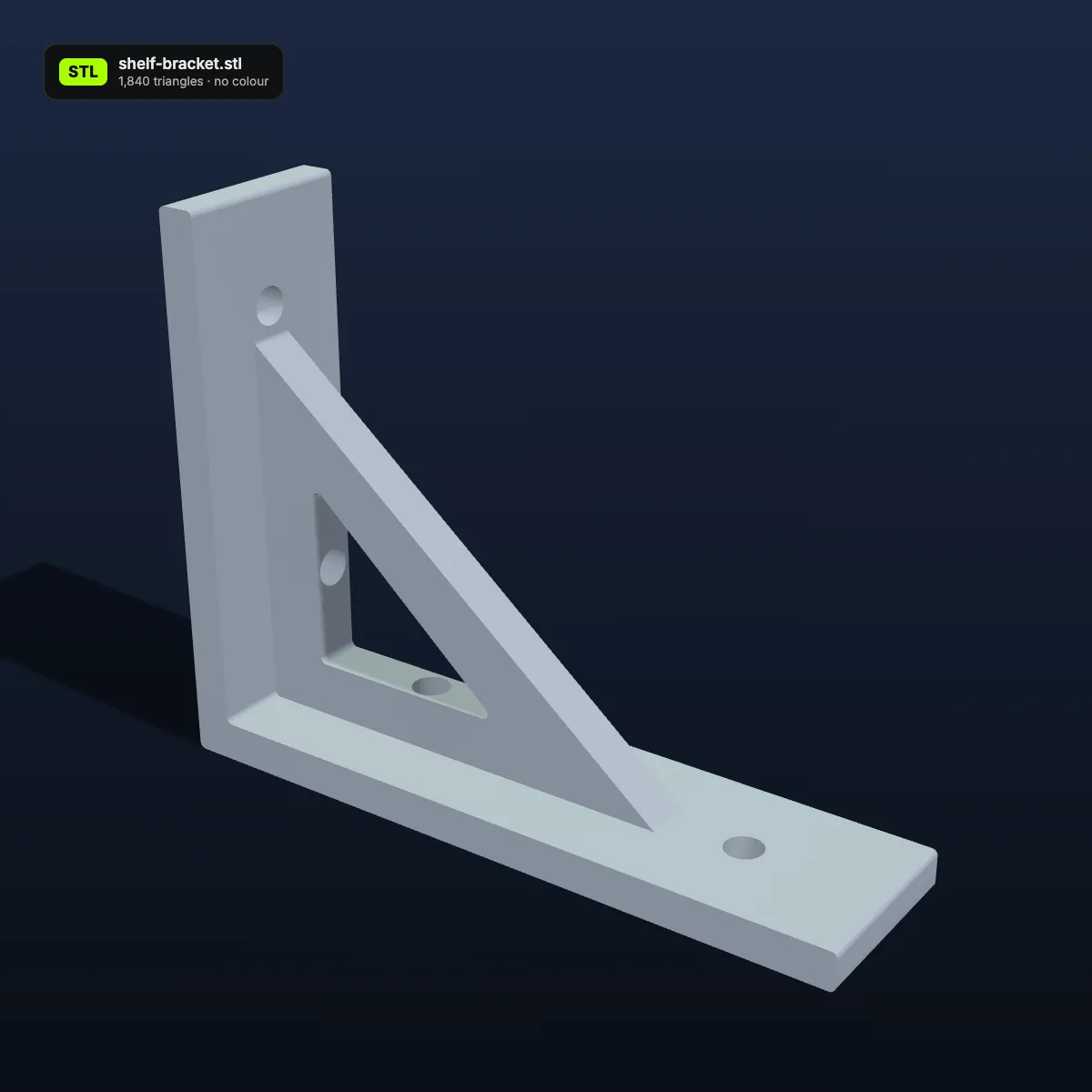
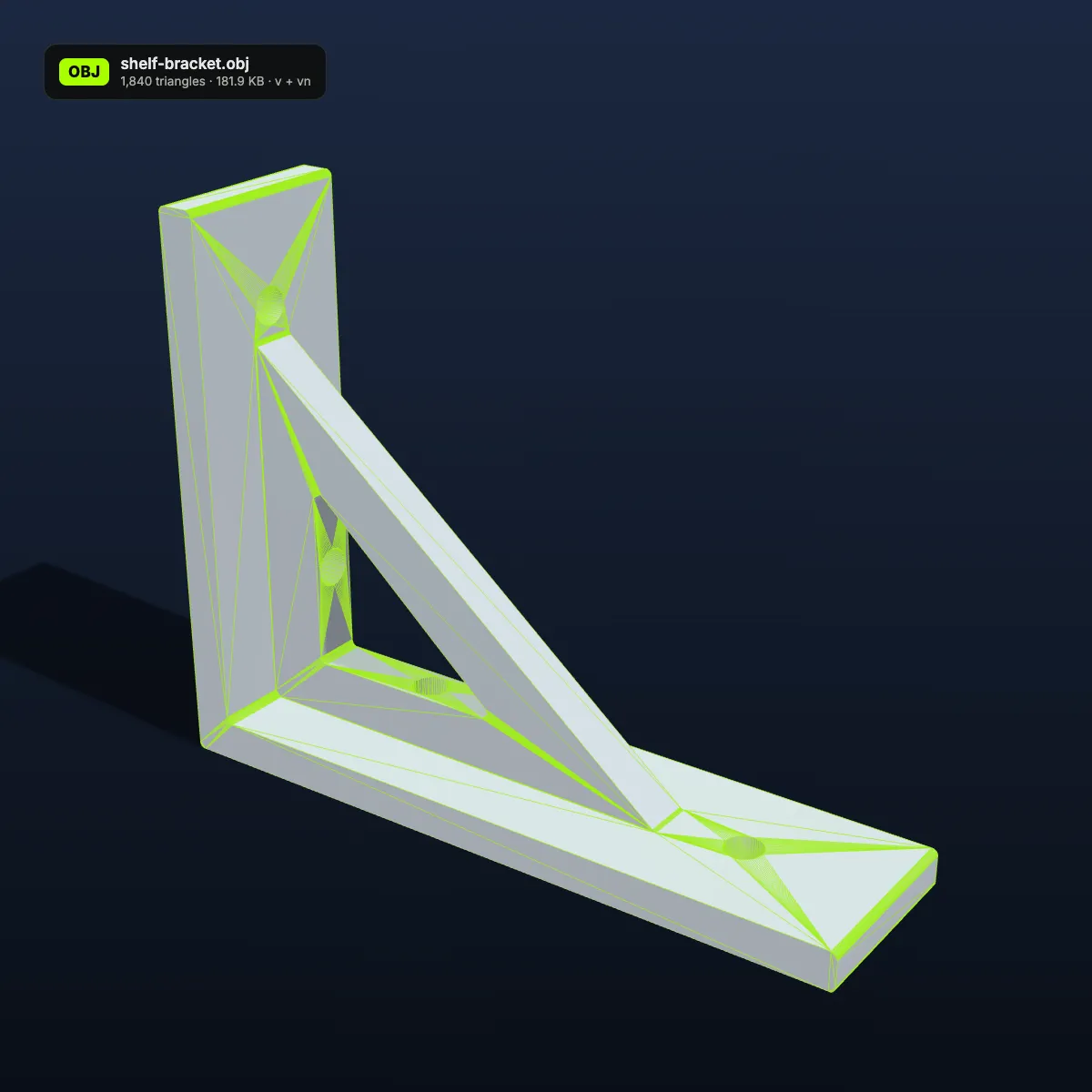
STL to OBJ examples: CAD parts as OBJ meshes
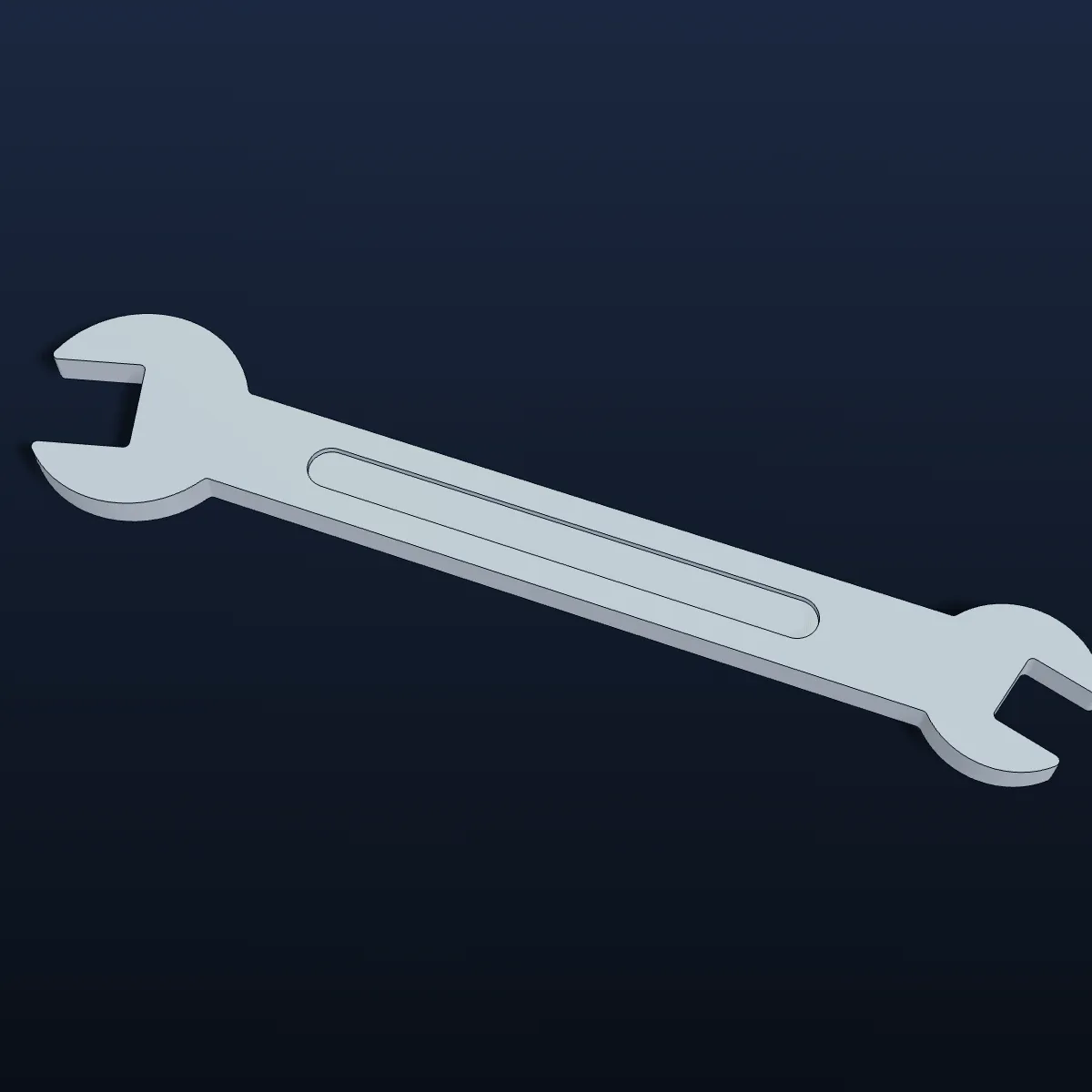
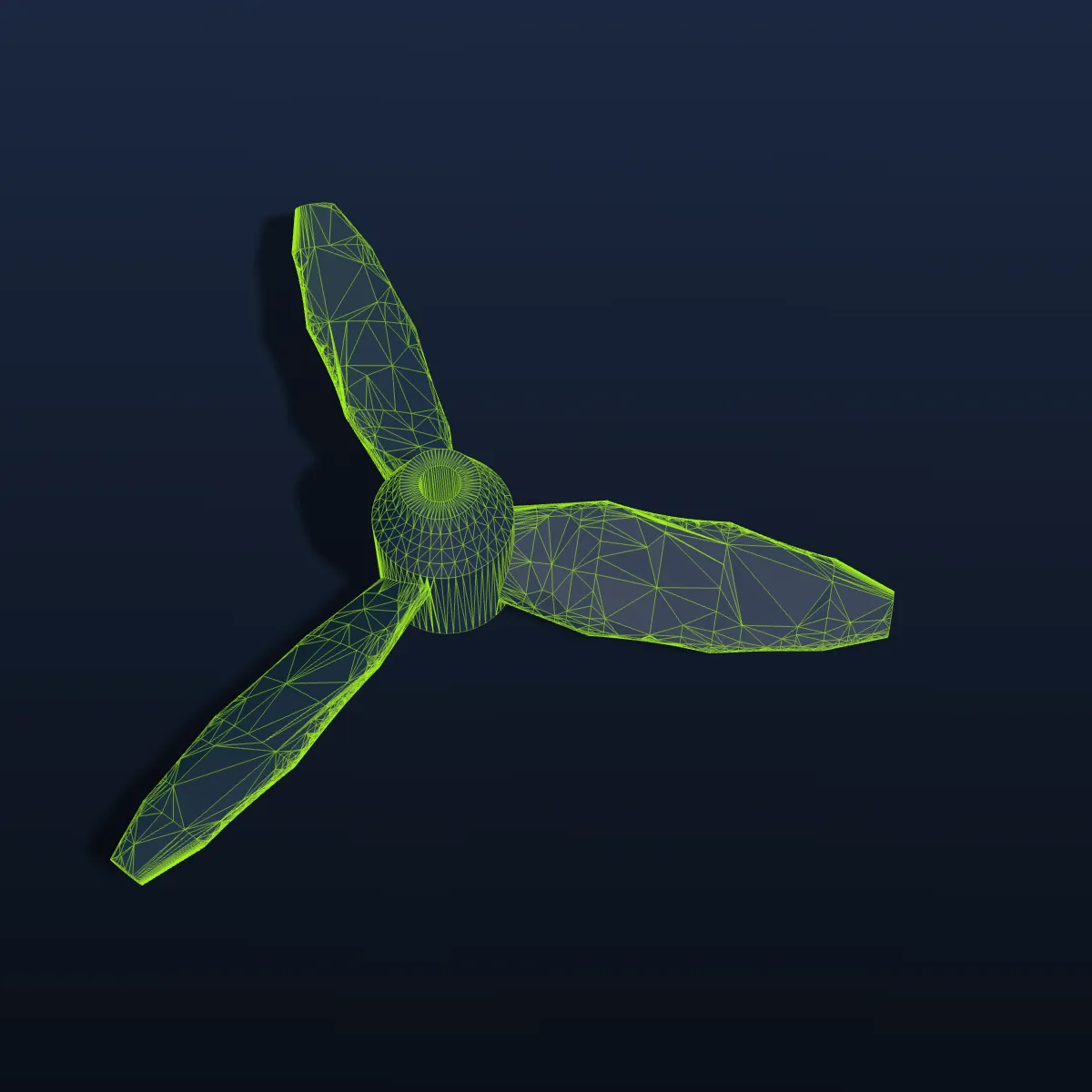
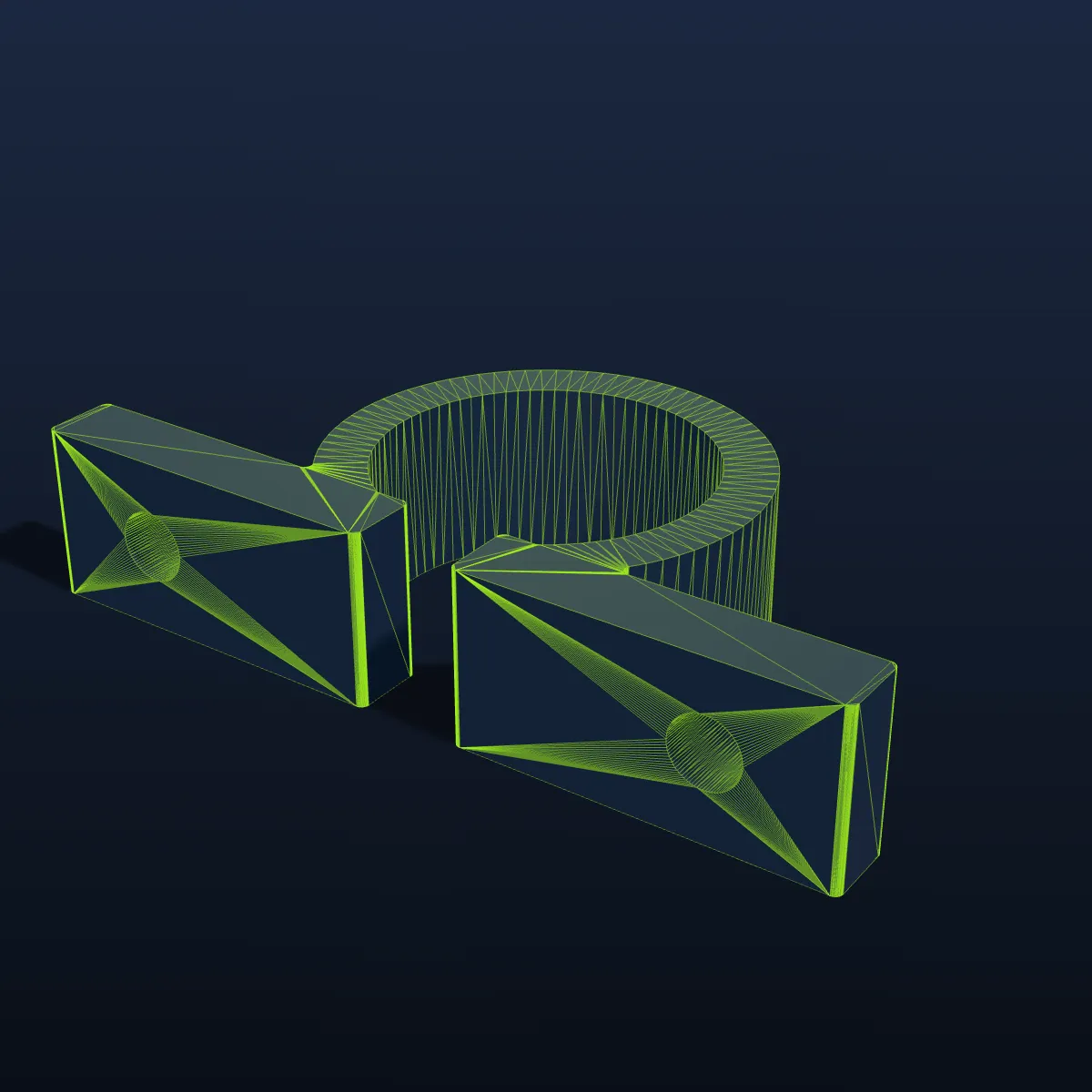
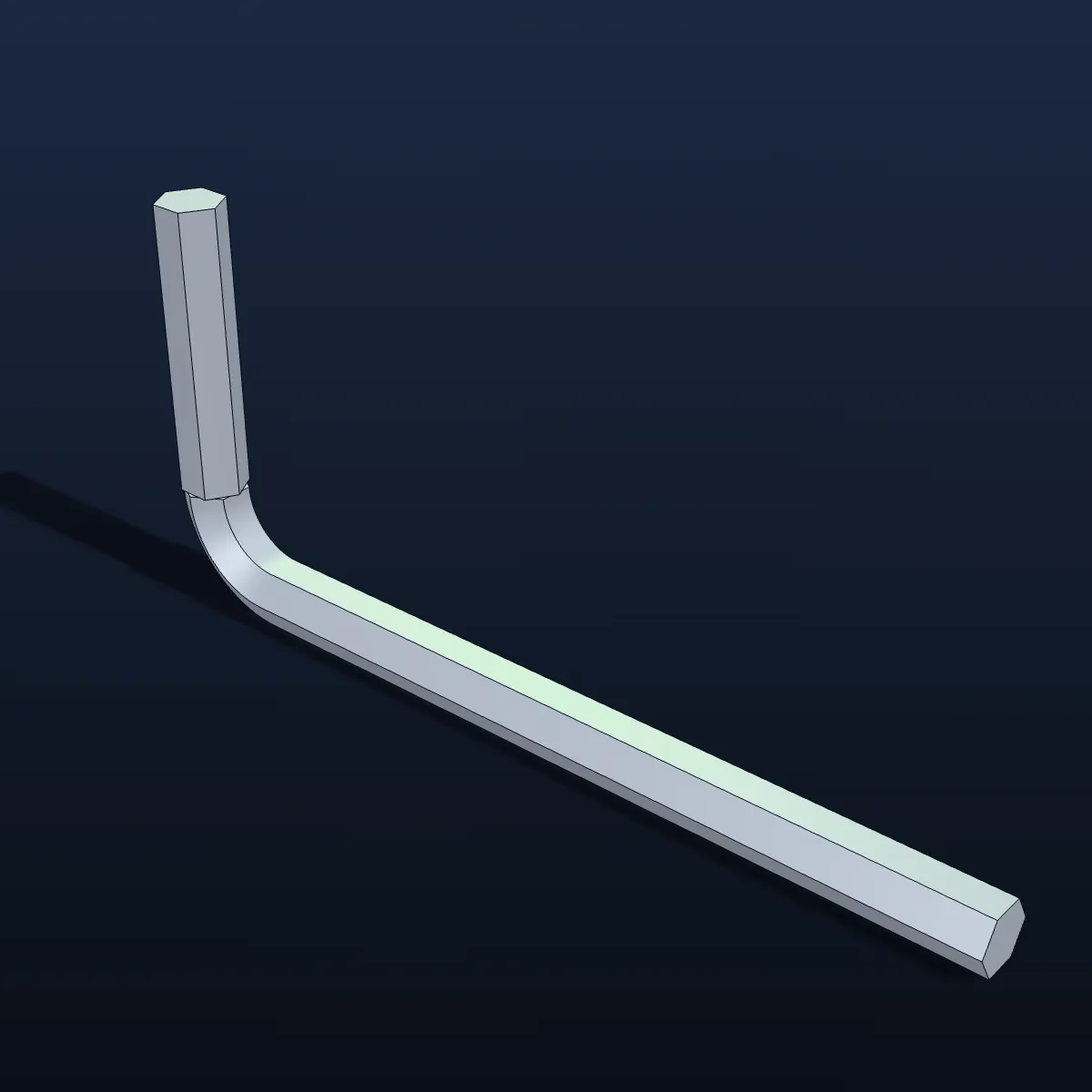
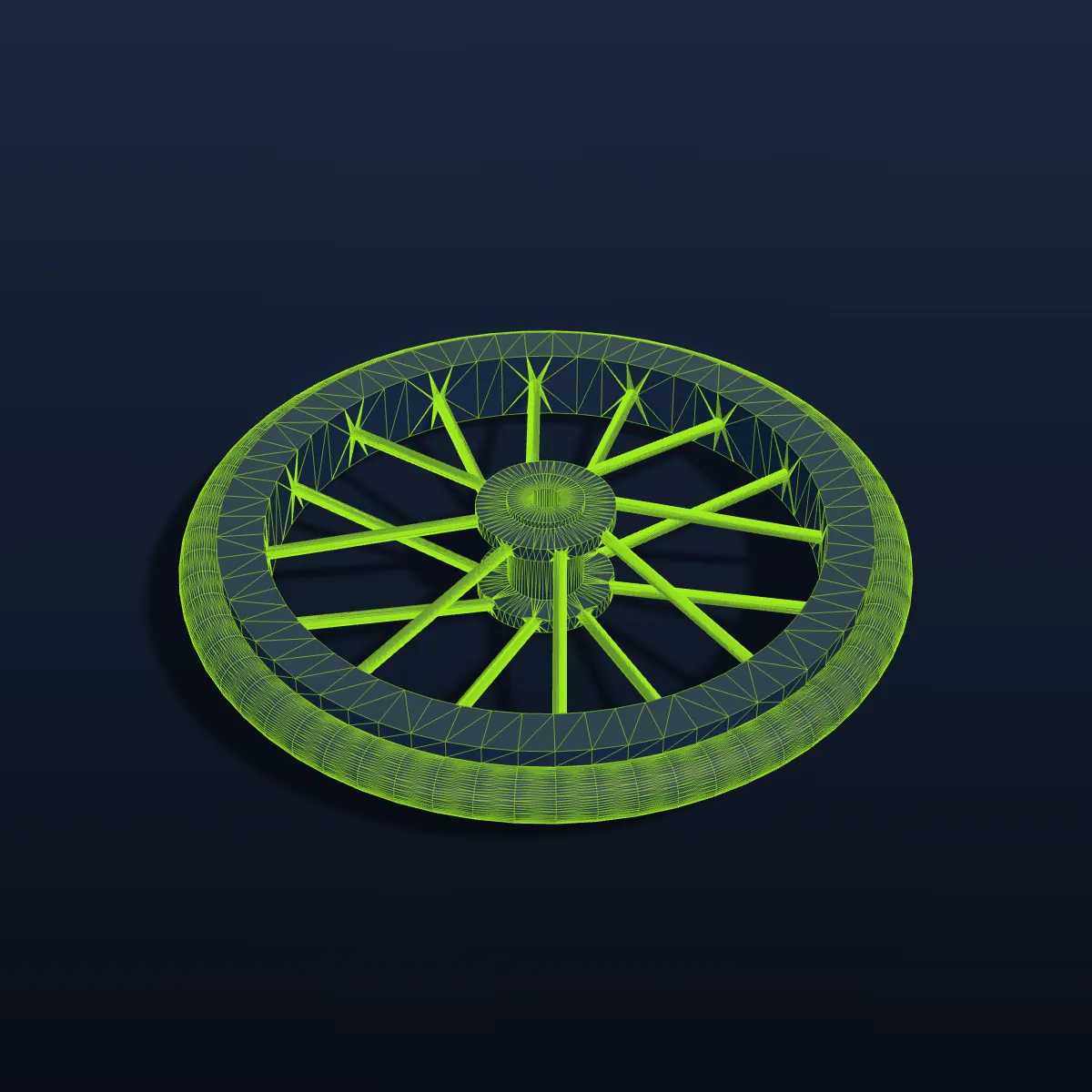
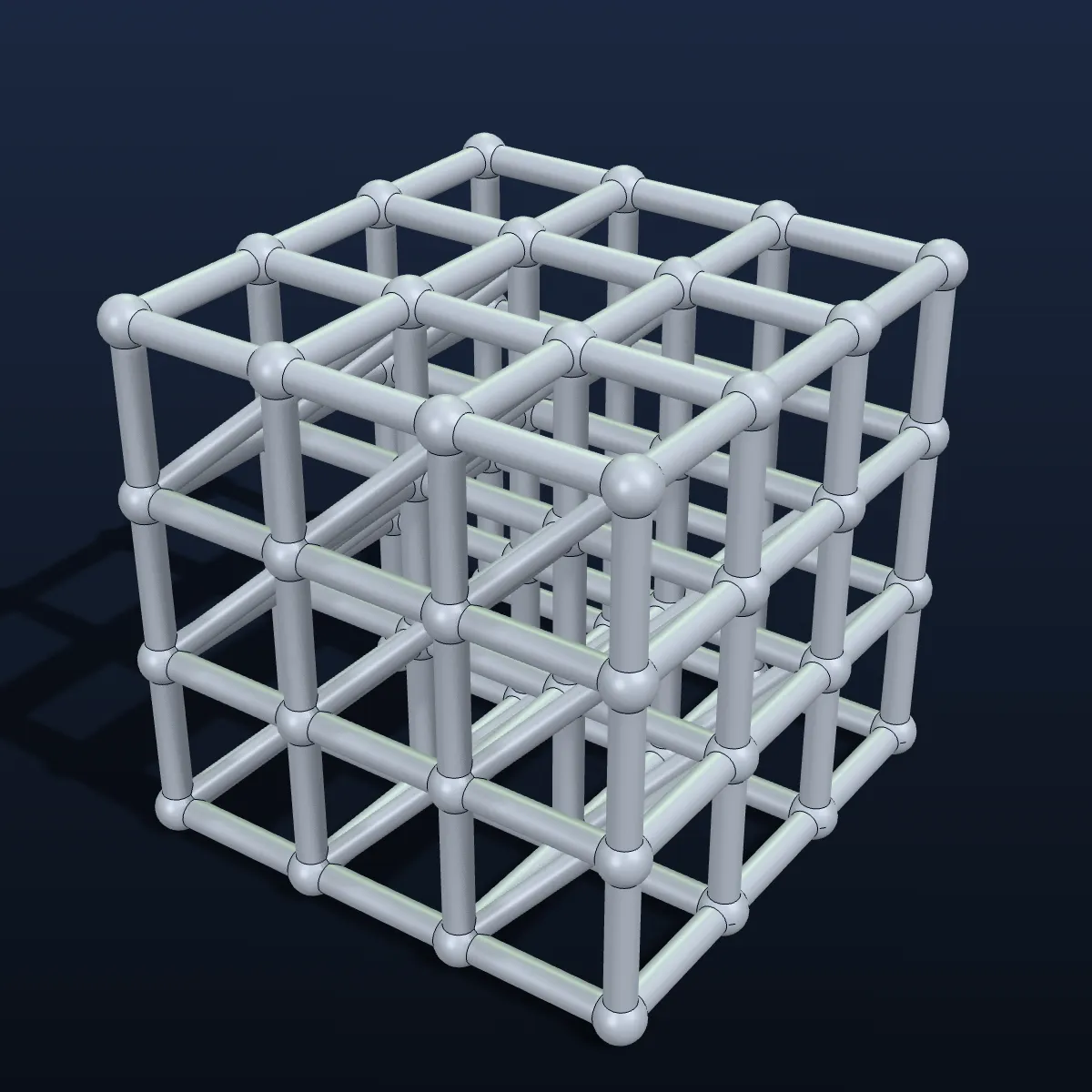
Eight mechanical parts we modelled in CadQuery, exported as STL and converted to OBJ on this page, shown on a dark blue background with CAD-style shading or with their triangle wireframe in green. This is the kind of geometry that moves cleanly from a print file into a modelling or game tool.

How to convert STL to OBJ
- 11
Pick the STL
Drop a binary or ASCII .stl on the converter or click to select one. The part appears in the preview in light grey, or in its own colours if the STL stores per-face colour.
- 22
Convert to OBJ
Press Convert to OBJ. The mesh is rotated from Z-up to Y-up, matching vertices are shared, normals are written (plus vertex colours for a colour STL), and the numbers are trimmed to six decimals.
- 33
Save the .obj
Check the result line for the file name, size and triangle count, then click Download OBJ. Blender, Unity and most 3D apps open it directly; there is no .mtl to keep alongside.
STL to OBJ: what the OBJ file contains
An STL can only hand over triangles and, in some files, a colour per face. Here is how those, and the things STL lacks, look in the OBJ.
| From the STL | In the OBJ you download |
|---|---|
| Triangles | Written one for one as OBJ faces, under a single object named after the file |
| Vertices | STL stores three loose corners per triangle; the OBJ shares a vertex wherever position and normal match, so flat areas shrink and hard edges stay hard |
| Facet normals | Written as vn lines, one per vertex. The model looks faceted, just like the STL, until you apply smooth shading |
| Per-face colours (binary colour STL) | Carried over as vertex colours (v x y z r g b), readable in Blender 3.3+ and MeshLab |
| No colour (most STLs) | No colour is written: each v line holds just x y z, so the OBJ opens in your app’s default material |
| Up axis | Z-up becomes Y-up: the part stands upright in Unity, Maya and other Y-up programs, and Blender’s OBJ importer turns it back to Z-up |
| Units | Neither format has any. Millimetre numbers stay as they are, so a 62 mm part reads as 62 m in a metre-based app |
| UVs, materials, textures | None, because STL has none to give. Unwrap UVs in your modeller before texturing |
| ASCII or binary input | Both are read. The OBJ is text, typically 2 to 5 times the size of a binary STL |
What an STL to OBJ conversion is for
Printable parts in a Unity scene
Unity does not import STL without a plug-in. Convert a bracket, a figure or a scanned prop to OBJ, drag it into Assets and set the model’s Scale Factor to 0.001 so millimetres become metres.
Texturing a print model
Painting a model in Substance 3D Painter or Blender needs UVs and a format the painter accepts. Convert to OBJ, unwrap it, and the part is ready for materials.
Sculpting on top of an STL
ZBrush opens OBJ natively, while STL goes through its 3D Print Hub plug-in. Convert first and the mesh comes straight in, ready for extra detail or a DynaMesh pass.
Keeping colour STLs in colour
Colour STLs from Materialise Magics and similar tools keep their face colours as OBJ vertex colours, so the colours still show in Blender and MeshLab, even where an STL importer would ignore them.
STL to OBJ questions
Drop the .stl on the converter above, press Convert to OBJ and click Download OBJ. Binary and ASCII STL both work, up to 200 MB. The conversion runs in your browser, so it is free, private and needs no sign-up.
If the STL has any, yes. A binary STL with per-face colours, the kind Materialise Magics writes, passes them on as vertex colours (v x y z r g b), which Blender 3.3+ and MeshLab show. A plain STL has no colour, so its OBJ has none either: each v line holds only the position, and your app shows the model in its default material.
No. An STL holds no UV map or material, so the OBJ has none either and no .mtl file is written. Unwrap the mesh in Blender (Smart UV Project is a quick start) or another modeller before you apply textures.
Binary STL packs every number into four bytes; OBJ writes numbers as text and adds a normal per vertex. Sharing vertices helps, yet the V-belt pulley still grows from 185 KB to 483 KB and the wall hook from 342 KB to 1.3 MB. Zip the OBJ before sending it; it compresses well.
Faceted, exactly like the STL: each flat triangle keeps its own normal, so hard edges stay crisp. For organic shapes, use Shade Smooth or Shade Auto Smooth in Blender, or your app’s equivalent, to smooth the look without changing the geometry.
STL files are almost always in millimetres and the converter keeps those numbers, so a 62 mm pulley comes in 62 units wide. Blender and Unity count one unit as one metre, so scale by 0.001 (in Unity, the Scale Factor in the model import settings) for the real size.
Related tools


Need a new part or figure?
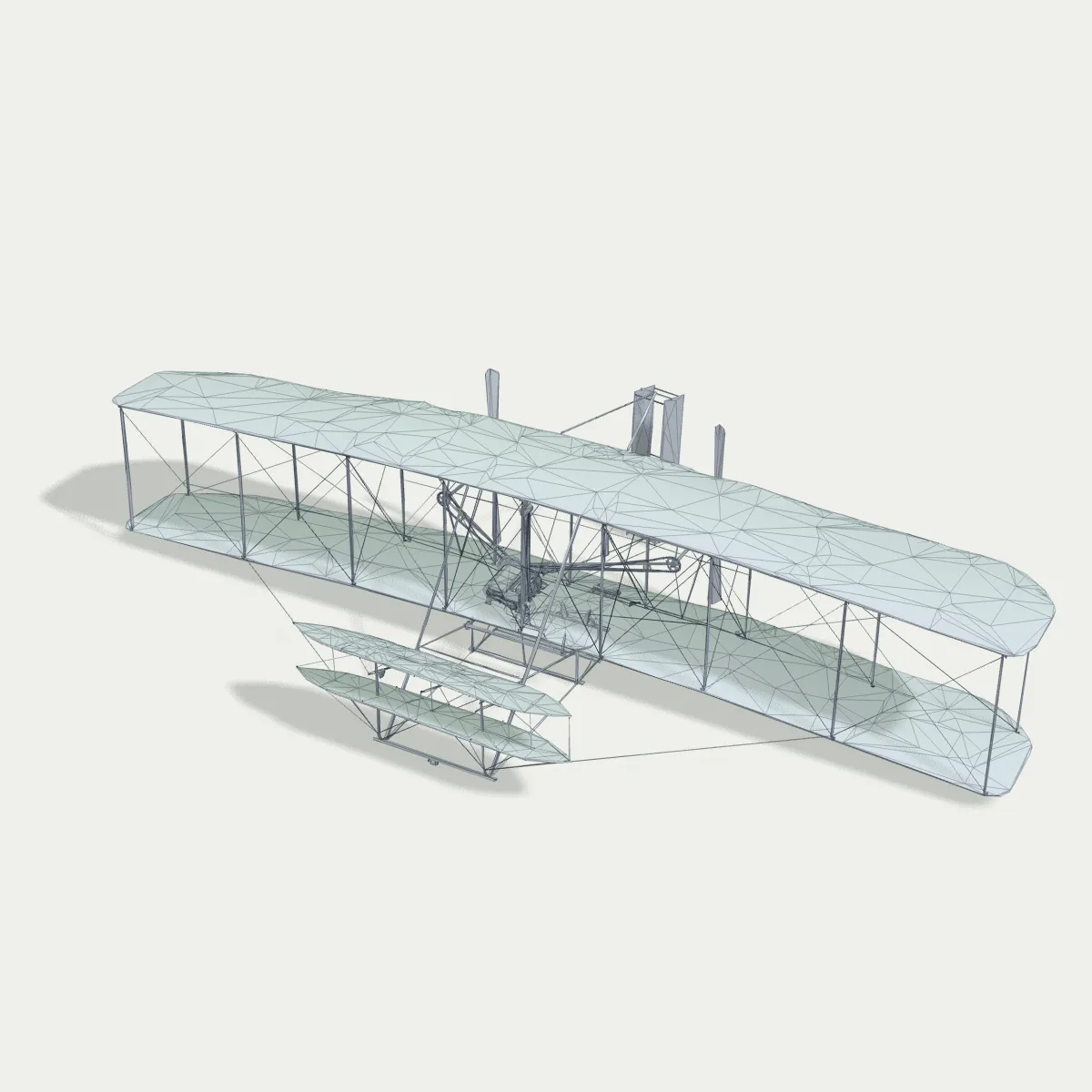
Describe it or upload a photo, and Ship3D’s AI generator creates the 3D model, ready to download as OBJ, STL or GLB.
Free to sign up, no credit card required. Try it once for free.