FBX to STL Converter
Game Models Ready for the Print Bed
Use this FBX to STL converter to turn an .fbx model from Blender, Maya, Unity or a game asset pack into a binary STL that any slicer can print.
FBX → STL
Drop a 3D model file to preview it in 3D before converting.
The file is read by the three.js FBXLoader right here in your browser, in binary or ASCII form, and is never uploaded; the tool is free and needs no account. STL keeps only triangles, so textures, materials, bones and animation stay behind, and what you download is the bare shape, which is all a printer needs. FBX scenes are usually Y-up while slicers expect Z-up, so the converter stands the model upright on the way: a character or vehicle sits on the build plate instead of lying on its back. Preview the textured model first, then check the triangle count of the STL. Rigged characters come out in the pose stored in the file, and thin game geometry may need thickening before it will print.
Try FBX to STL with a sample file
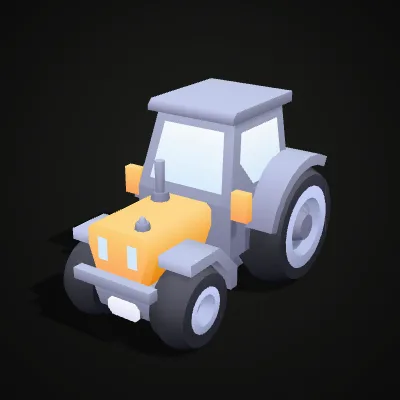
Two CC0 models from Kenney with their colour textures embedded in the FBX. Load one to see the textured preview, then convert it: the tractor comes out at 2,044 triangles and 99.9 KB, about 220 mm long once it is in the slicer.

Tractor FBX to STL in 11 seconds
The recording loads the tractor sample, which shows up in the 3D preview with its colour texture, then takes a single click on Convert to STL. The result line reads tractor.stl · 99.9 KB · 2,044 triangles and the download button takes the place of the convert button. In the STL the tractor stands on its wheels, Z-up, ready for the slicer.
Textured FBX in, plain STL out
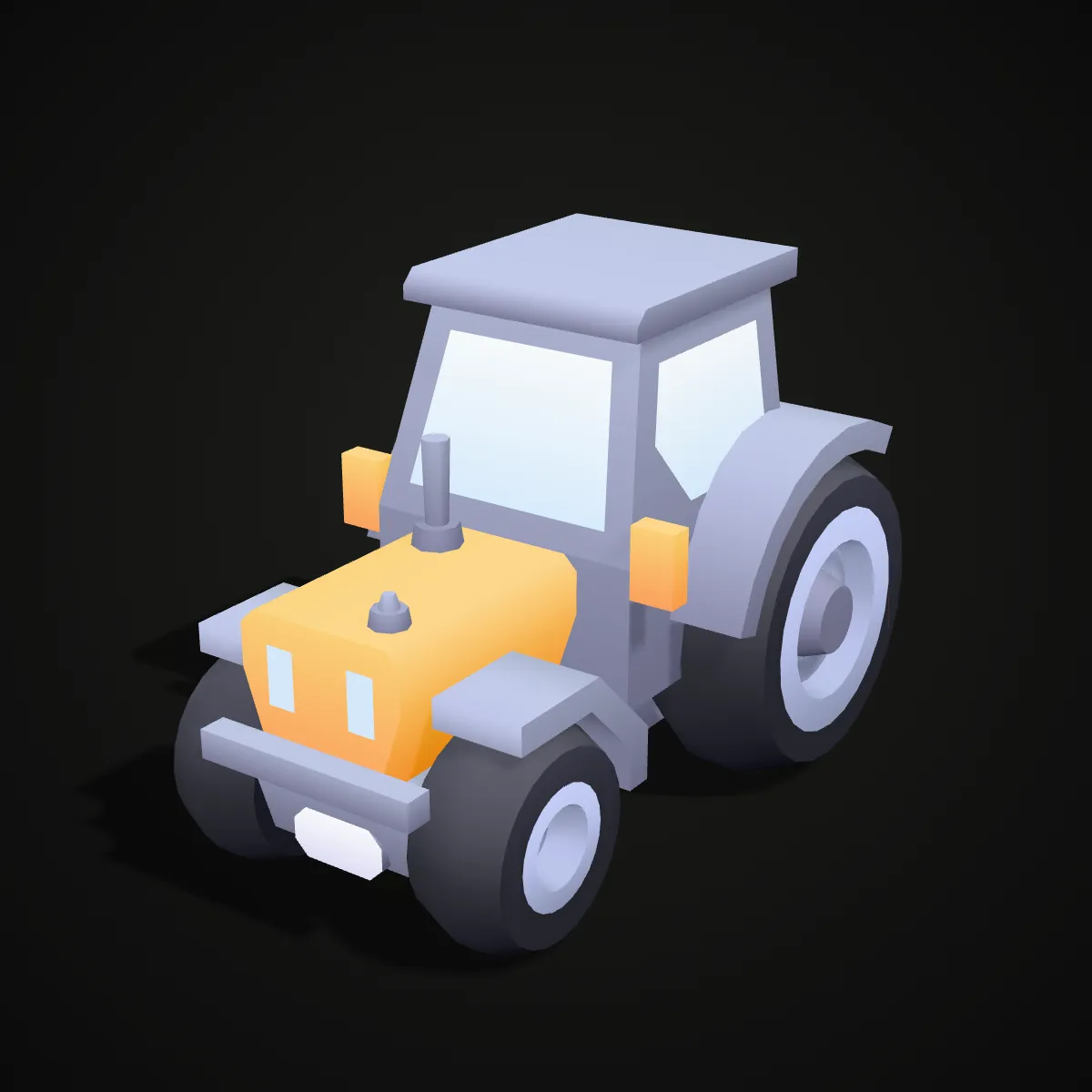
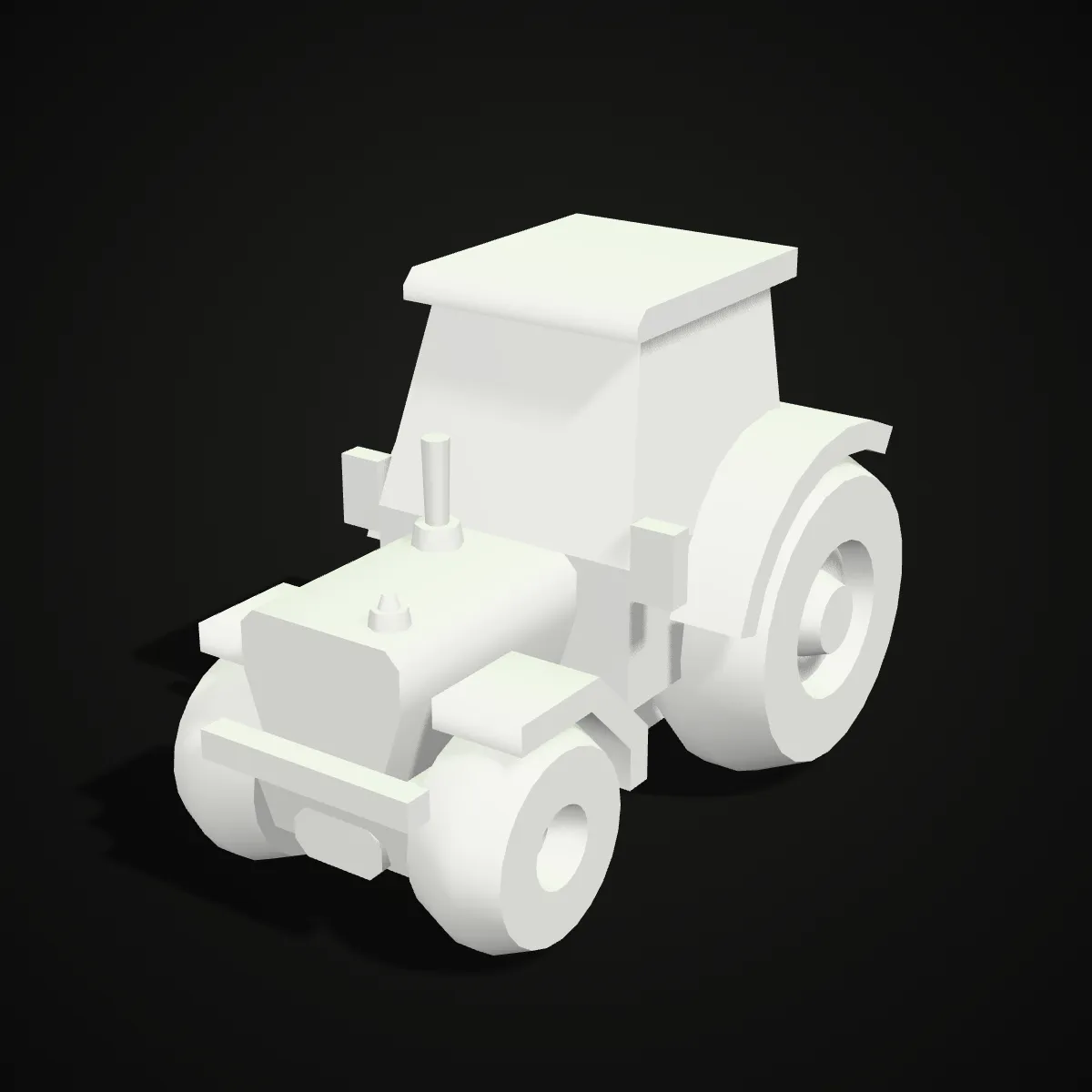
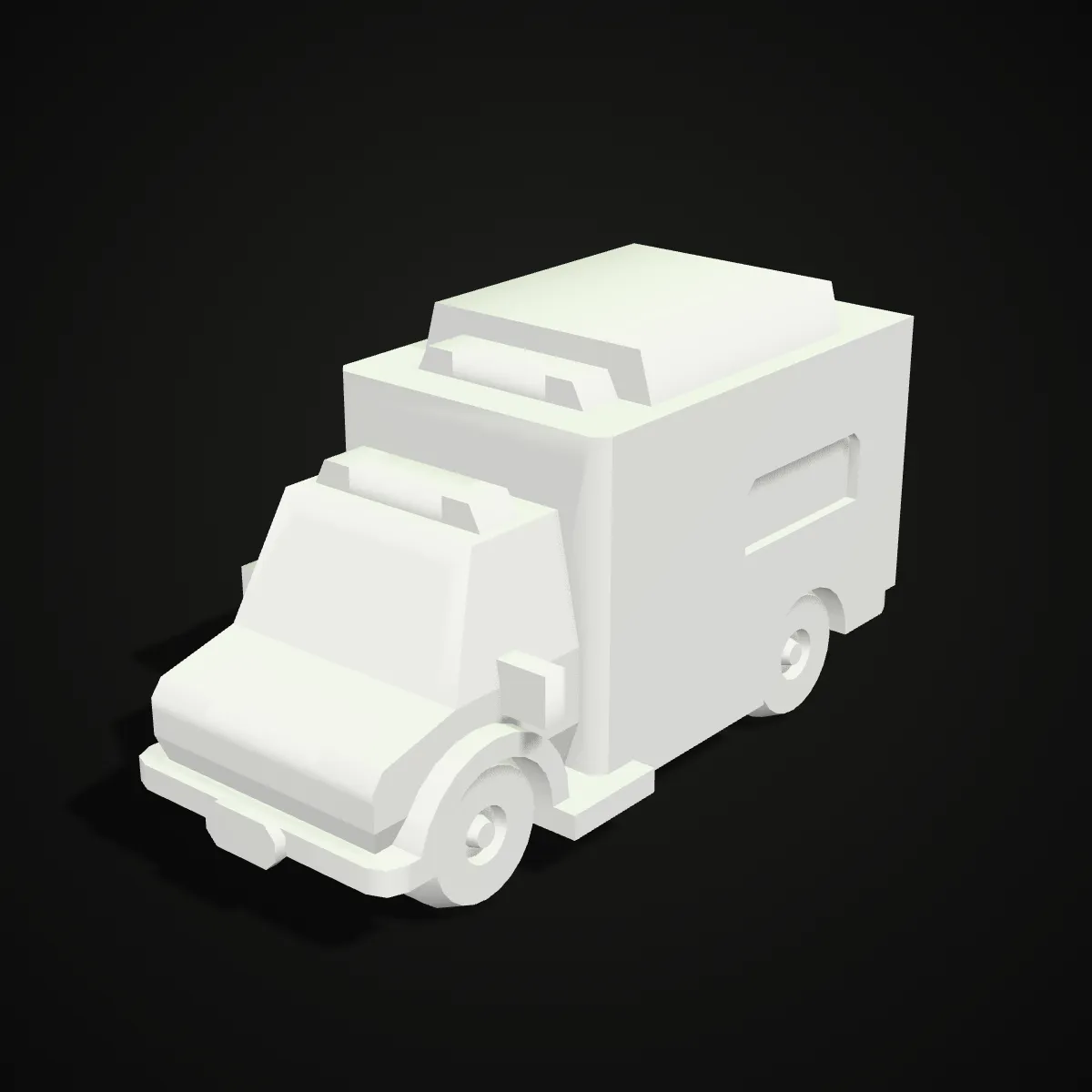
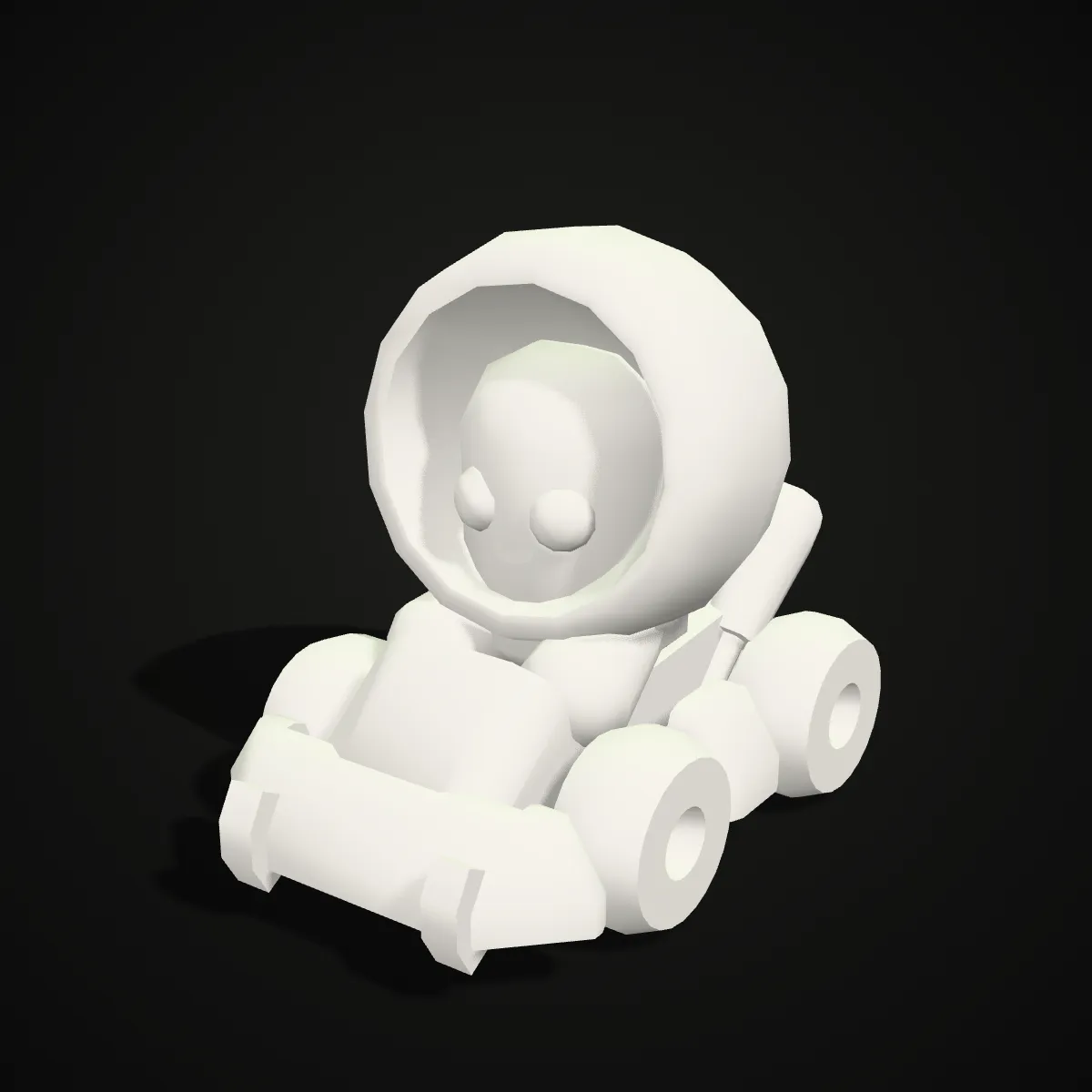
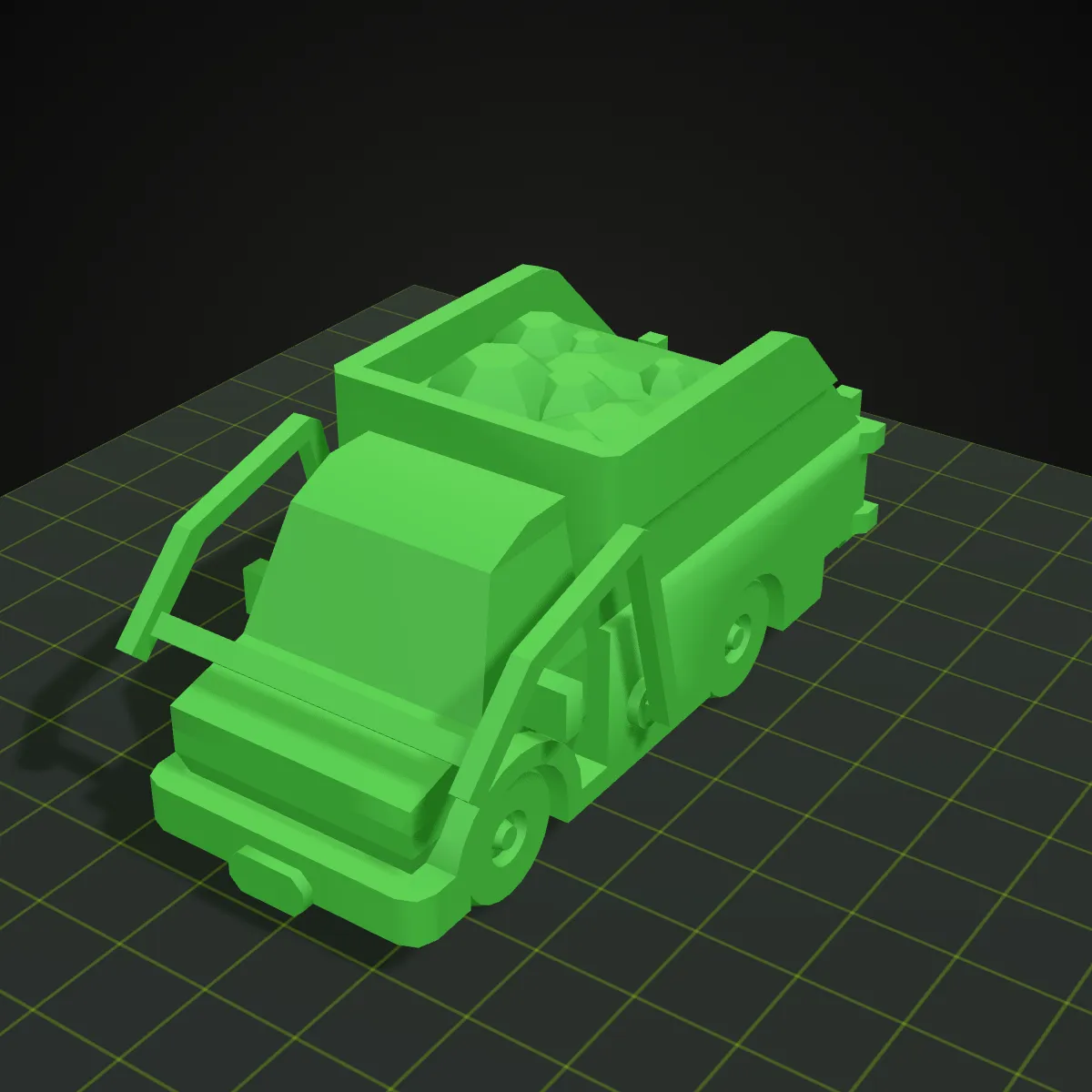
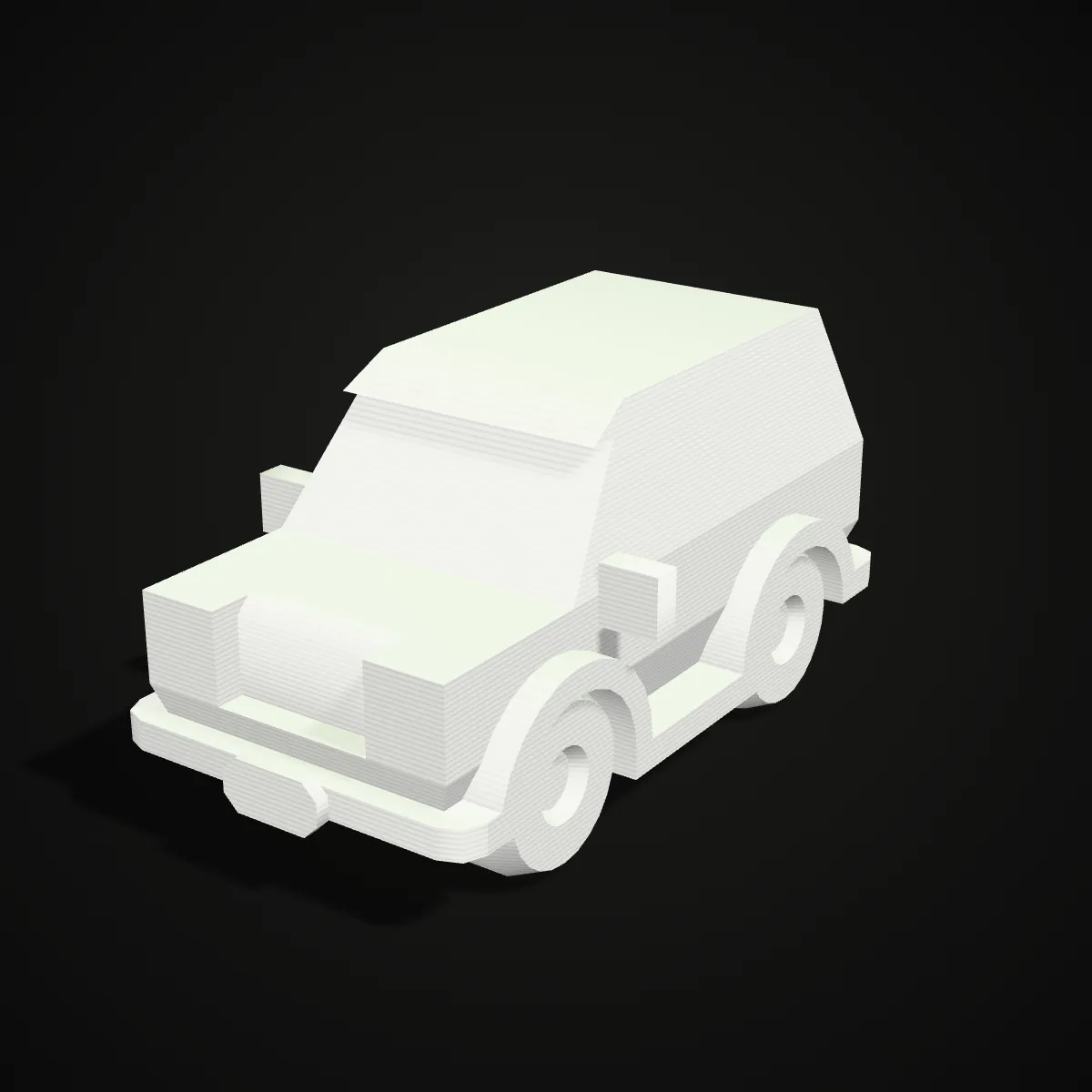
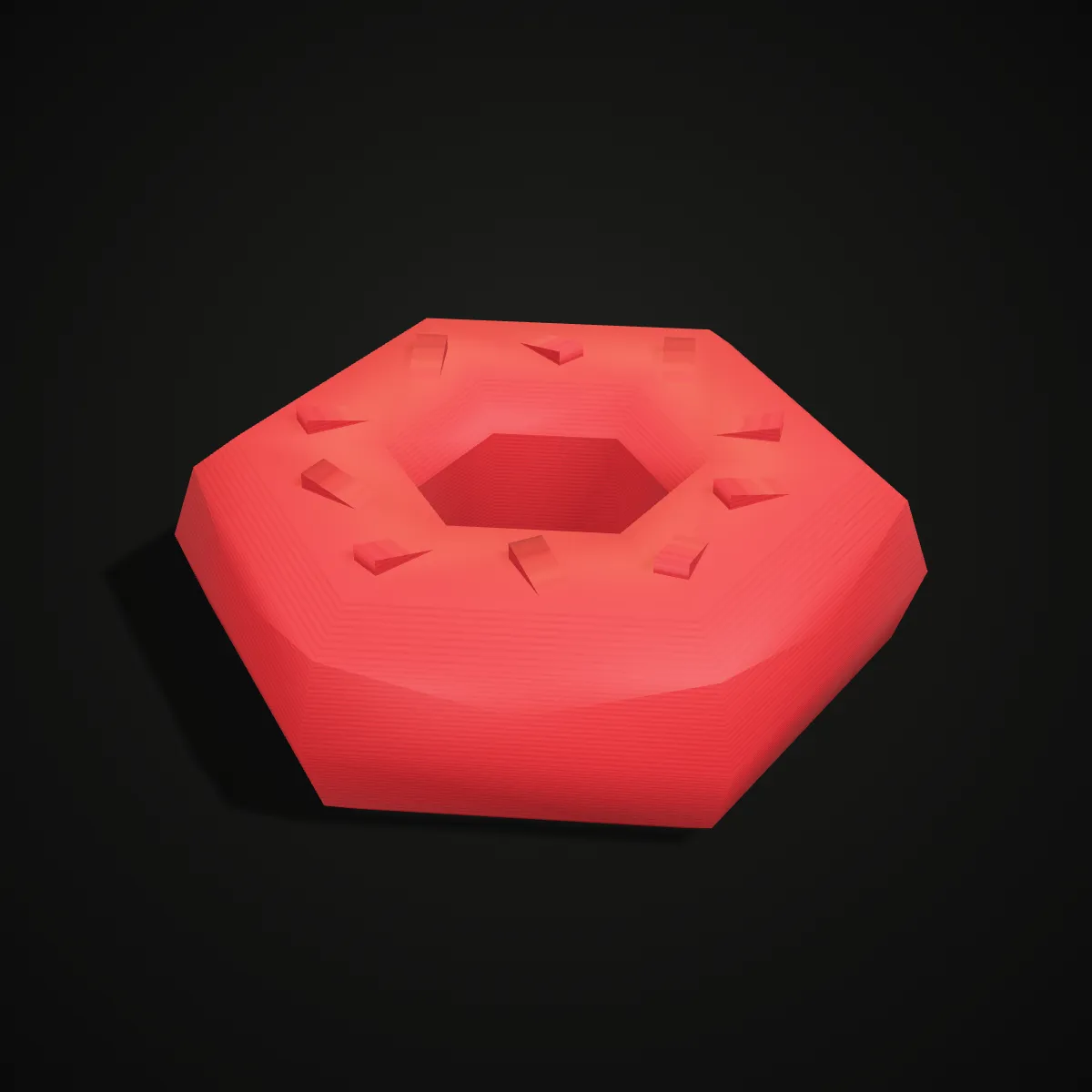
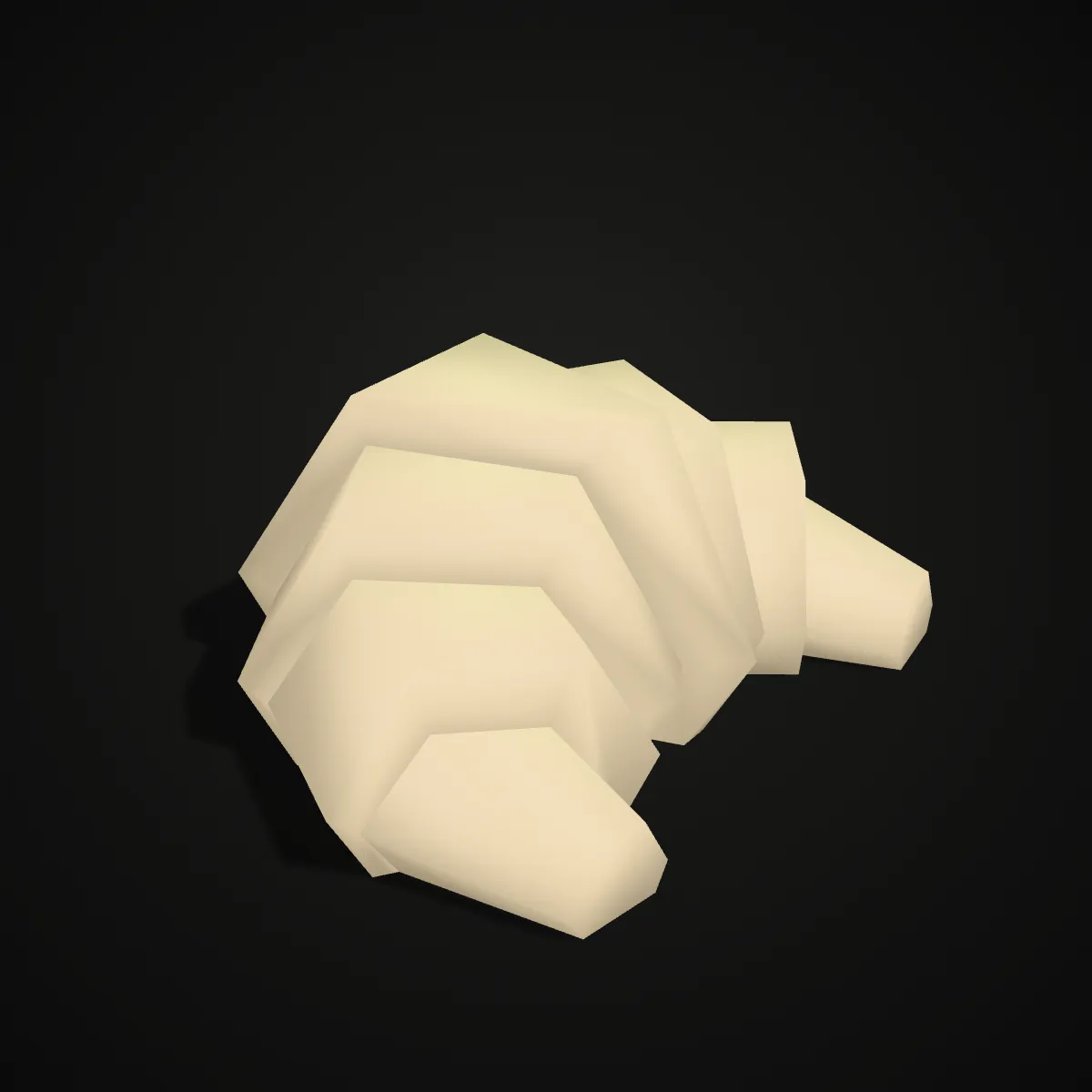
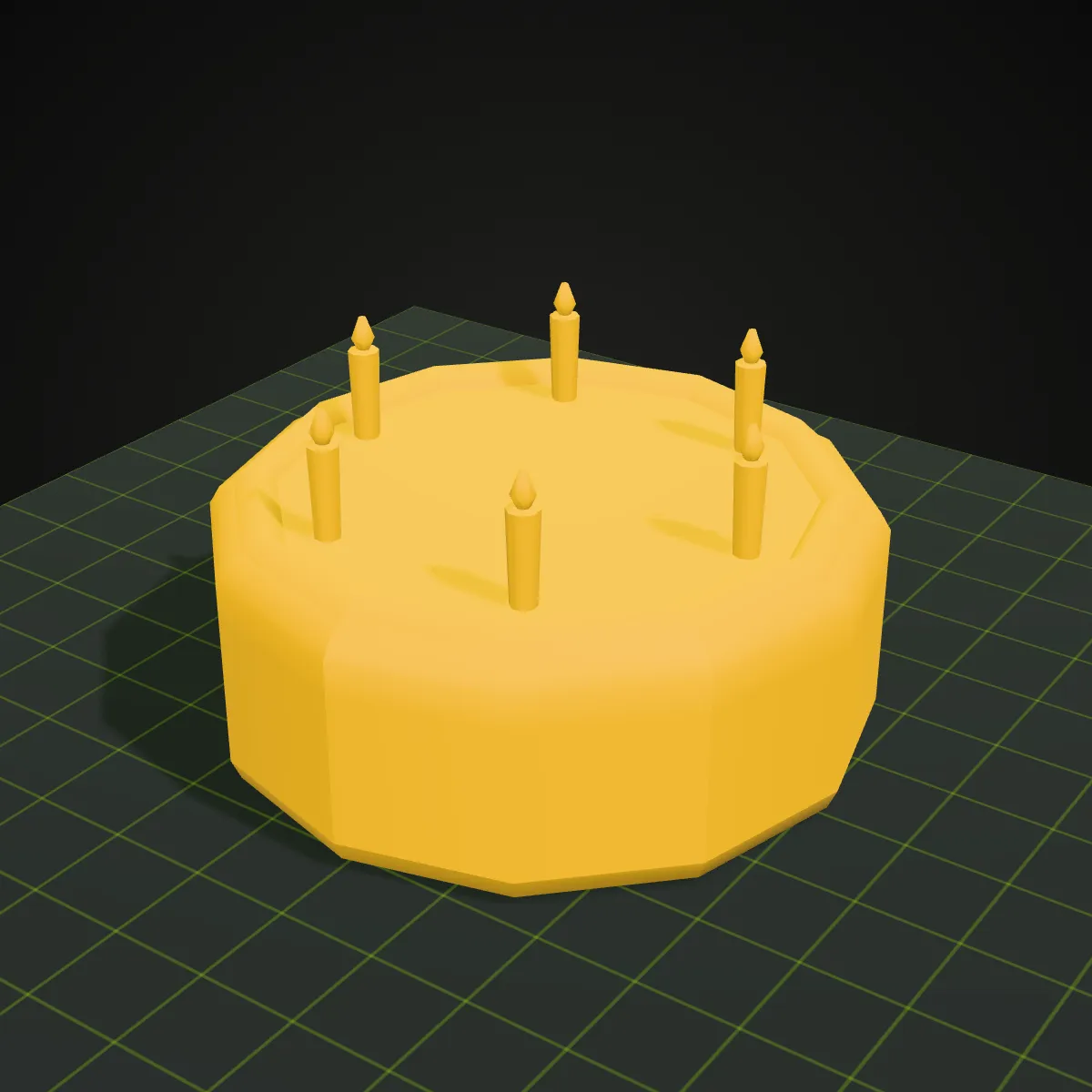
Each pair shows a Kenney model as the FBX looks with its colour texture, and as the STL looks after conversion. Shape and proportions are untouched; only the colour map is gone, because STL has nowhere to store it.



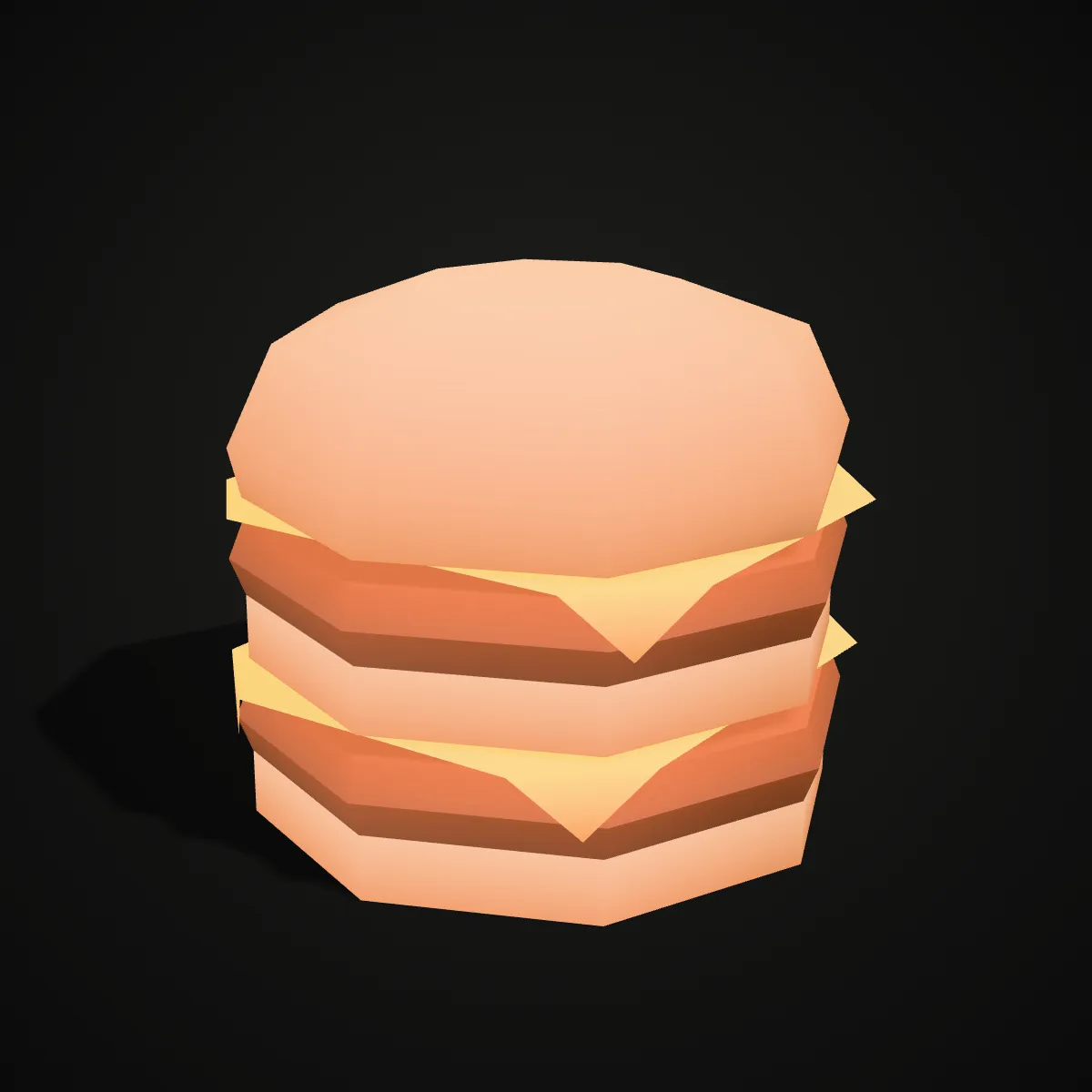
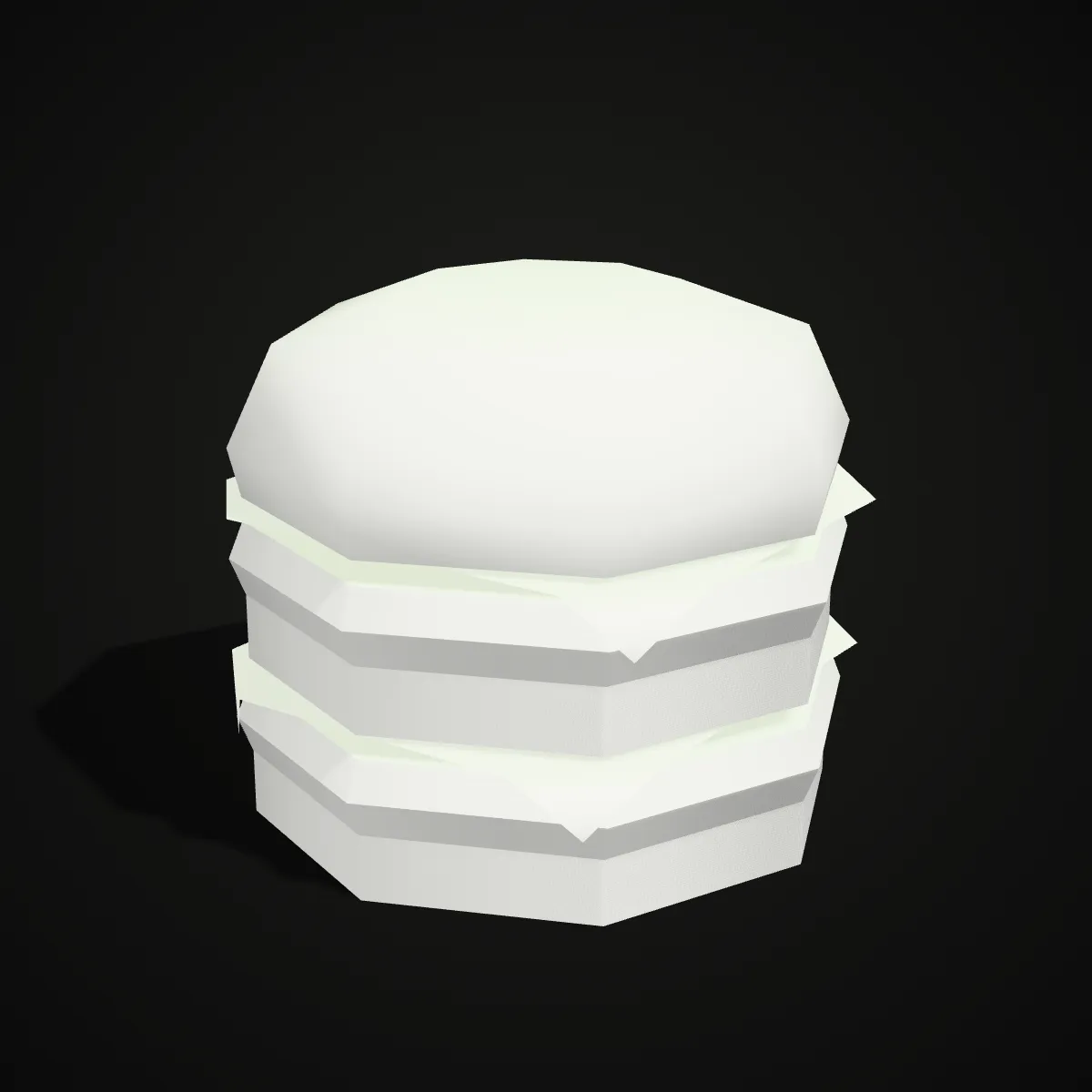
FBX models converted to STL
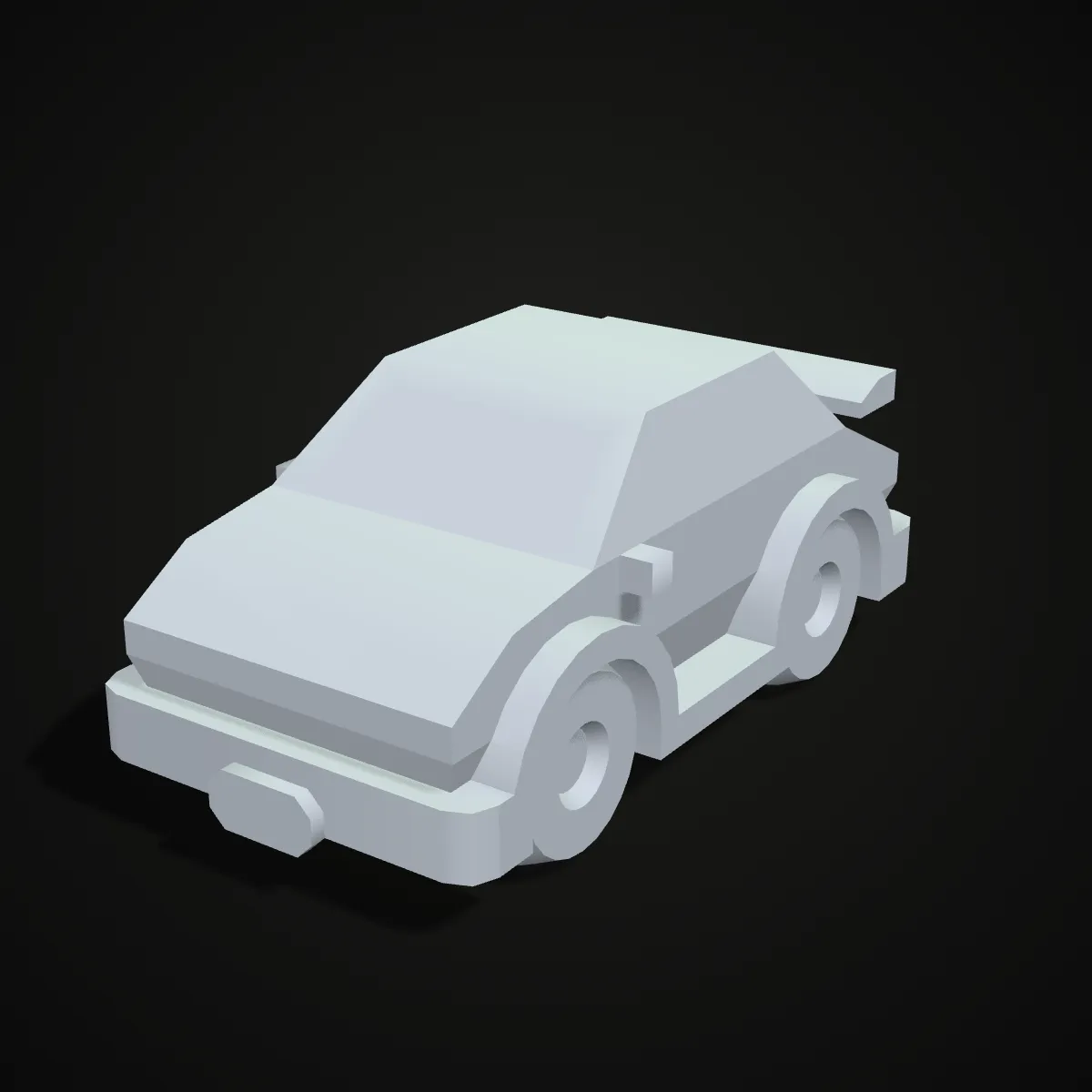
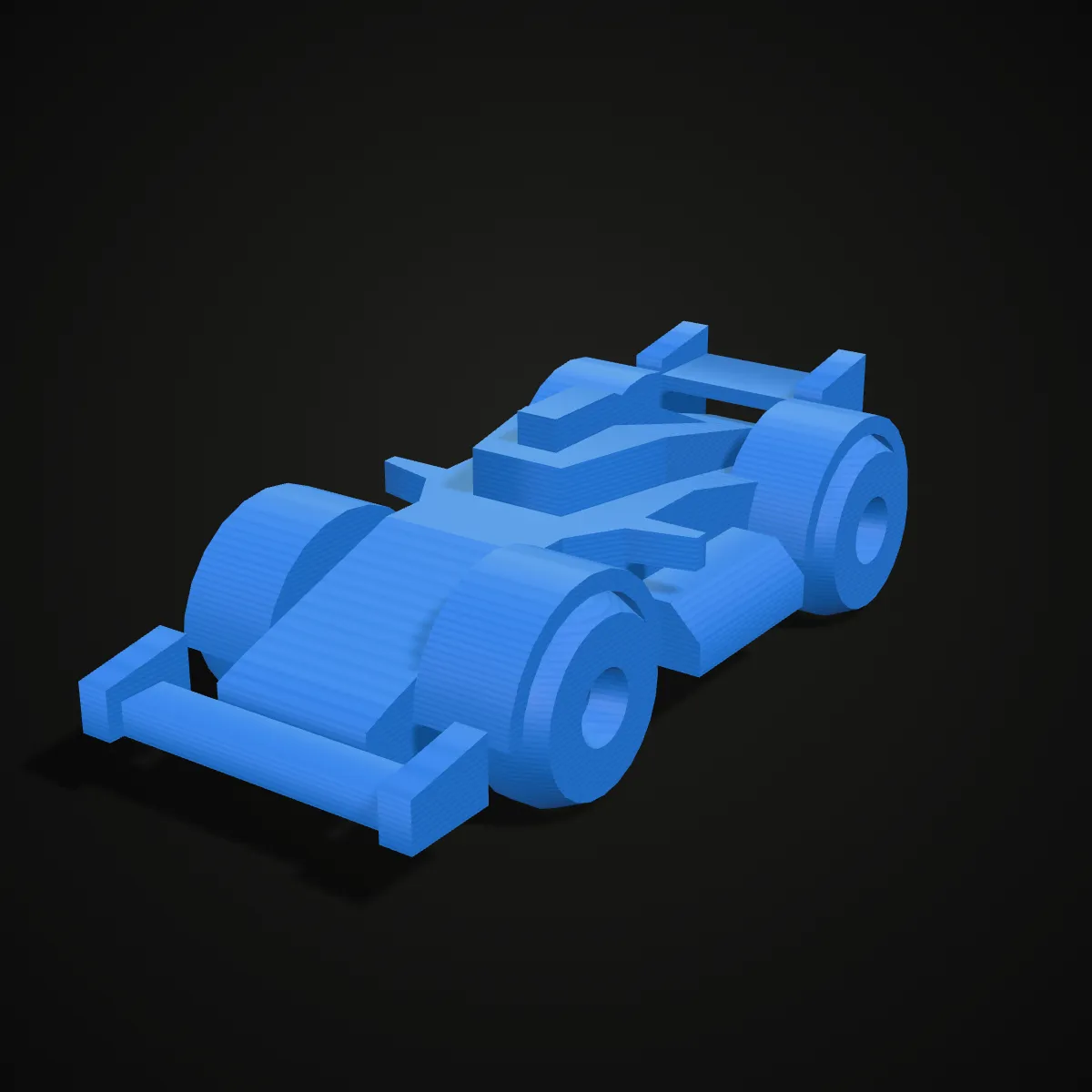
Eight CC0 models from Kenney’s Car Kit and Food Kit, converted from FBX to STL and rendered as clay or filament-colour prints. The colours are added in the render; the STL files themselves are colourless.
How to convert FBX to STL
- 11
Load the FBX
Drop an .fbx file onto the converter or click to browse. Textures embedded in the file show up in the preview, so you can check you picked the right model before converting.
- 22
Convert FBX to STL
Press Convert to STL. All meshes are written into one binary STL and turned from Y-up to Z-up; textures, bones and animation are skipped.
- 33
Download and check the size
Download the STL and open it in your slicer. Check the size first: FBX units vary from file to file, so scale the model to the print size you want.
What survives an FBX to STL conversion
FBX is a scene format built for animation and games; STL is a bare mesh for printing. Here is what each part of the file turns into on the way from .fbx to .stl.
| In the FBX | In the STL |
|---|---|
| Mesh geometry | Kept: every mesh in the scene, merged into one STL |
| Textures, UVs and materials | Dropped; STL stores no colour or surface data |
| Smooth shading normals | Replaced by one flat normal per triangle, as the STL format requires |
| Skeleton, skin weights, blend shapes | Dropped; skinned meshes are exported in the pose stored in the file |
| Animation | Not played, so no animation frame is baked in |
| Up axis | Rotated from FBX Y-up to the Z-up axis slicers use |
| Scale and units | Coordinates written as they are; slicers read them as millimetres, so check the size after import |
| Cameras, lights, empties | Ignored; only meshes are exported |
Why people convert FBX to STL
Game and asset-store models
Low-poly vehicles, props and characters from asset packs often ship as FBX. Convert one to print a toy, a tabletop piece or a desk ornament.
Files from Blender, Maya or 3ds Max
When an animator or a client hands you an FBX, you can get to a printable STL without installing their software or asking for a re-export.
Posed figures and miniatures
Pose a rigged character in your 3D app, export that pose as FBX and convert it here to print a figure standing exactly the way you set it up.
A quick printability check
The textured preview and the triangle count tell you whether a model is low-poly or dense, and whether it needs simplifying, before you spend filament on it.
FBX to STL converter FAQ
Drop the .fbx file on the converter above, press Convert to STL and download the result. Everything from .fbx to .stl happens locally in your browser, so the model is not uploaded, and the tool is free with no sign-up.
Not directly: slicers read meshes such as STL, 3MF or OBJ, and most do not open FBX. Convert the FBX to STL first, then check its size, its wall thickness and whether the mesh is closed before slicing.
No. STL stores triangles only, so textures, materials and vertex colours are left out and the part prints in whatever filament you load. For a multi-colour print, paint the model in a slicer that supports colour painting.
The skeleton and animation are dropped and the mesh is exported in the pose stored in the file, usually the rest or bind pose. For another pose, set it up in Blender or Maya, apply it, export a new FBX and convert that one.
Because STL has no units. FBX files may be in centimetres or metres, the STL keeps those numbers, and the slicer reads them as millimetres, so scale the model after import. Orientation is handled for you: the model is turned from Y-up to Z-up and stands upright.
Binary FBX from version 6.4 and ASCII FBX from version 7.0 onwards, up to 200 MB. Older files are rejected; re-export them as a current binary FBX from Blender, Maya or 3ds Max. Thin game geometry such as single-sided planes may also need thickening before it prints.
Related tools
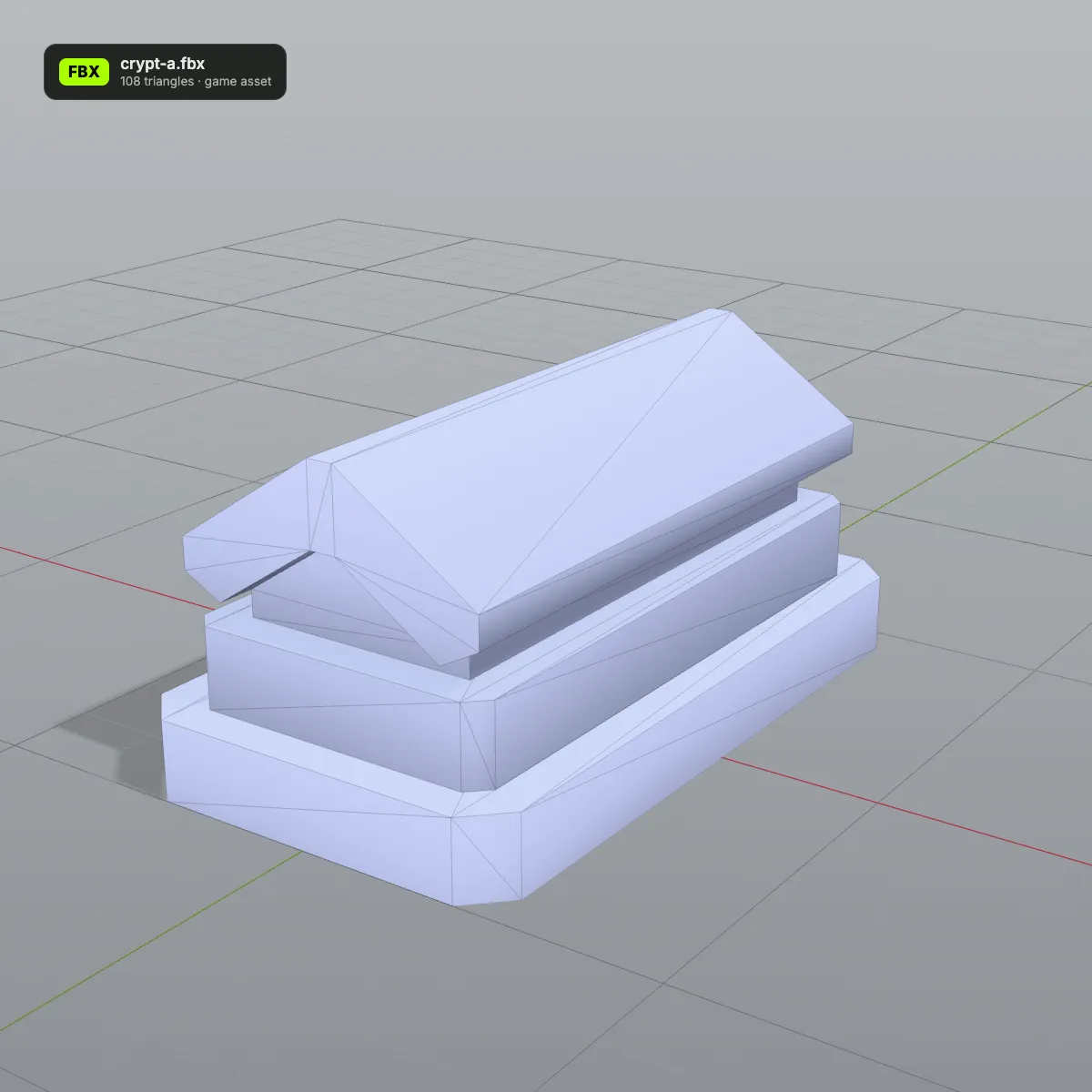
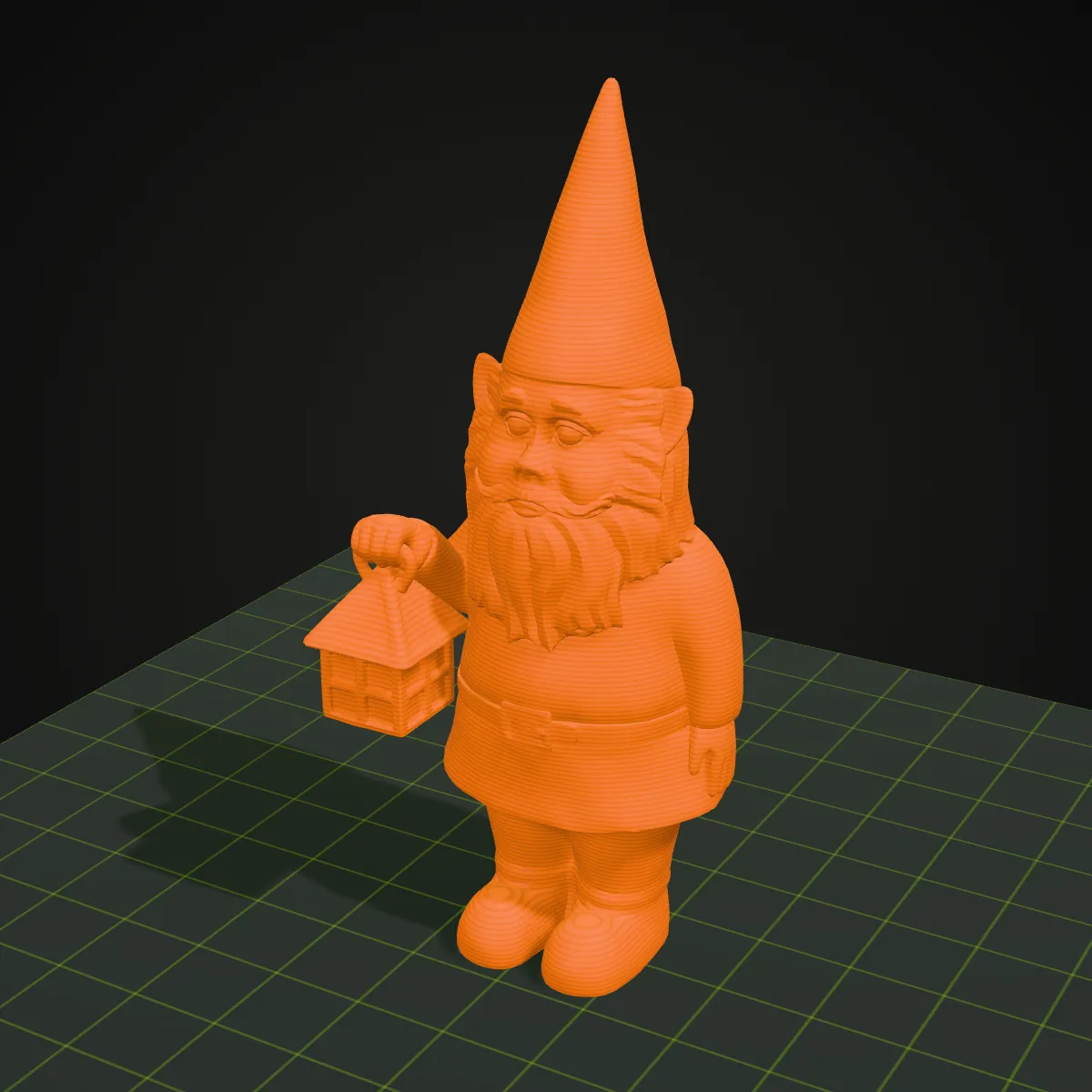



No FBX at hand?
Generate a 3D model from a photo with Ship3D’s AI generator and download it straight as STL.
Free to sign up, no credit card required. Try it once for free.