STEP to STL Converter
CAD Parts to Print-Ready Meshes
This STEP to STL converter turns a .step or .stp file from Fusion, SolidWorks, Onshape, FreeCAD or any other CAD program into a binary STL your slicer can print.
STEP → STL
Drop a 3D model file to preview it in 3D before converting.
Under the hood is Open CASCADE, the open-source CAD kernel, compiled to WebAssembly: the 7 MB engine loads once on first use and meshes the solid in a background worker on your own device, so the file never leaves your computer and nothing waits in a server queue. Pick Standard mesh detail for quick, light files or Fine for smoother holes and fillets. The STL is written in millimetres with the CAD Z-up orientation kept, so the part lands on the bed the way you modelled it. STP to STL works the same way, since .stp is only the short extension, and IGES files (.igs, .iges) work too. One honest caveat before you convert STEP to STL: the result is a triangle mesh, so exact curves and editable features are gone for good. Make design changes in CAD first and keep the STEP as your master file.
Try STEP to STL with a sample file
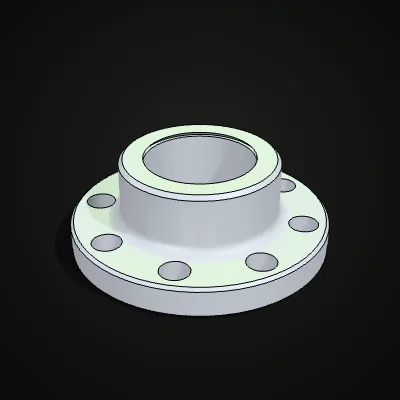
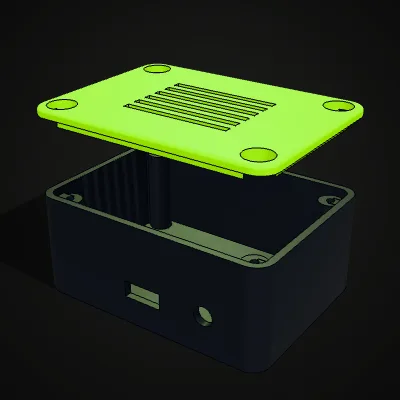
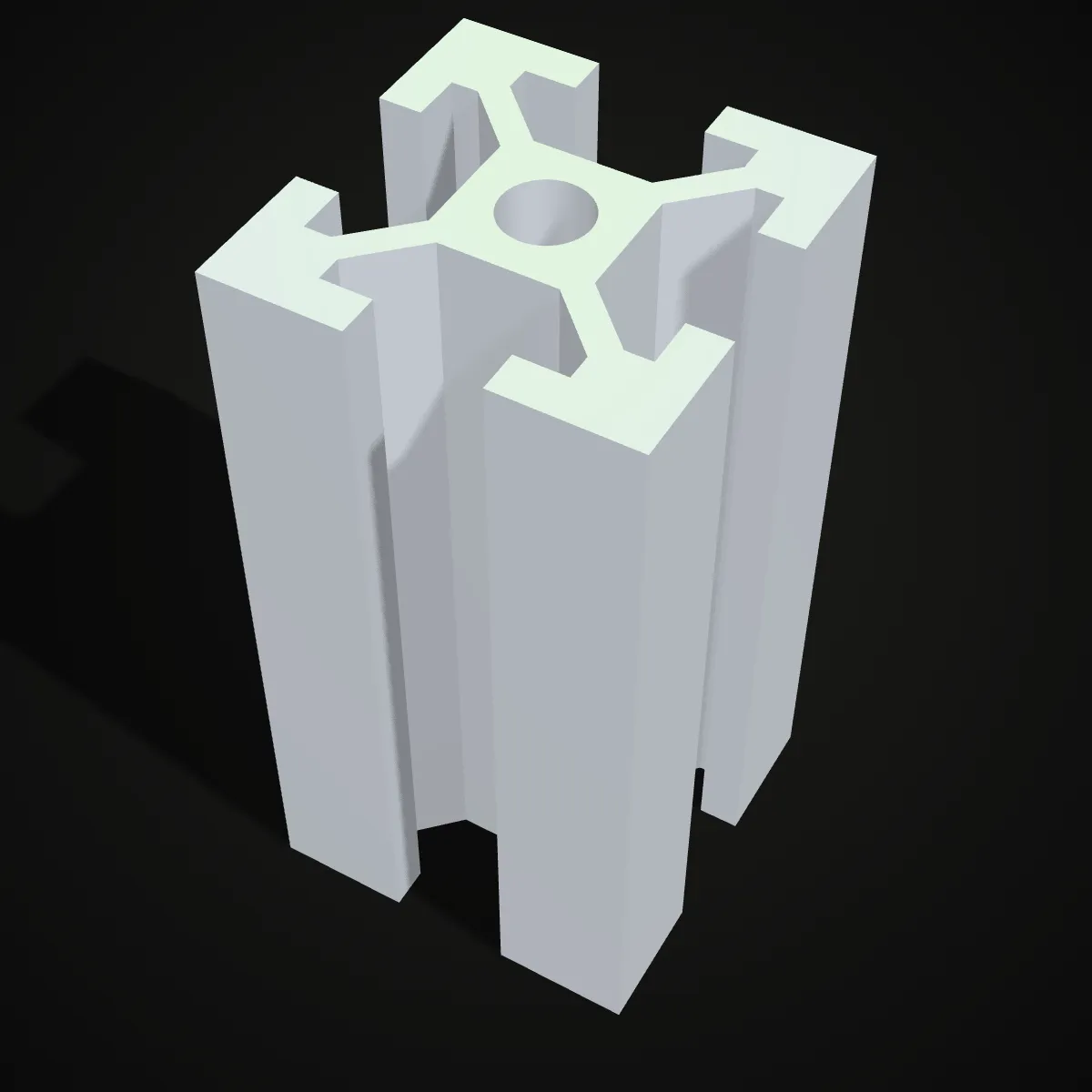
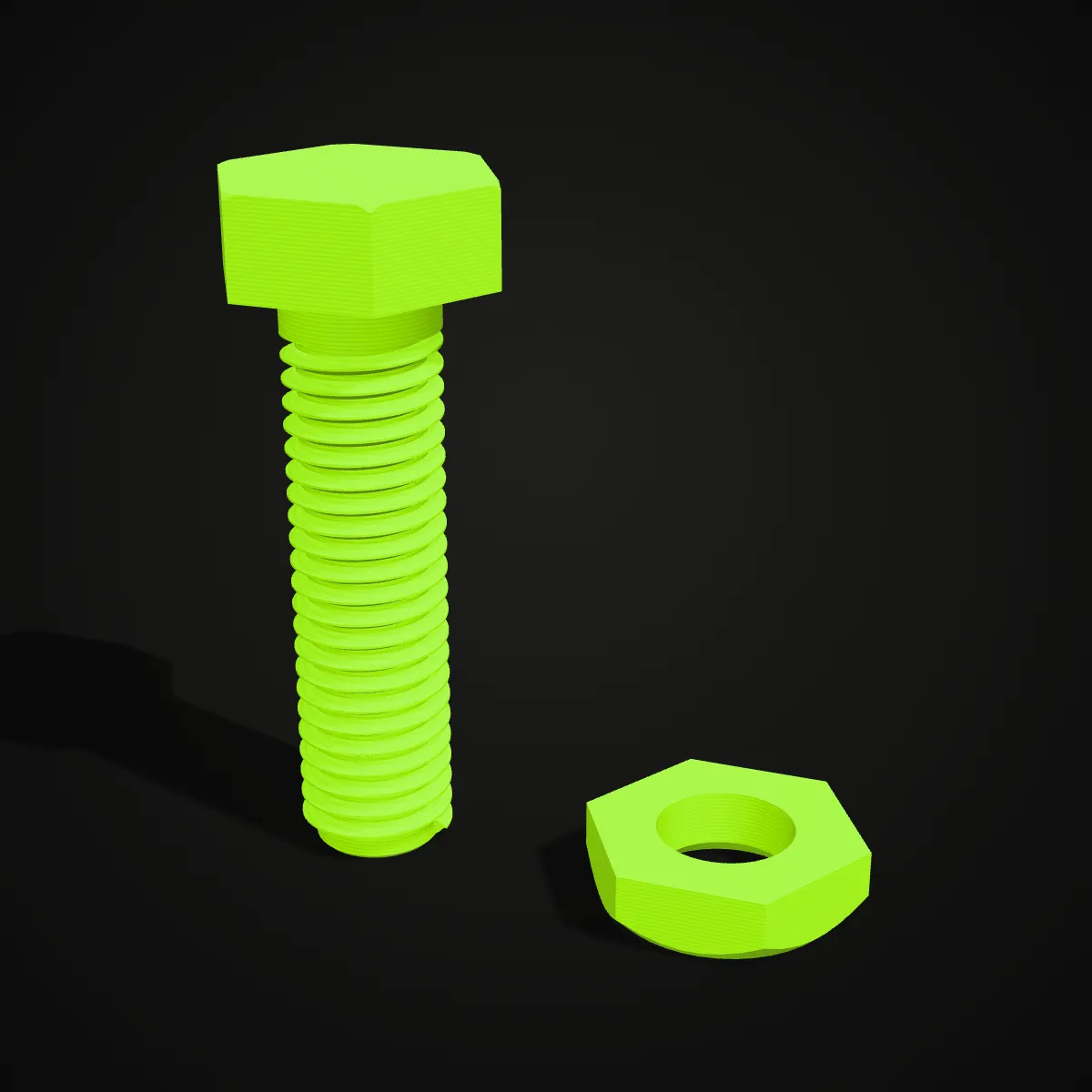
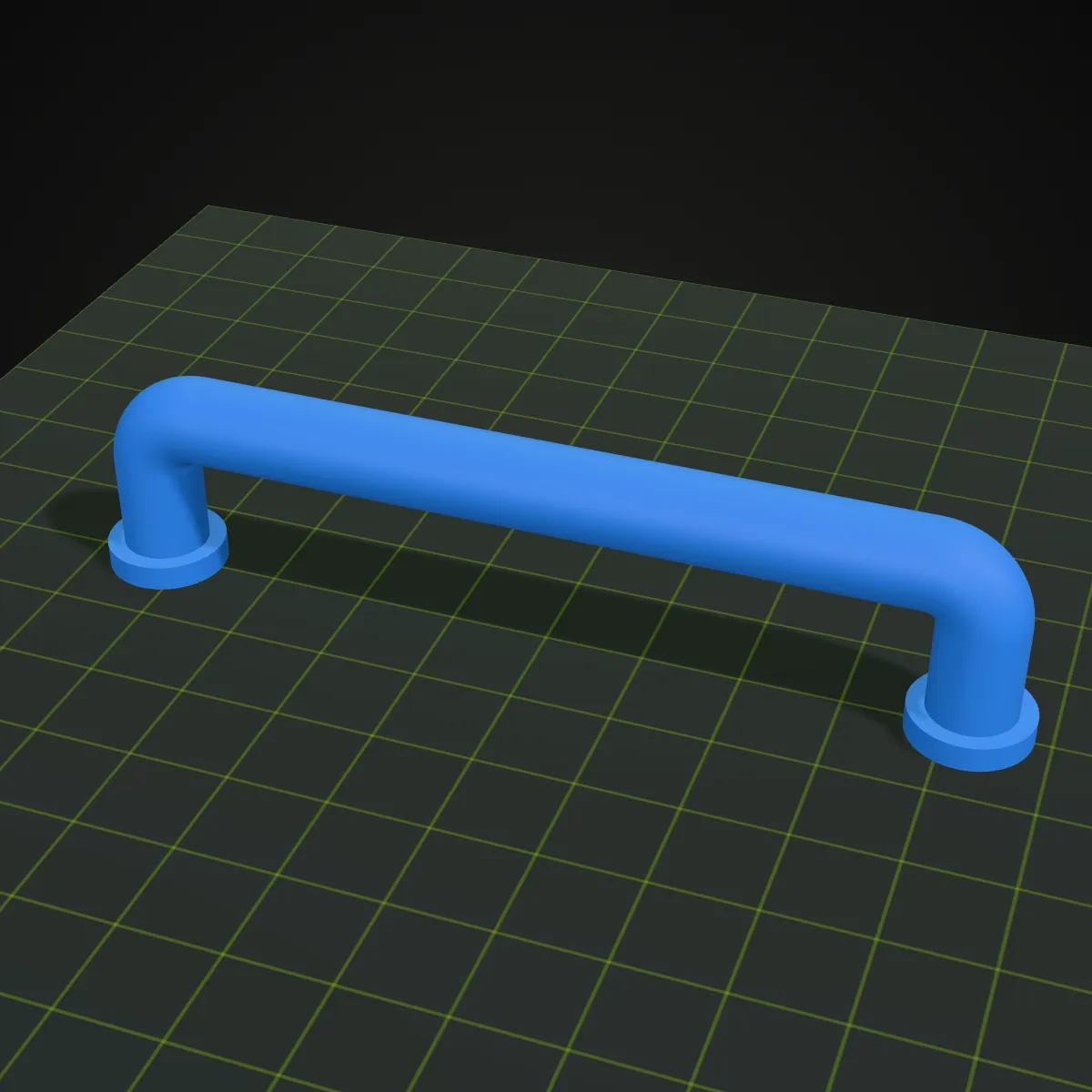
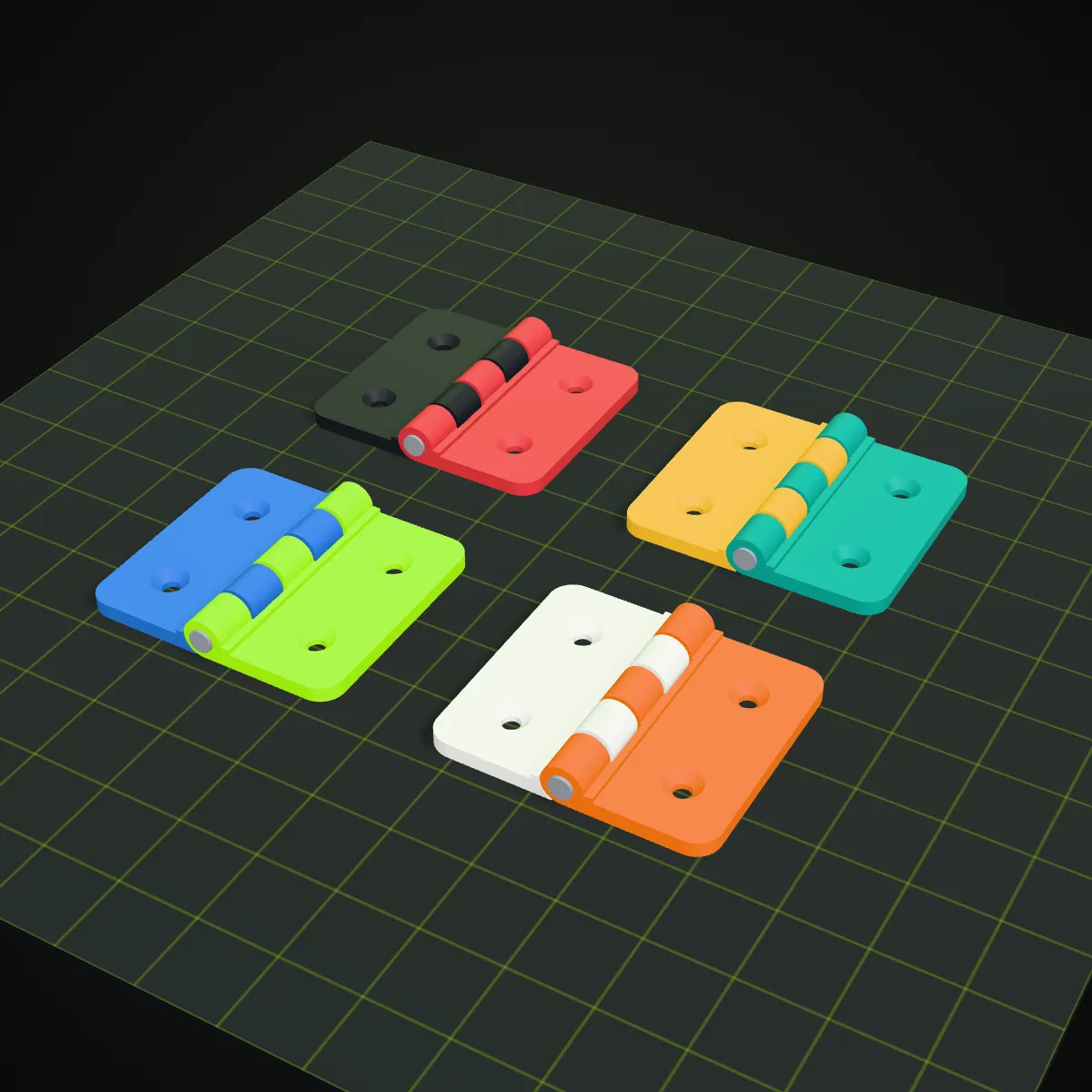
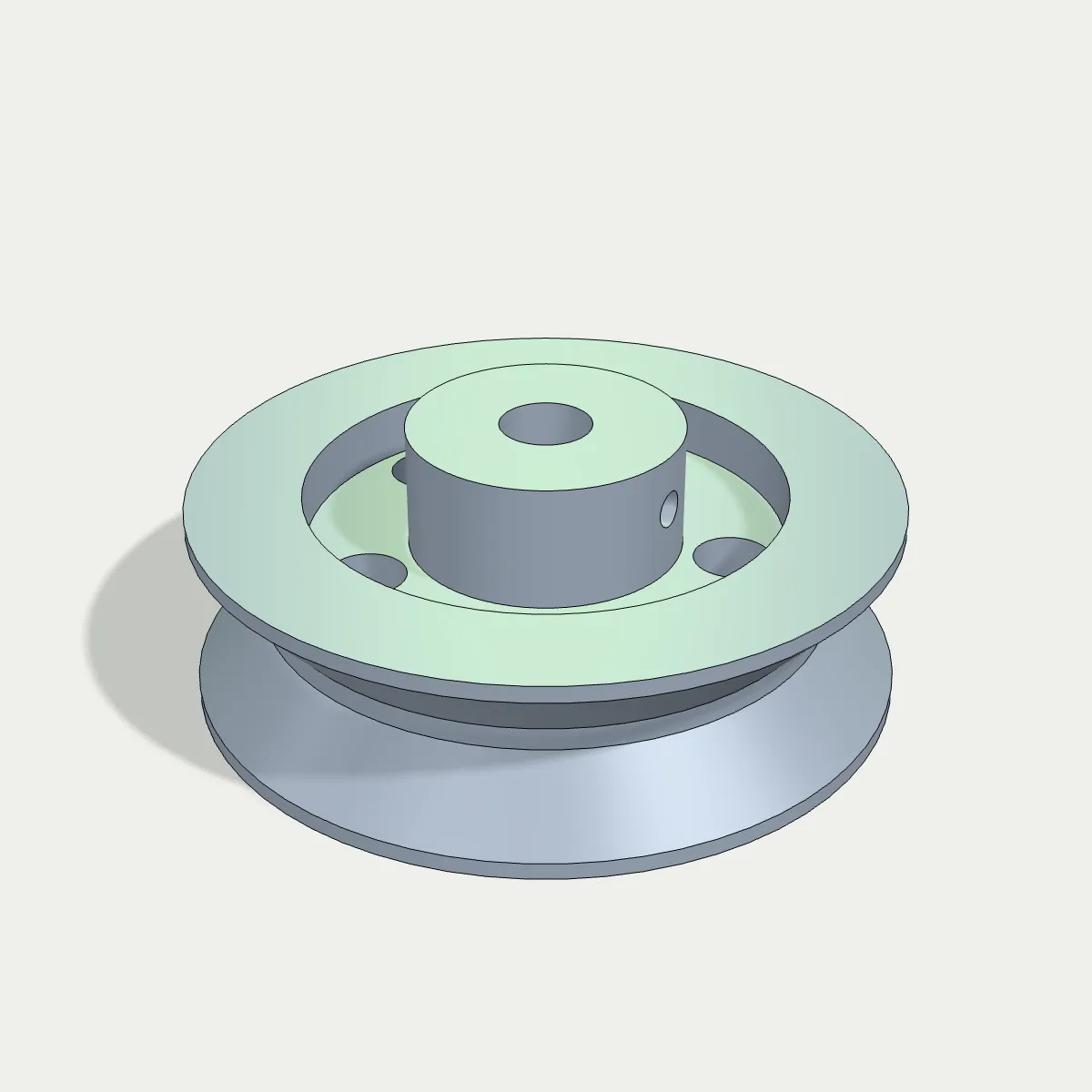
Three parts we modelled in CadQuery and exported as STEP. Load one into the converter with a click, switch between Standard and Fine and compare the triangle counts, or download it to open in your own CAD app.
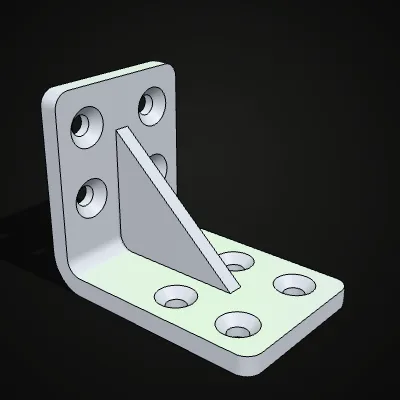
Watch a flange go from STEP to STL
An 11-second screen recording of the real tool: the flange sample is dropped in, meshed at Standard detail and previewed in 3D, then converted. The result line reads flange.stl · 423.6 KB · 8,674 triangles, and the download starts from the same panel. Switch the same part to Fine and you get 28,112 triangles in a 1.3 MB STL, which is the trade-off the Mesh detail control is there for. STP to STL runs the same way, as the engine reads both extensions.
STEP to STL, face by face: smooth surfaces become triangles
Each pair shows one part twice. Left: the STEP model as CAD sees it, with true curved surfaces and crisp edges. Right: the STL after conversion, every face now flat triangles (outlined in green). Flat faces need only a few large triangles, while holes, fillets and gear teeth need many small ones.
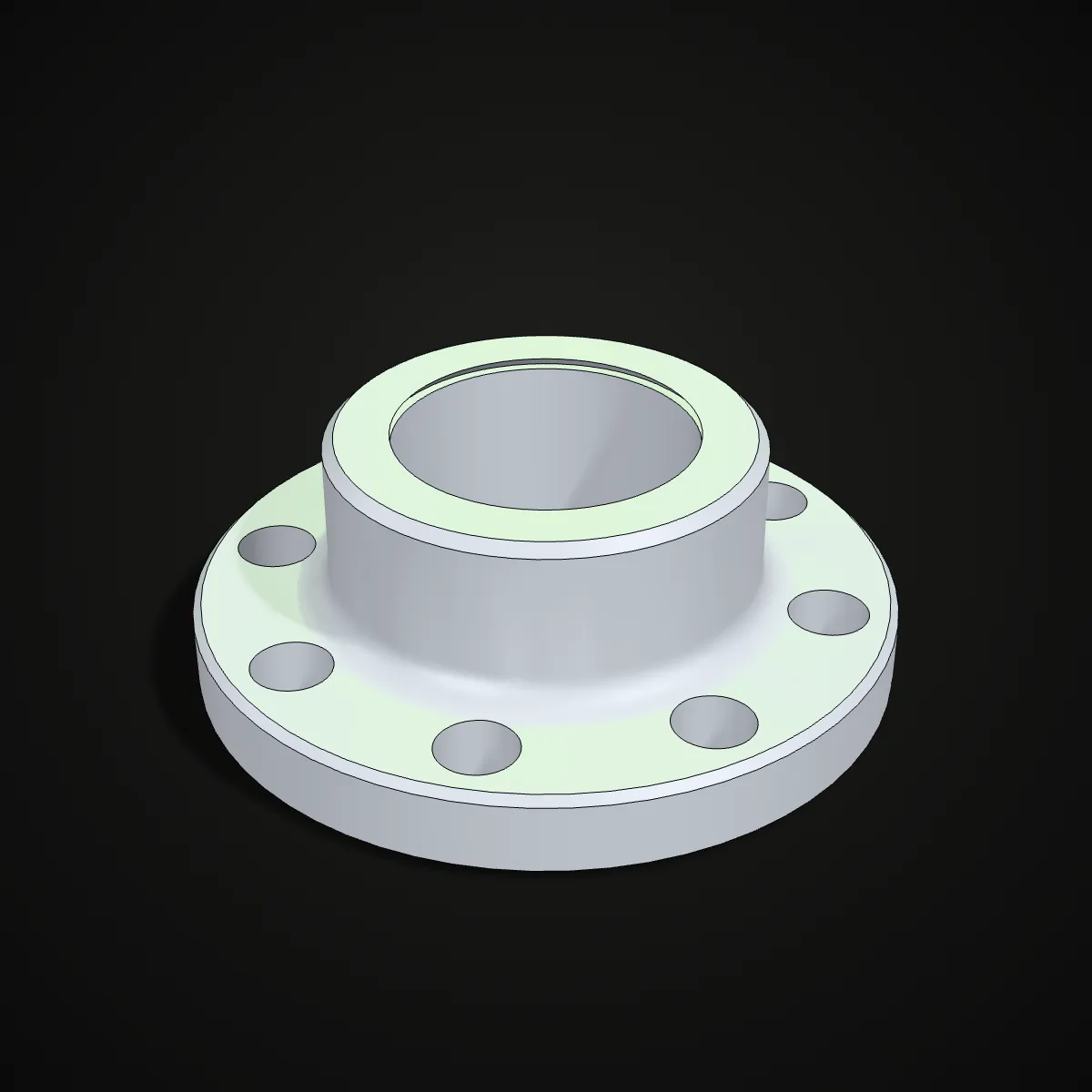
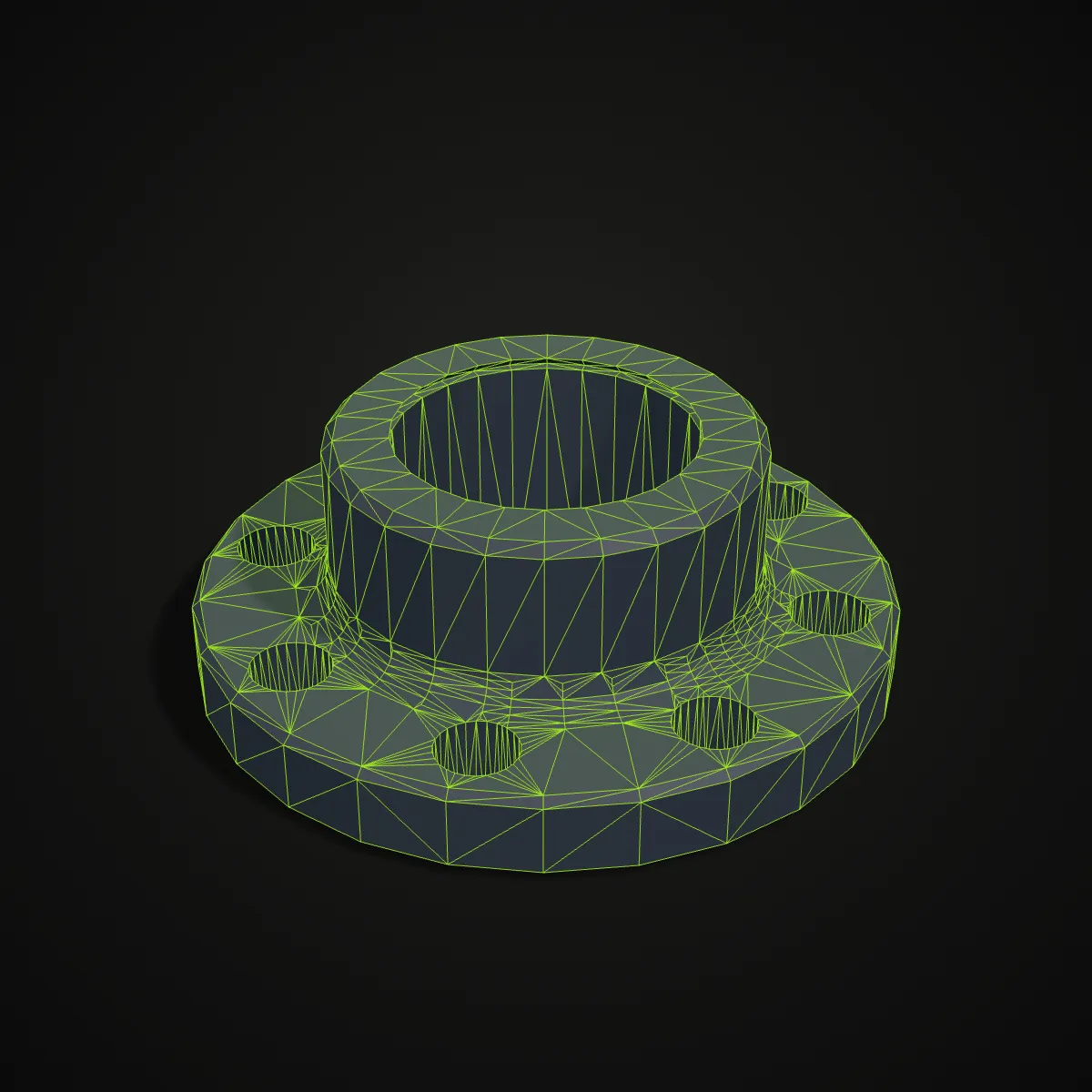
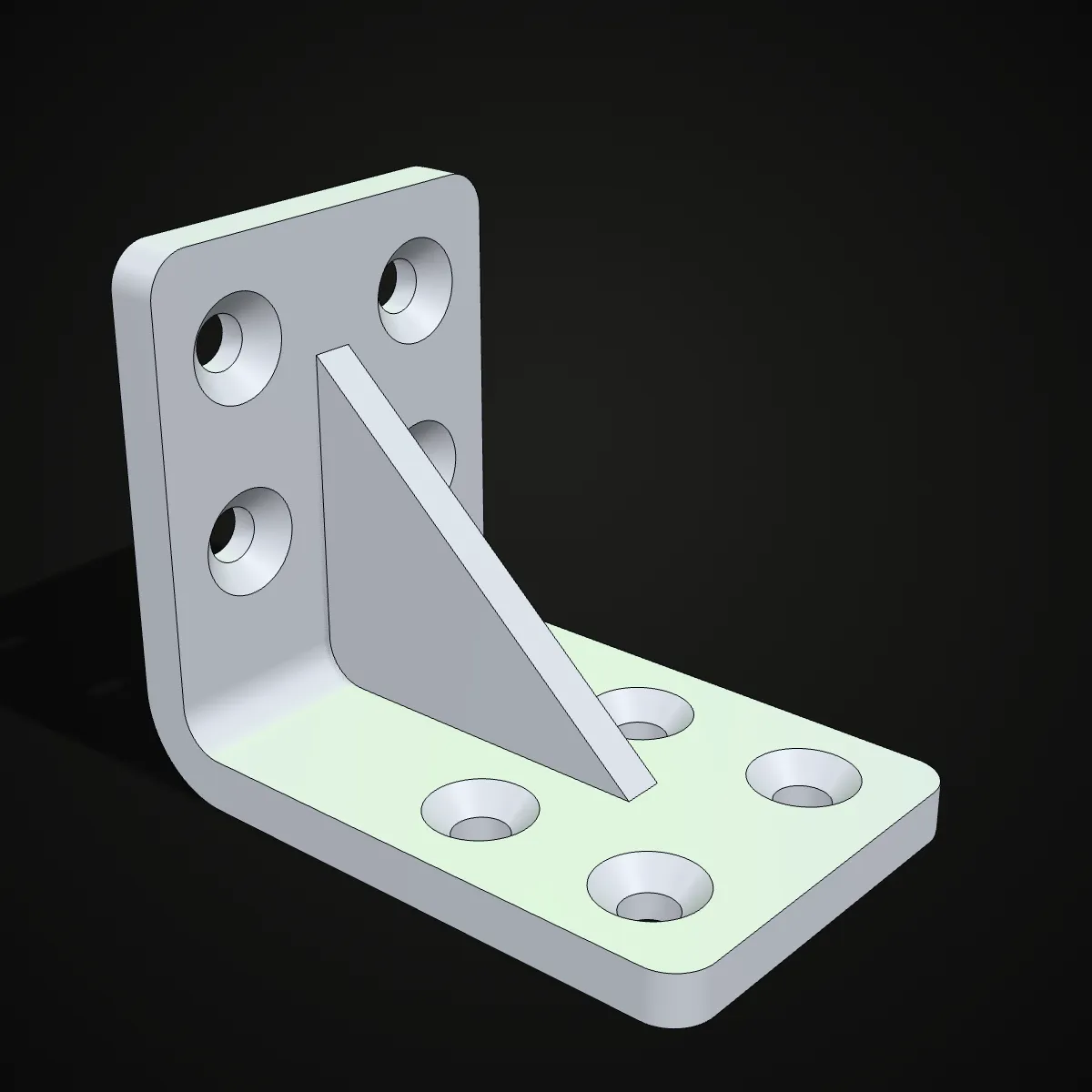
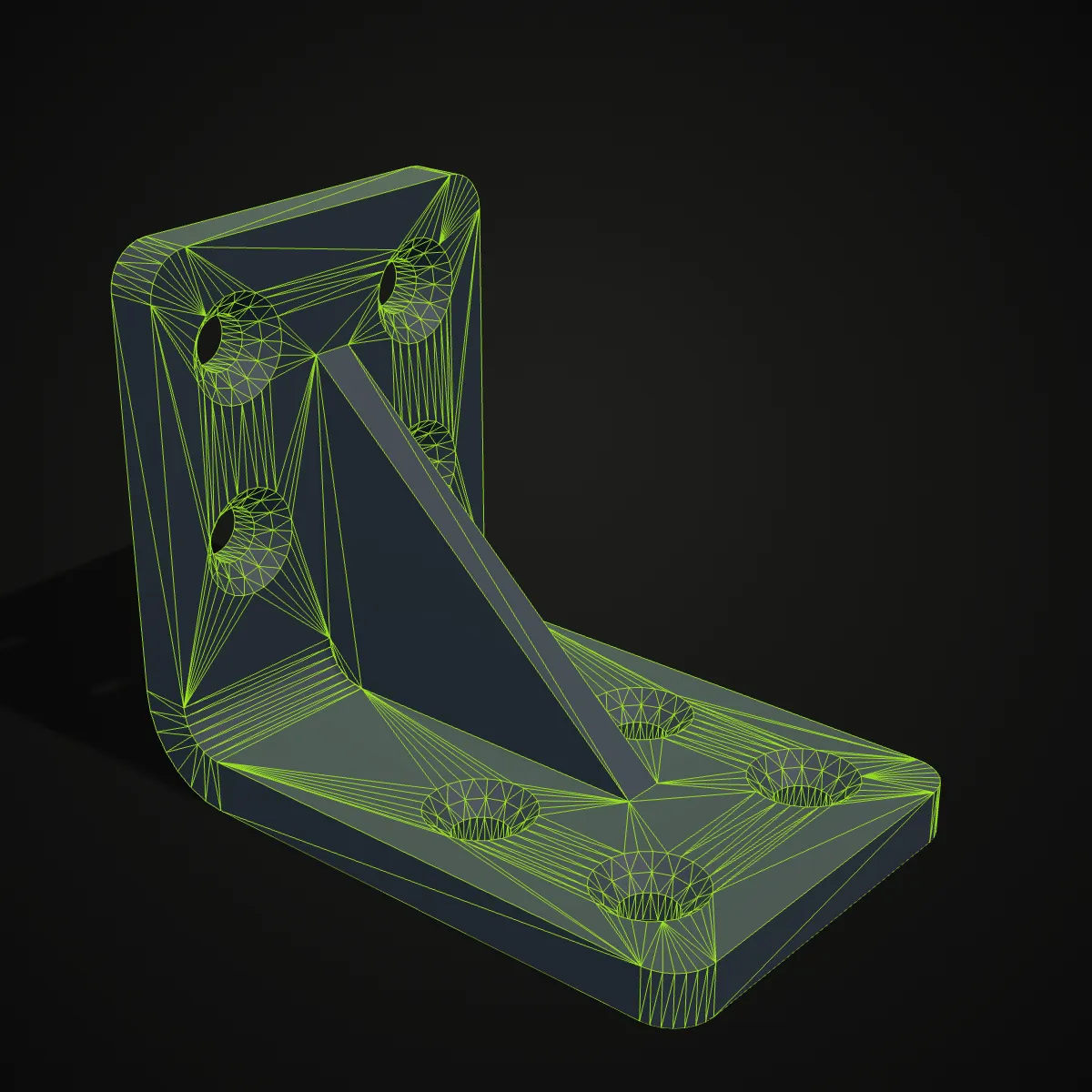
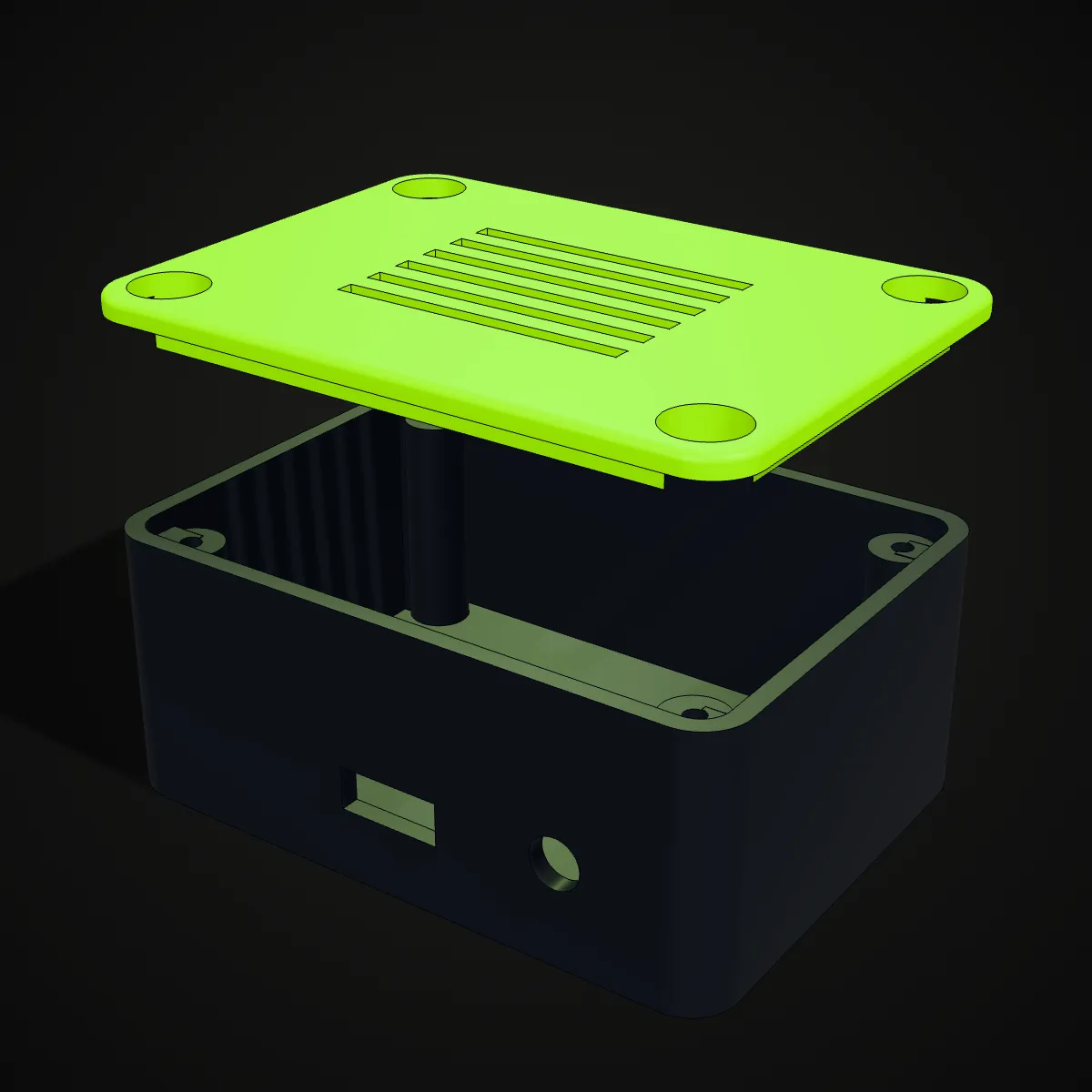
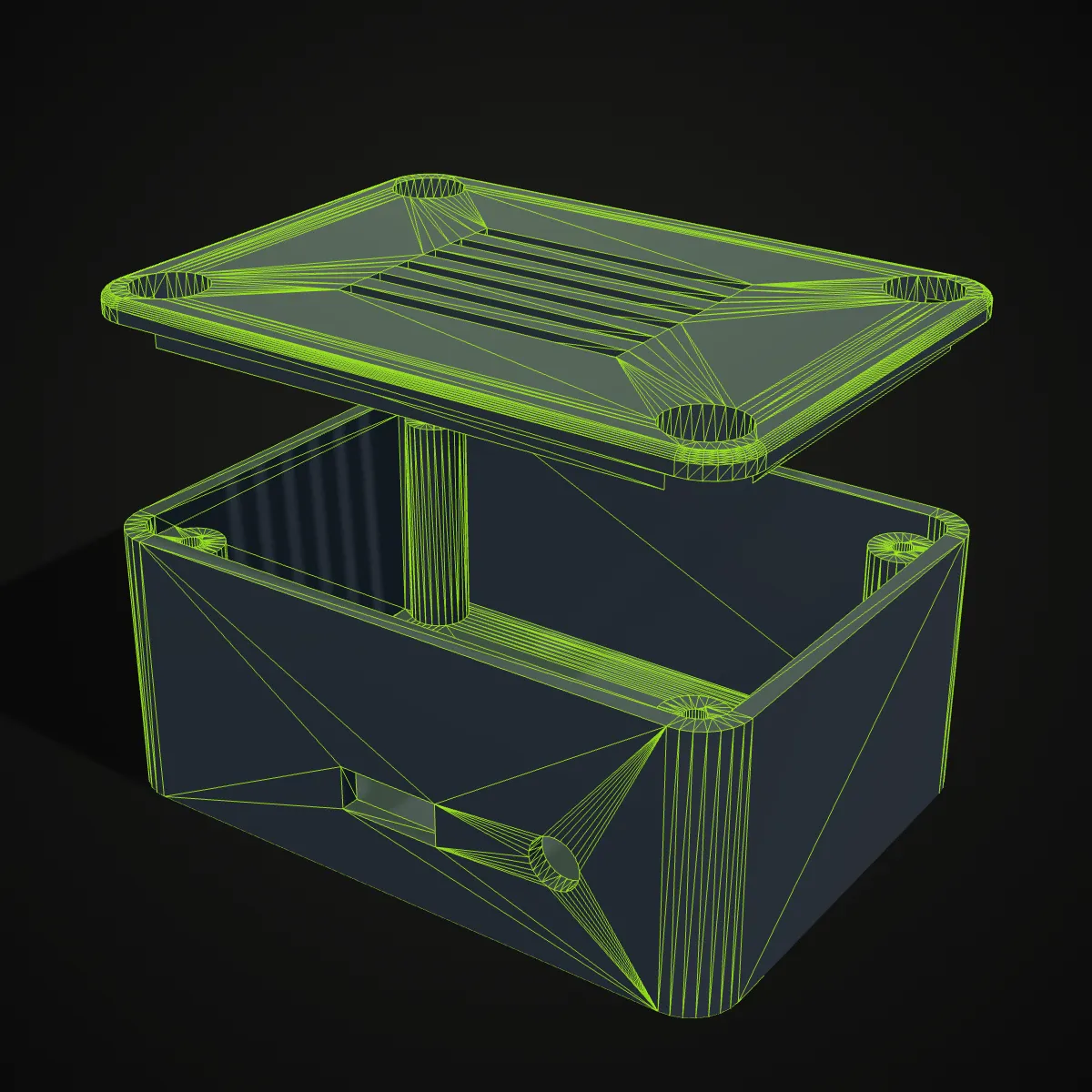
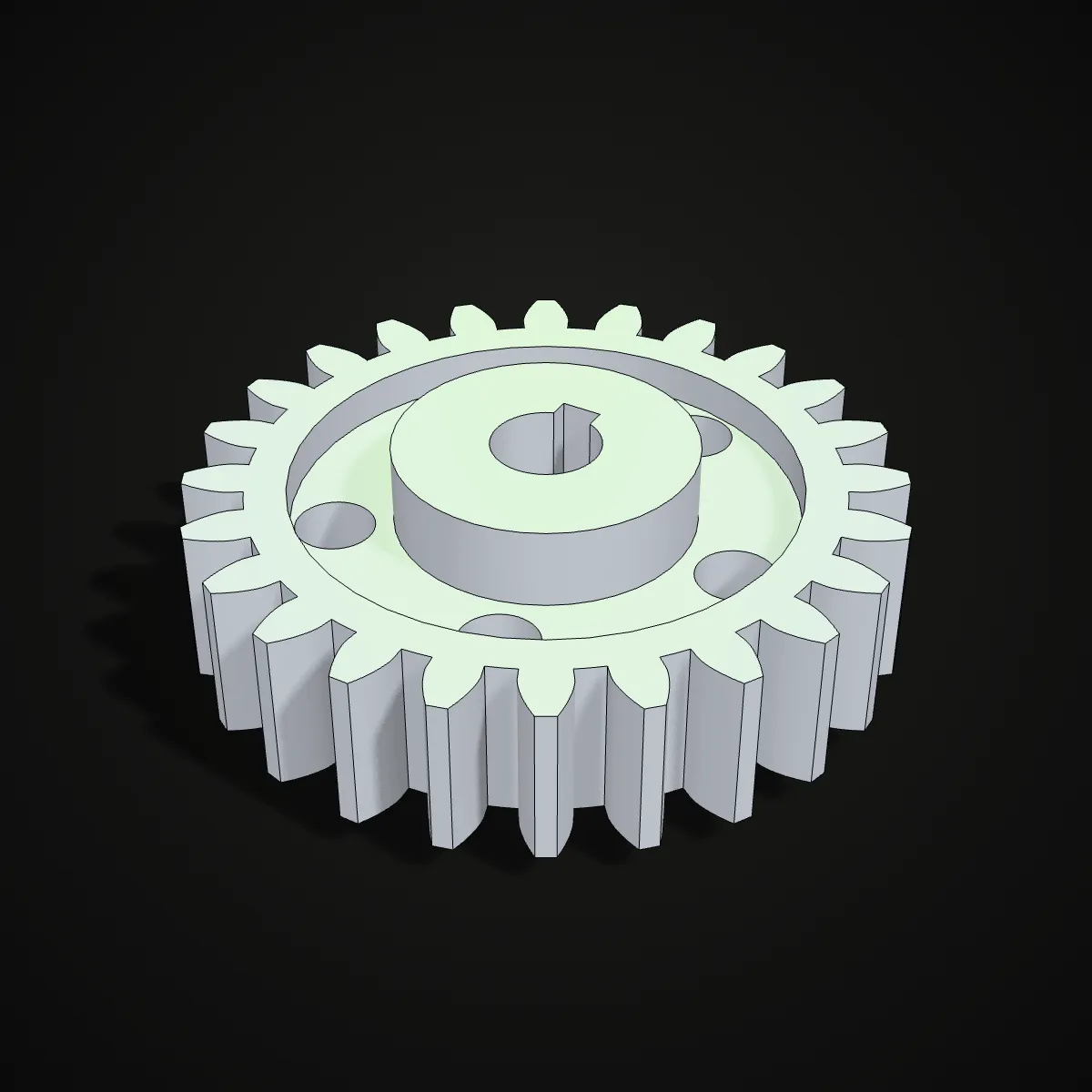
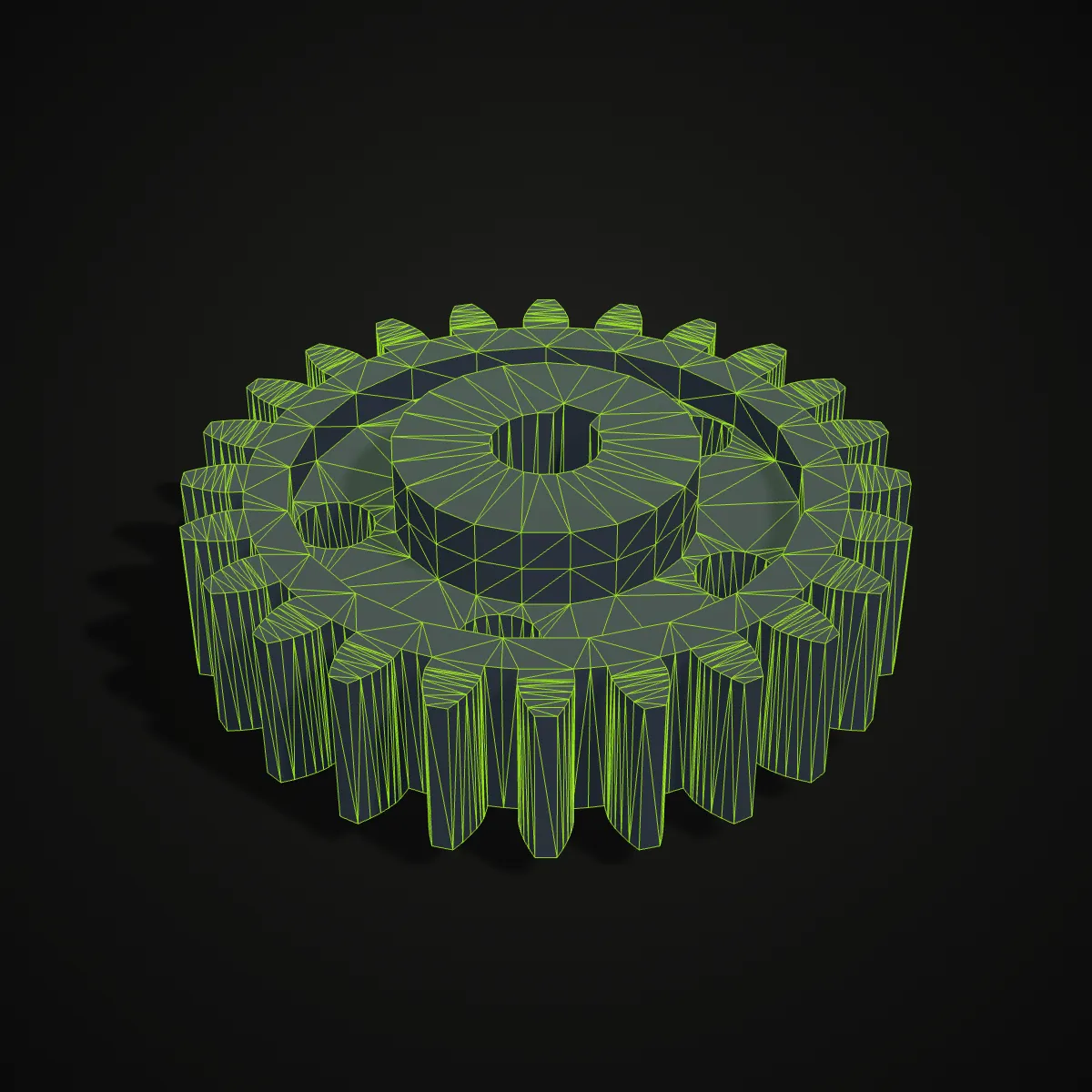
STEP to STL examples: CAD parts after meshing
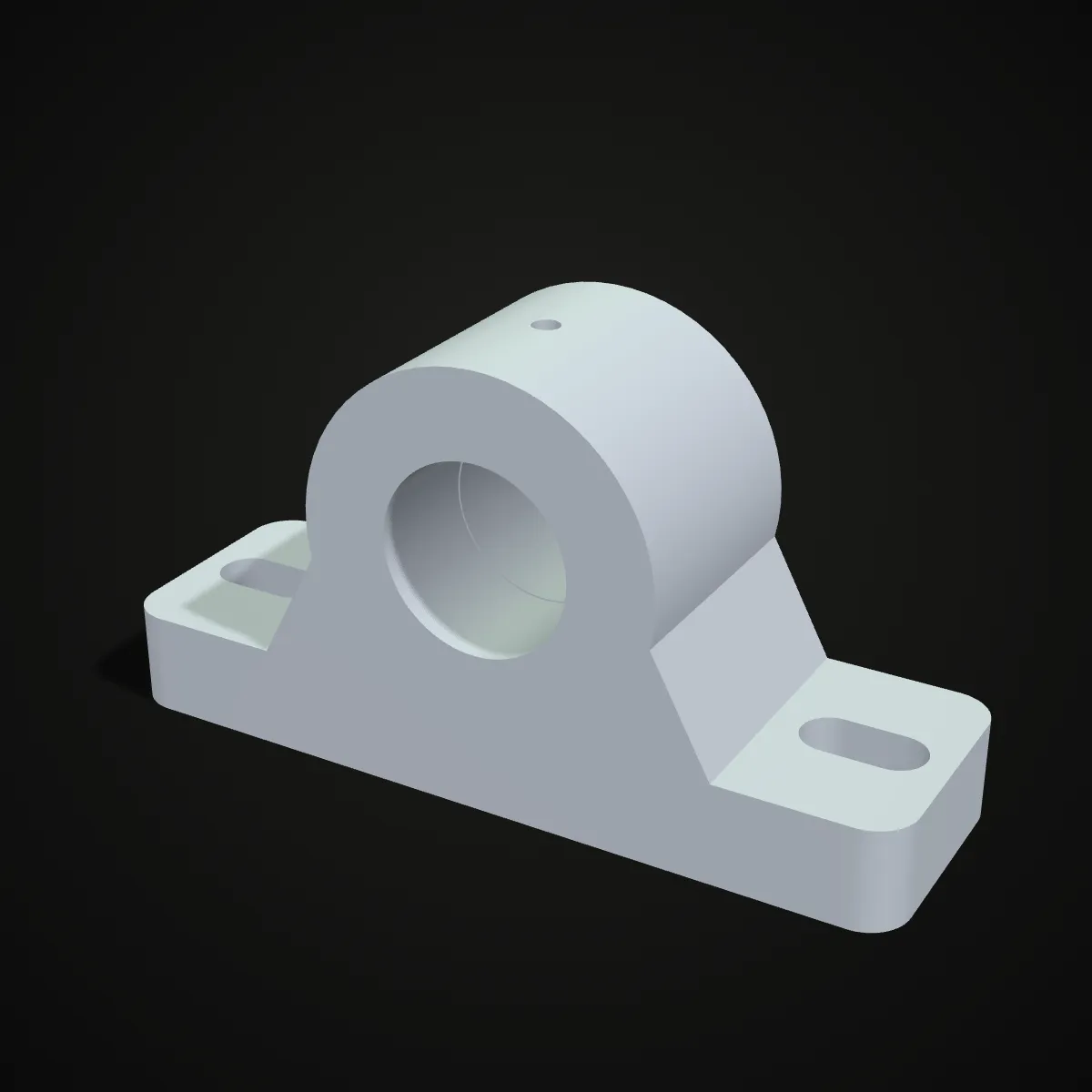
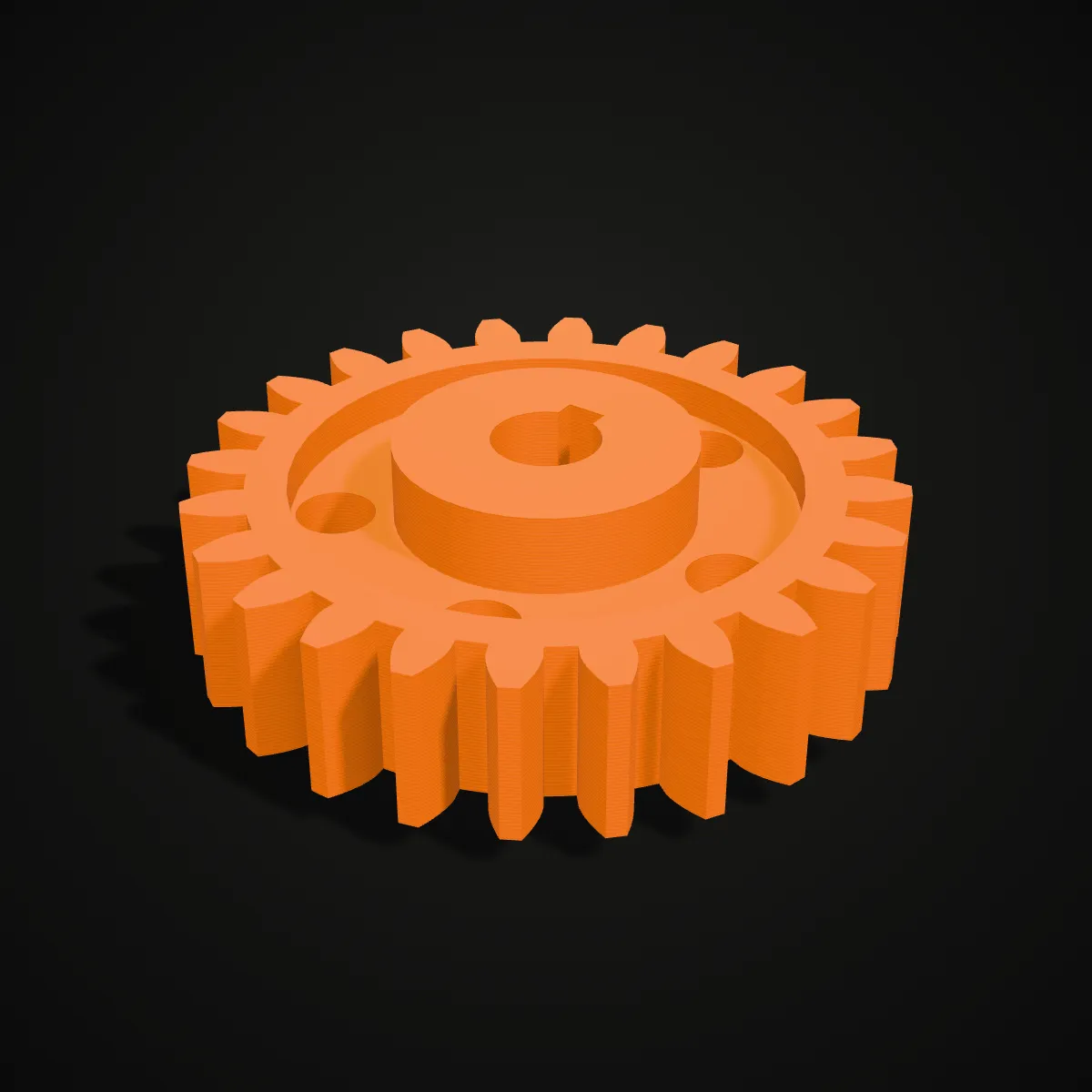
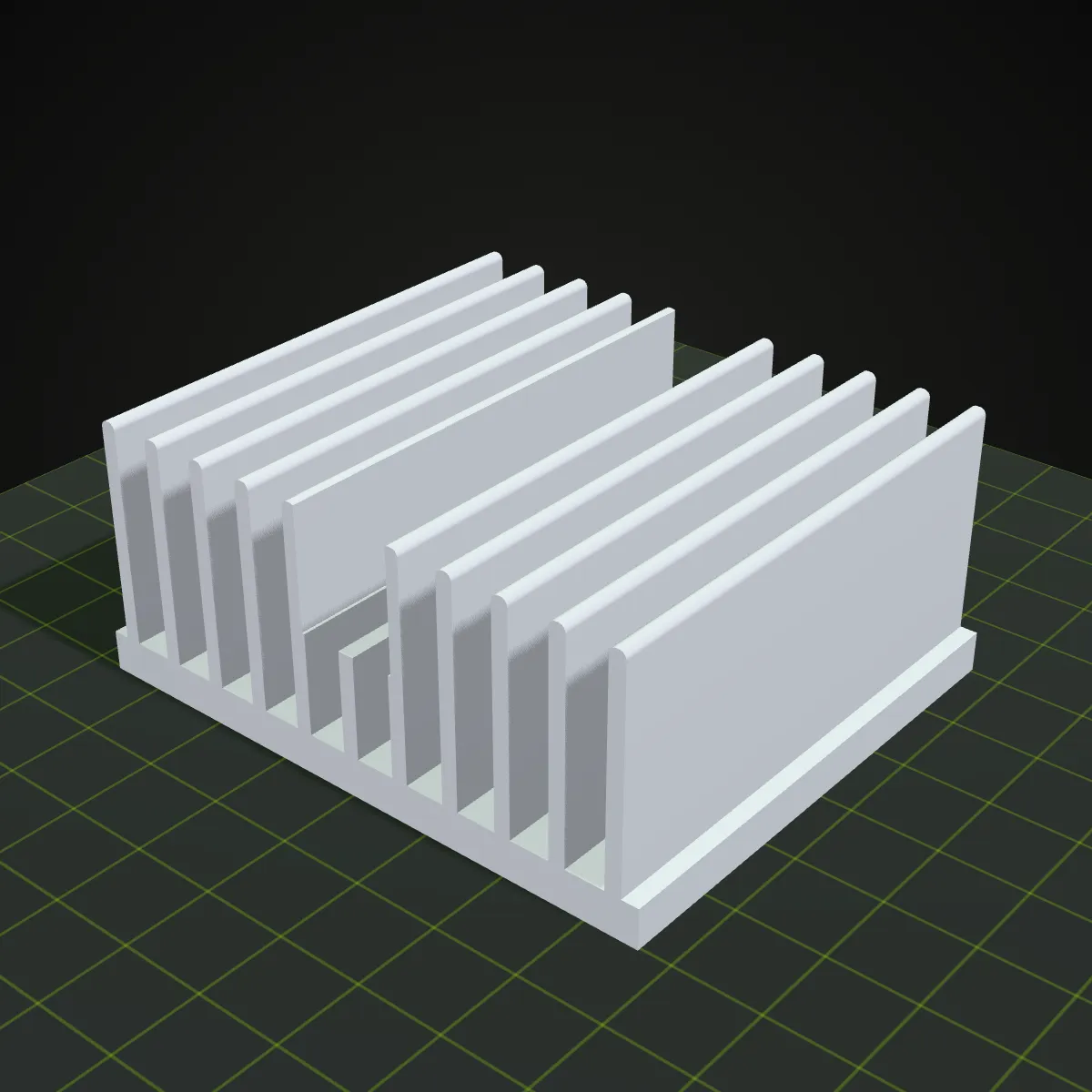
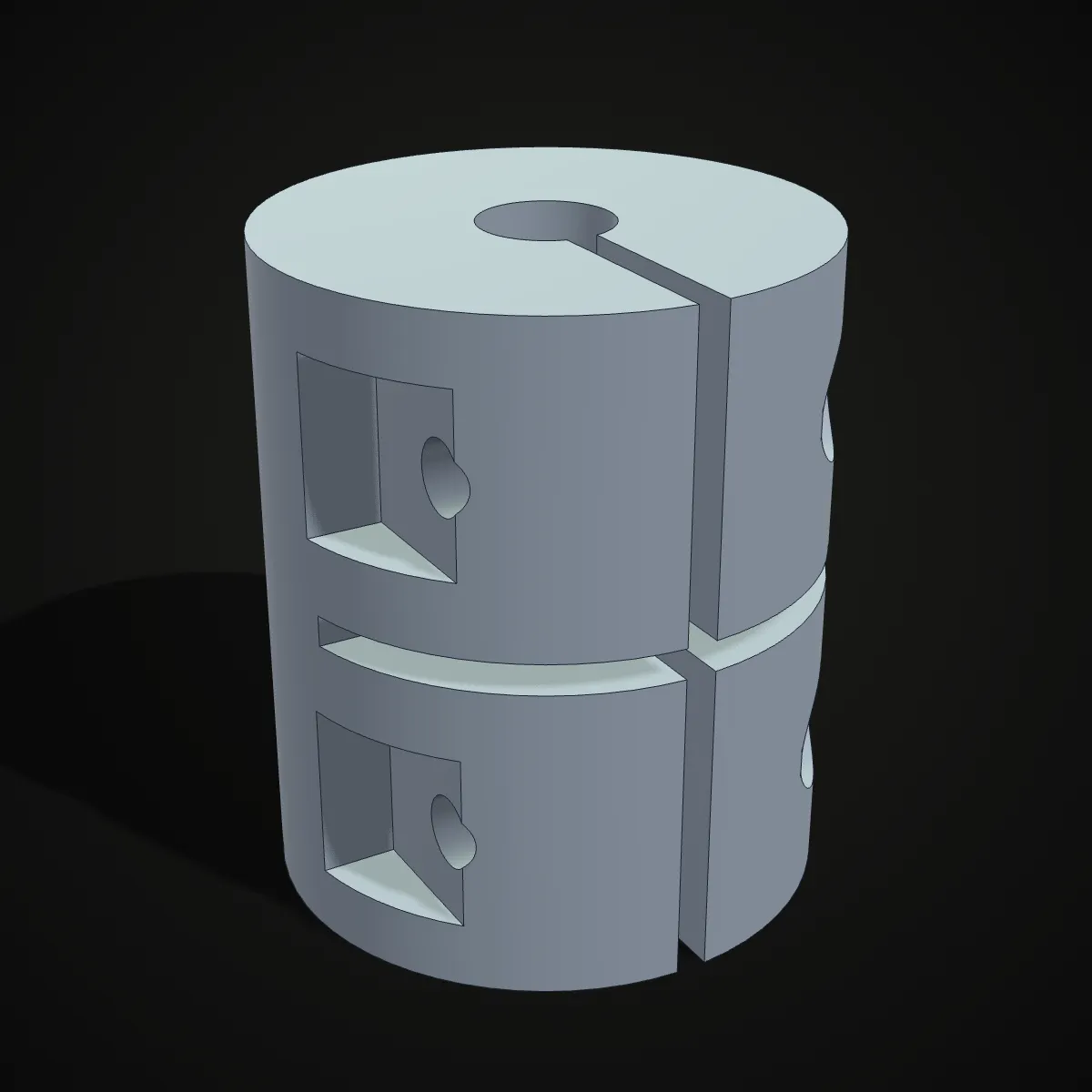
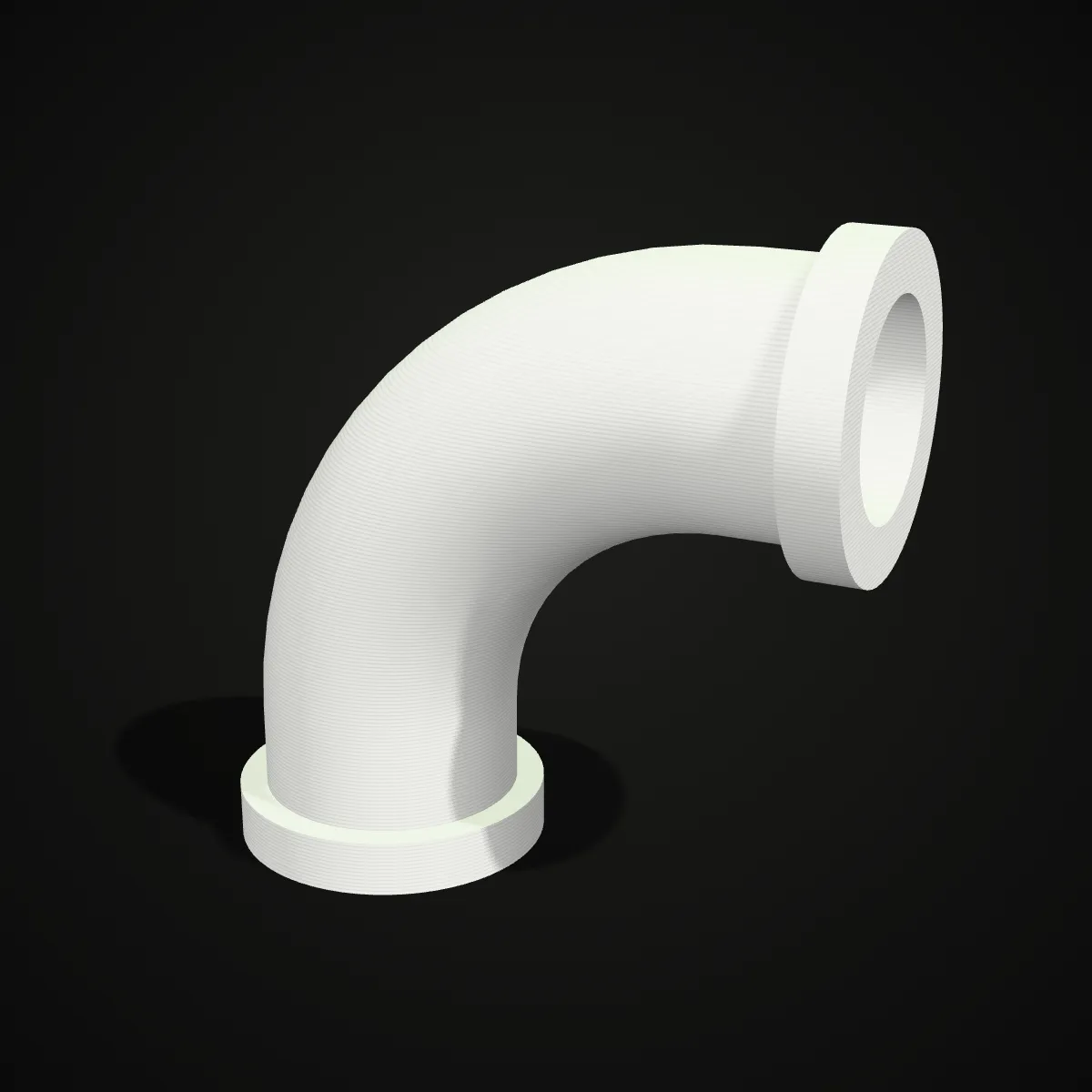
Eight mechanical parts modelled in CadQuery, exported as STEP and meshed to STL, shown as clay or print-style renders. They are typical of what comes through a STEP file to STL conversion cleanly: housings, gears, heatsinks, fittings, profiles and fasteners.
How to convert STEP to STL
- 11
Drop the .step or .stp file
Drag the CAD file onto the converter or click to choose it; IGES (.igs, .iges) is accepted as well. The first CAD file loads the 7 MB STEP engine, which then stays ready for every later file, and a shaded 3D preview appears once meshing finishes.
- 22
Set mesh detail and convert
Leave Mesh detail on Standard for a light file, or pick Fine when round holes, threads and fillets must print smooth. Press Convert to STL; the part is only meshed again if you changed the detail after the preview.
- 33
Download the STL
The result line shows the file name, size and triangle count. Download the binary STL and open it in your slicer: the part is already in millimetres and standing the right way up.
What a STEP to STL conversion keeps and drops
STEP describes exact solids; STL lists triangles and nothing else. This is what happens to each part of your file on the way from .step to STL.
| In the STEP file | In the STL you download |
|---|---|
| Solid geometry (exact surfaces) | Approximated by flat triangles at the detail you chose: Standard splits a full circle into about 25 segments, Fine into about 63 |
| Units | Written in millimetres. A part modelled in inches is converted, so it opens at the right size in a slicer |
| Orientation | CAD Z-up is kept: the part sits on the build plate the way it sat in your CAD view |
| Several bodies or an assembly | Merged into one STL file, each body still in its assembled position |
| Part names and colours | Read and shown in the preview, but STL cannot store them. Convert the same STEP on the STL to 3MF page to keep them |
| Feature history, sketches, parameters | Usually not exported to STEP at all; the STL is a fixed mesh you cannot edit as features |
| PMI, tolerances, GD&T notes | Dropped. Keep the STEP or a drawing for inspection data |
When to convert STEP to STL
Printing a part you designed in CAD
Most CAD tools export STEP as their neutral format. Run the STEP to STL conversion here when your slicer or print farm only takes STL, without installing a converter on a shared or work computer.
Parts from supplier catalogues
Bearing, connector and fastener makers often publish STEP models. Turn one into an STL and print a fit-check dummy before you order the real component.
Sending a model to someone without CAD
A print shop, a client or a friend with a printer can open STL in any slicer. Send them the mesh and keep the STEP master to yourself.
Old IGES files
Older projects and some machine vendors still hand out IGES. The same engine reads .igs and .iges, so they become STL files exactly the same way.
STEP to STL questions
Drop the .step or .stp file on the converter above, choose Standard or Fine mesh detail, press Convert to STL and download the result. It runs in your browser, costs nothing and needs no account.
There is none: .stp and .step are two extensions for the same ISO 10303 STEP format, and some programs simply default to the three-letter one. Both open here, so STP to STL works exactly like .step to STL.
Yes, a little: STL can only approximate curves with flat triangles, so round holes and fillets become faceted. Fine mesh detail keeps that error small. On our flange sample, Standard gives 8,674 triangles (424 KB) and Fine 28,112 triangles (1.3 MB). Standard suits most FDM prints; use Fine for resin, threads and press fits.
Not without meshing it first: a printer runs G-code from a slicer, and slicers work on triangle meshes. Some slicers, such as PrusaSlicer and Bambu Studio, import STEP and mesh it themselves; for any other slicer, convert the STEP file to STL here first.
Every body is merged into one STL in its assembled position, and names and colours are lost because STL cannot store them. To keep each part separate with its name and colour, convert the STEP on the STL to 3MF page instead; it accepts STEP files too.
Not with this tool, and no converter can bring the original features back: a mesh saved as STEP is still a set of triangles, not real cylinders and fillets. Keep your STEP master and export a fresh STL whenever the design changes.
Related tools




Need a model that is not in CAD?
Turn a photo or a text prompt into a 3D model with Ship3D’s AI generator, then download it as STL.
Free to sign up, no credit card required. Try it once for free.